iPhone guide

Getting around Snappier IPTV on iPhone

Captured from the iPhone app

Tab bar at the bottom, tools at the top, and long-press for everything else.

On iPhone, Snappier IPTV puts the main areas in a tab bar at the bottom of the screen: Home, Live TV, Movies, Series, and Favourites. Search, Settings, and a More (…) menu sit at the top of Home. Most per-item actions, such as favouriting, hiding, and fixing metadata, are in long-press menus.

Screenshots were captured from the iPhone app in October 2026. Playlist names, account details, and viewing history are redacted, and posters, artwork, video, and channel logos are replaced with generated placeholder artwork. Some features need a premium subscription or Snappier Server; this guide says so where that applies.
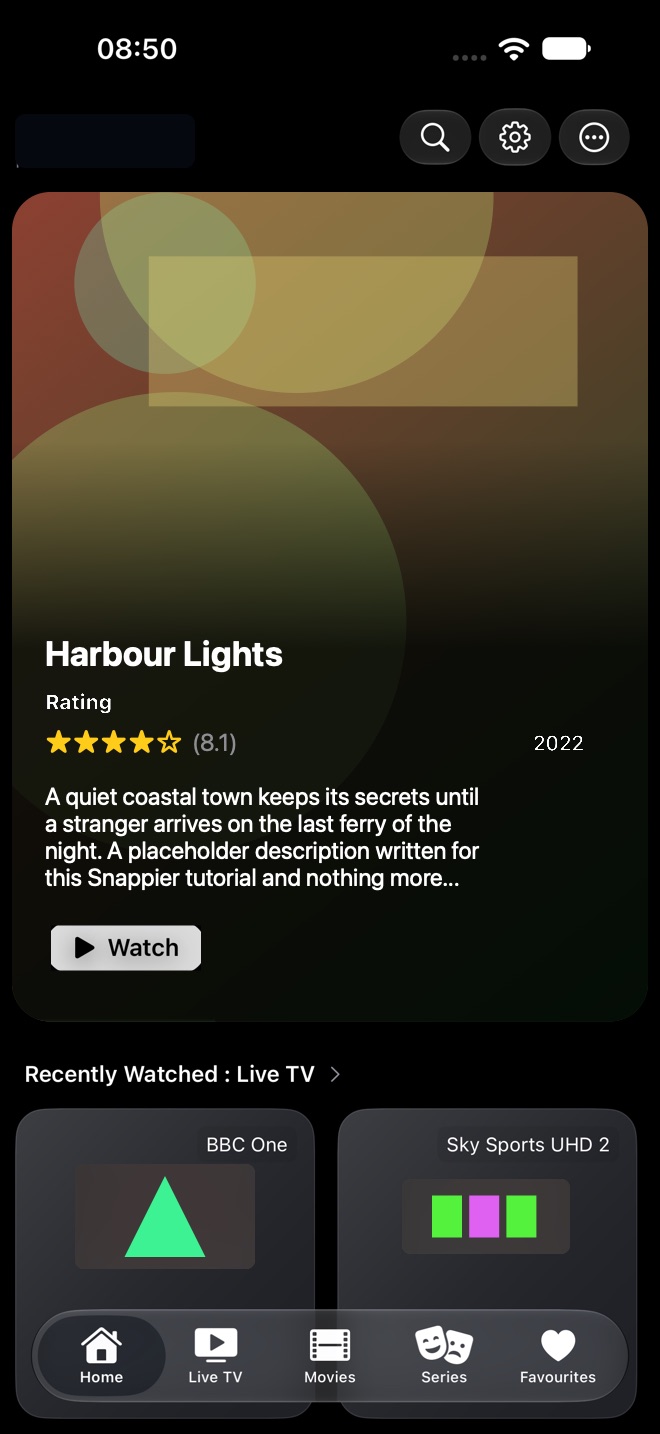
Snappier IPTV Home screen on iPhone with Search, Settings and More buttons at the top, a featured title, and the tab bar at the bottom.
Home: Search, Settings, and More at the top; the tab bar at the bottom.

Quick start

The basic iPhone flow

  1. Choose a tab. Tap Home, Live TV, Movies, Series, or Favourites in the tab bar at the bottom.
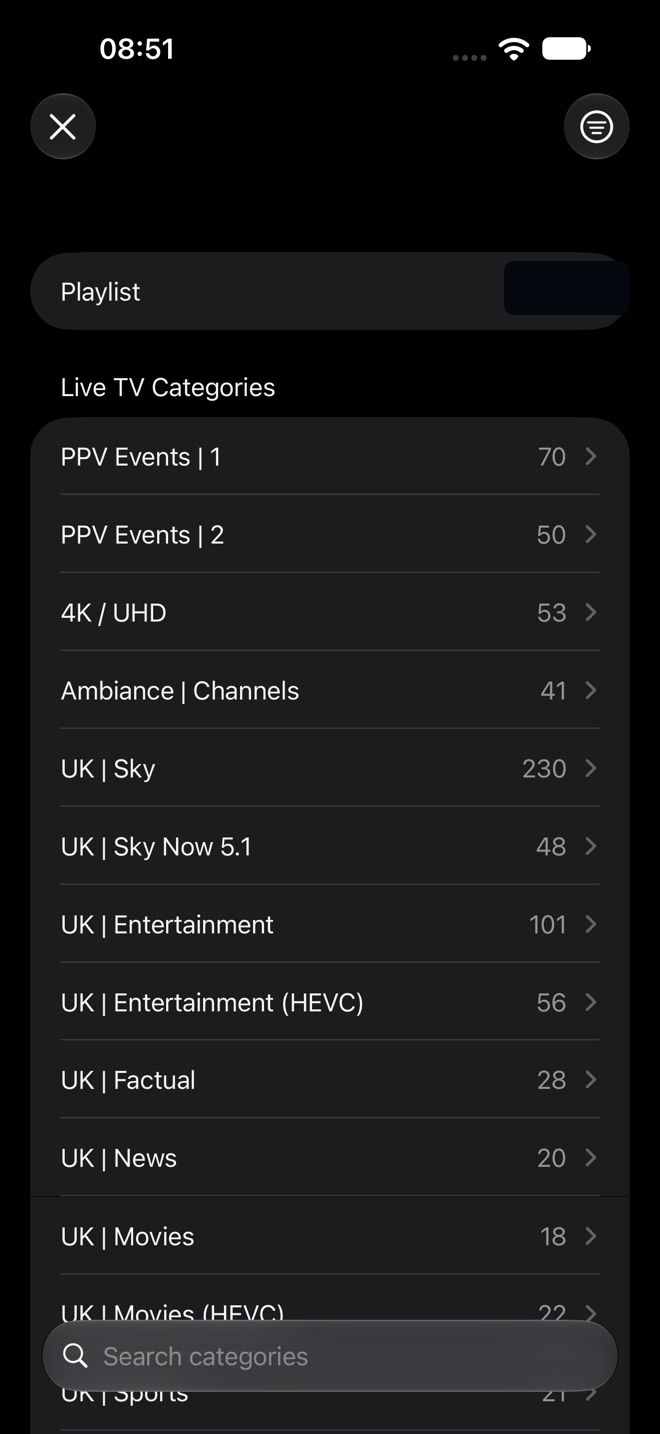
  2. Pick a category. In Live TV, Movies, and Series, tap the round green button above the tab bar to open the categories list.
  3. Tap to play. Tap a channel to play it, or a poster to open its details.
  4. Long-press for options. Press and hold a channel, poster, or Home row item for favourites, hiding, catch-up, and more.
  5. Use the More (…) menu. At the top right of each tab: layouts, downloads, category locks, and tab options.
  6. Search and settings. Tap the magnifying glass or the gear at the top of Home.

Touch gestures

What tapping, holding, and swiping do

The same gesture can mean different things on different screens. This is the full list.

Long-press

Channels, posters, Home row items, categories, search results, downloads, and profiles all have a long-press menu. Long-pressing a movie's Play button or an episode gives extra playback and download options.

Tap a channel

Plays it full screen. If Settings > Live TV > Grid View: Show Live Preview is on, the first tap previews inside the tile and a second tap goes full screen.

In the player

Tap to show or hide the controls. With the controls hidden, swipe left or right to change channel (Live TV) or skip (movies and episodes). Double-tap the left or right half to skip back 15 or forward 30 seconds in movies and episodes.

Optional player gestures

Turn on Swipe to Change Volume (left side) and Swipe to Change Brightness (right side) in Settings > Playback > Video. Swipe to Last Channel makes a sideways swipe jump between your two most recent channels.

Pull to refresh

On Home only, and only when Settings > Home Screen > Pull to Refresh is on. It updates the playlist, and the TV Guide too if Update on Pull to Refresh is on.

Skip times

Double-tap skip lengths are set in Settings > Playback > Video > Skip Backwards and Skip Forwards.

Home

Start from recommendations and recent activity

Home shows the active playlist and profile at the top left, a featured title with a Watch button, and rows such as Recently Watched: Live TV, favourites, Continue Watching, Recently Added, Trending, and TMDB lists.

  • Tap Watch to play the featured title.
  • Long-press a movie or series in a row to add or remove a favourite, mark it watched or unwatched, drop it, hide it, or fix its metadata.
  • Long-press a channel in a row to favourite it, hide it, or play it in the VLC app (premium).
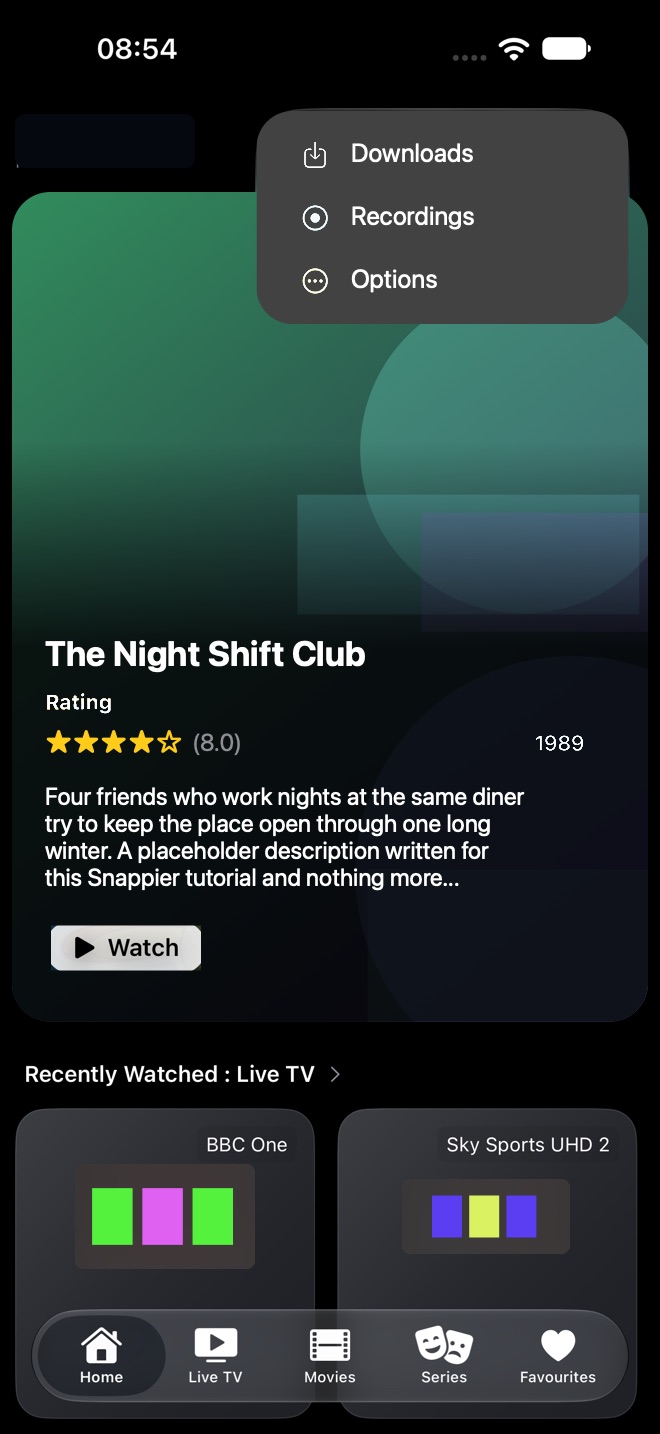
  • The More (…) menu has Downloads and Recordings (premium), your media centre libraries if connected, and Options.
  • Options chooses which rows appear: favourites, recently watched, continue watching, recently added, pinned teams and categories, Trakt rows, Trending, and TMDB lists. It also lets you switch profile and playlist.
  • Settings > Home Screen sets the section order and which rows are shown.
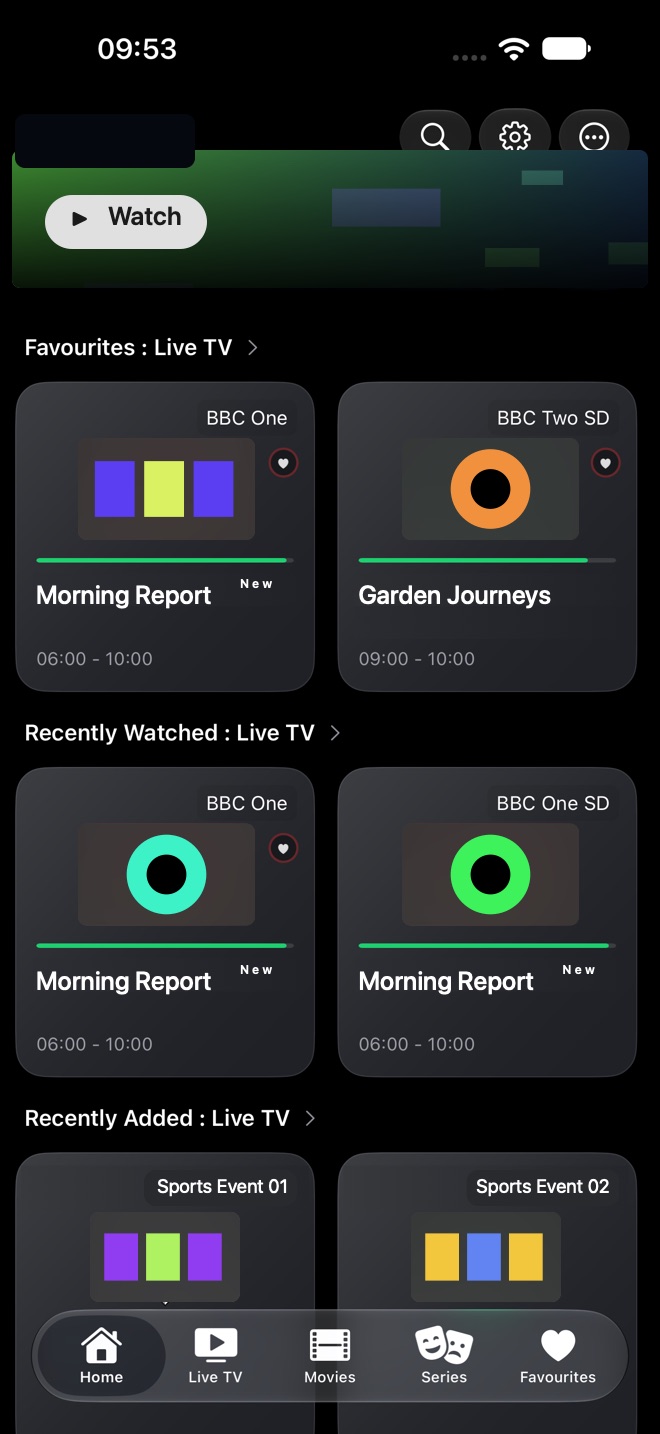
Home rows for Favourites: Live TV and Recently Watched: Live TV, with each tile showing what is on now.
Home rows, with what is on now on each channel.
Home screen with the More menu open showing Downloads, Recordings, and Options.
The More menu on Home.

Live TV

Browse, preview, and manage channels

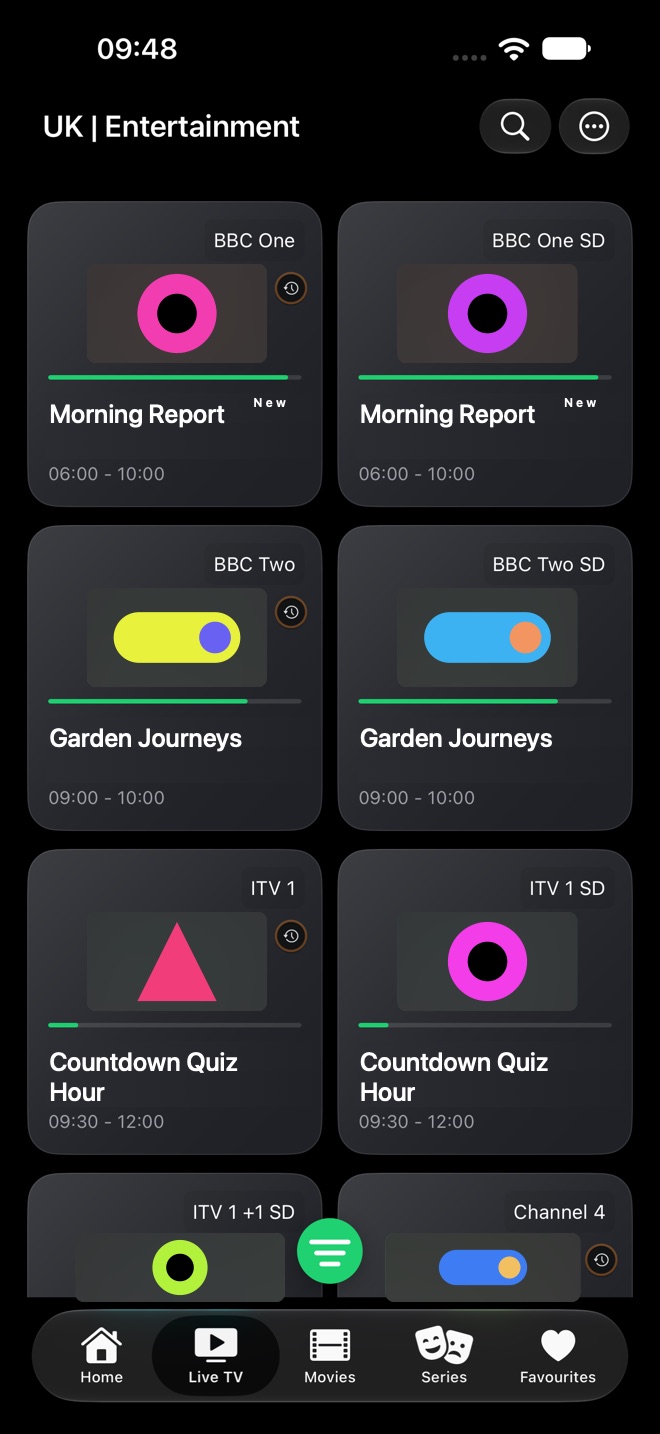
Live TV shows the channels in the current category, with the category name at the top. Each tile shows the programme on now, a progress bar, and its start and end times. Tap the round green button to change category; long-press a category there to hide or rename it.

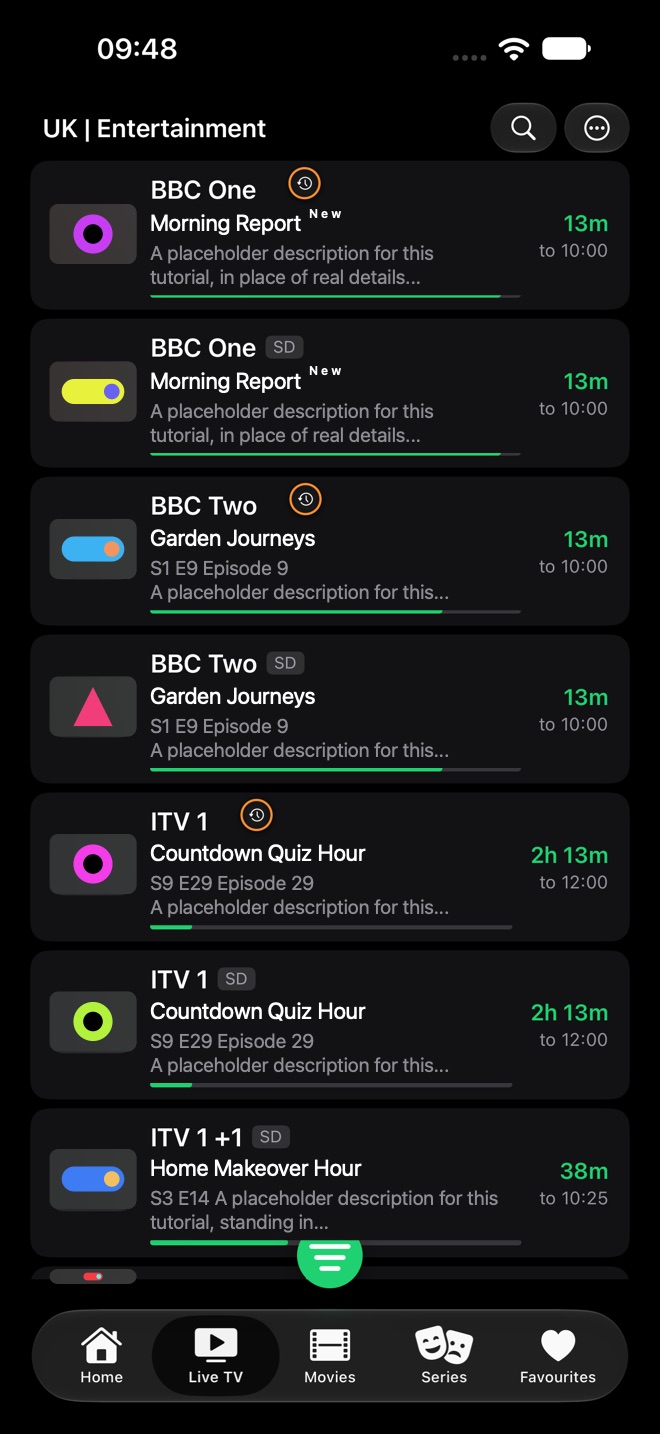
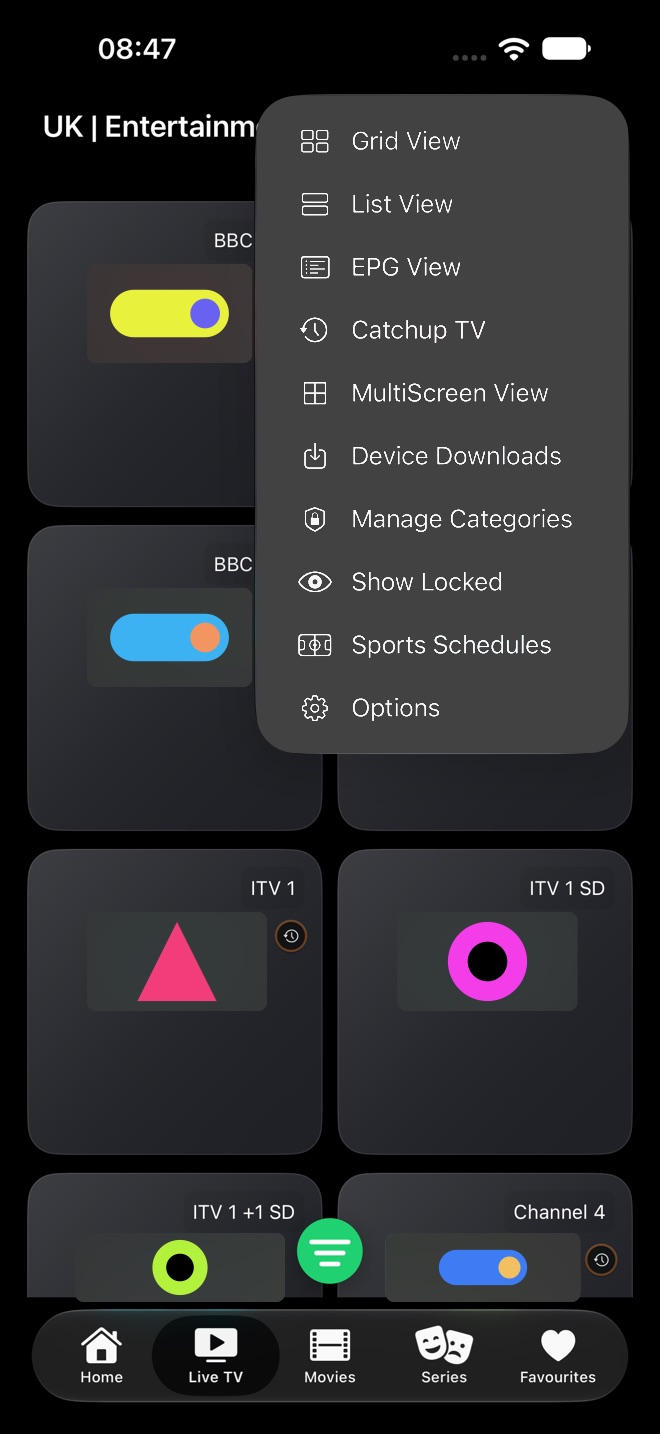
  • Grid View / List View: switch from the More (…) menu. List View shows each channel's current programme, episode, description, progress, and time left.
  • Icons: a yellow clock means the channel has catch-up; a red heart means it is a favourite.
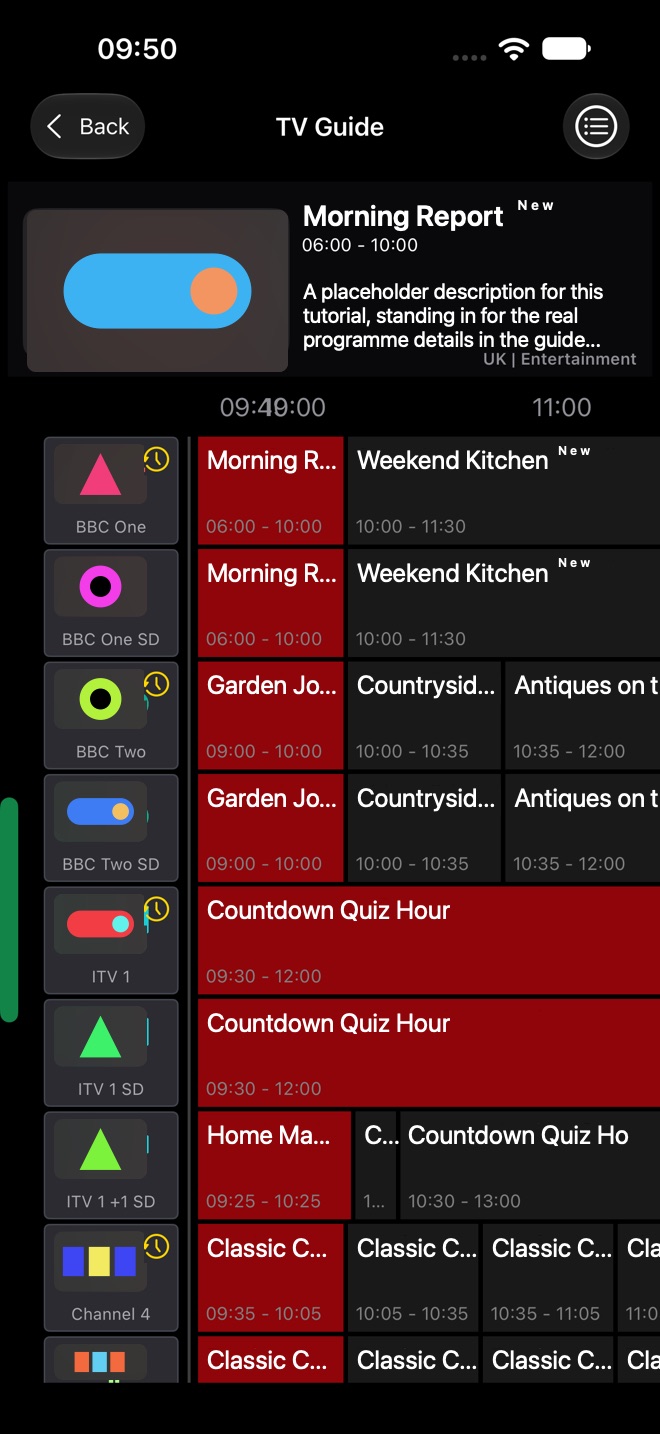
  • EPG View: a programme grid. Tap a programme once to show its details at the top; tap it again to play that channel.
  • Catchup TV: pick a category and channel to watch earlier programmes.
  • MultiScreen View: watch up to 4 channels at once. Long-press a player to change its channel, restart it, swap positions, or remove it.
  • Manage Categories: lock categories behind your parental PIN. Show Locked asks for the PIN, then shows locked content for 15 minutes.
  • Sports Schedules and Device Downloads need premium.
  • Options: switch profile or playlist, and sort categories and channels.
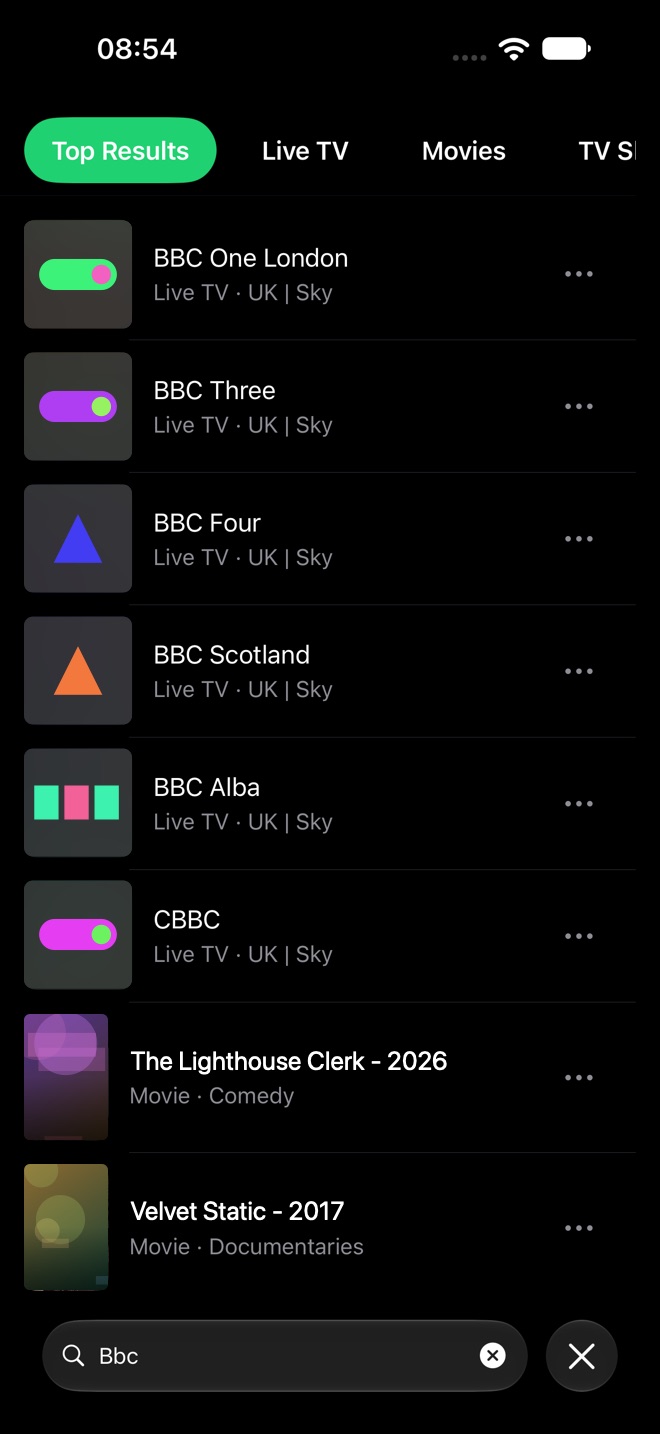
  • The magnifying glass searches this tab. Enter at least 3 characters, or search for 4K or DV.
Live TV channel grid on iPhone with the category name at the top and the green categories button.
Grid View, with the categories button above the tab bar.
Live TV List View with catch-up clock icons, SD tags, programme titles and descriptions, progress bars, and time left.
List View: what is on now, and how long is left.
Live TV EPG View with the selected programme at the top and a programme grid by channel.
EPG View.

Live TV

Channel options

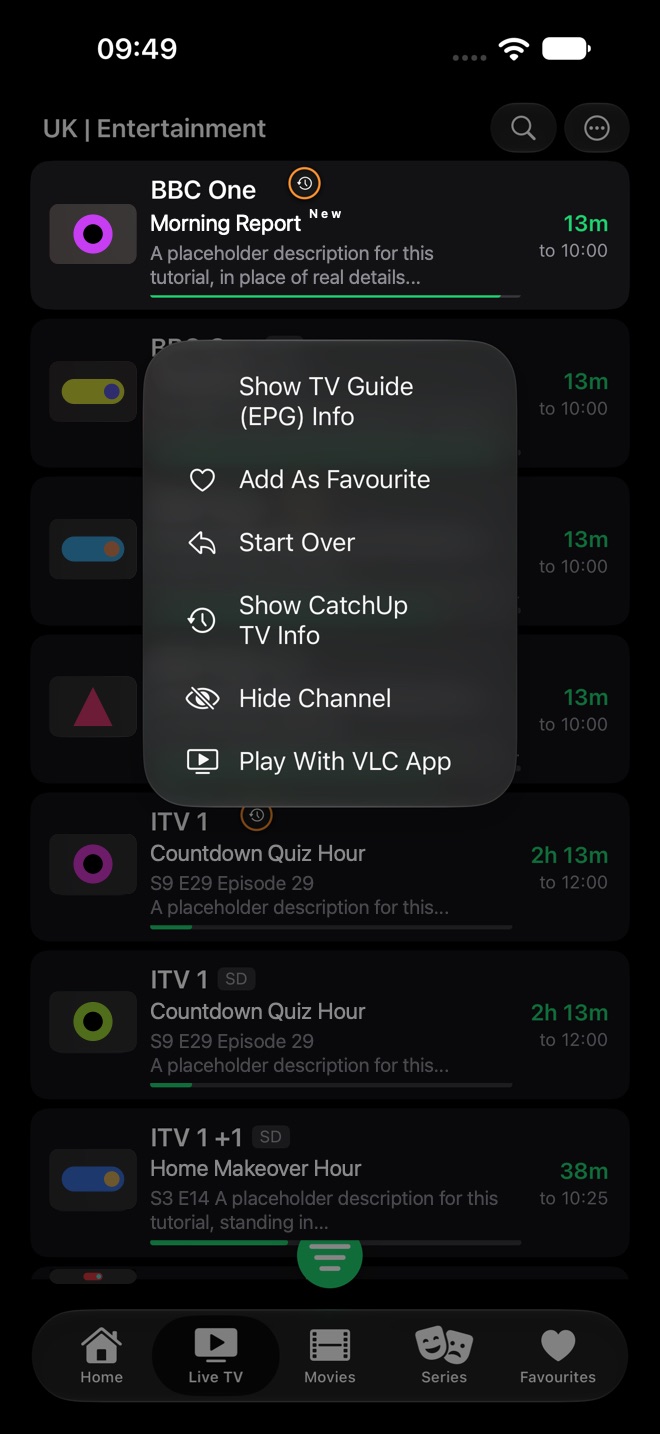
Long-press any channel to see what you can do with it. The exact items depend on the channel and your subscription:

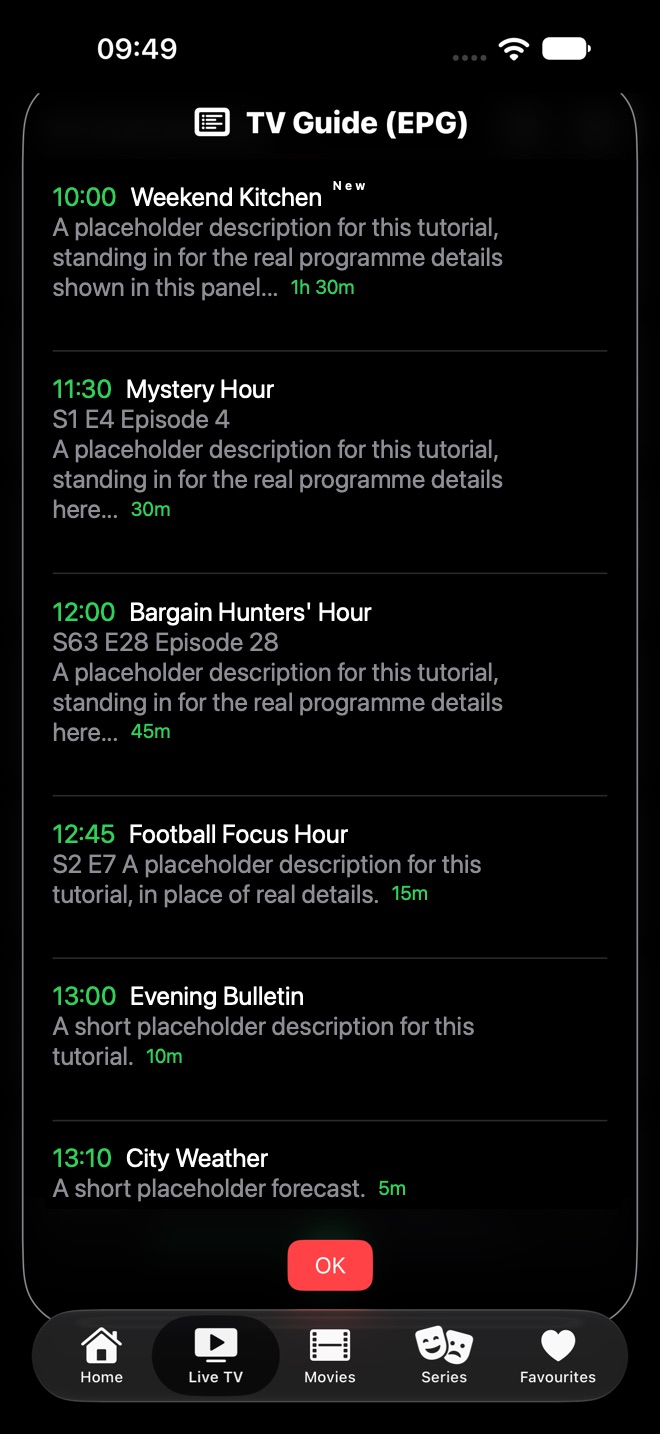
  • Show TV Guide (EPG) Info: the channel's upcoming programmes with times, descriptions, and lengths.
  • Add As Favourite / Remove Favourite.
  • Start Over and Show CatchUp TV Info: on catch-up channels.
  • Set Reminder…: when Settings > Live TV > Enable Programme Reminders is on.
  • Hide Channel, and in Grid View an Edit Channel menu to rename it, change its logo, lock it, or add it to a custom category.
  • Record to Server and other recording options: premium with Snappier Server.
  • Play With VLC App: premium.

Live TV can also show an Information card that summarises these icons and the long-press menu; tap OK to close it.

Long-press menu on a channel with Show TV Guide (EPG) Info, Add As Favourite, Start Over, Show CatchUp TV Info, Hide Channel, and Play With VLC App.
A channel's long-press menu in List View.
Live TV More menu with view options, Catchup TV, MultiScreen View, downloads, category management, Show Locked, Sports Schedules, and Options.
The Live TV More menu.
TV Guide (EPG) list of upcoming programmes for a channel with times, descriptions, and lengths.
Show TV Guide (EPG) Info.

Player

Watching in portrait and landscape

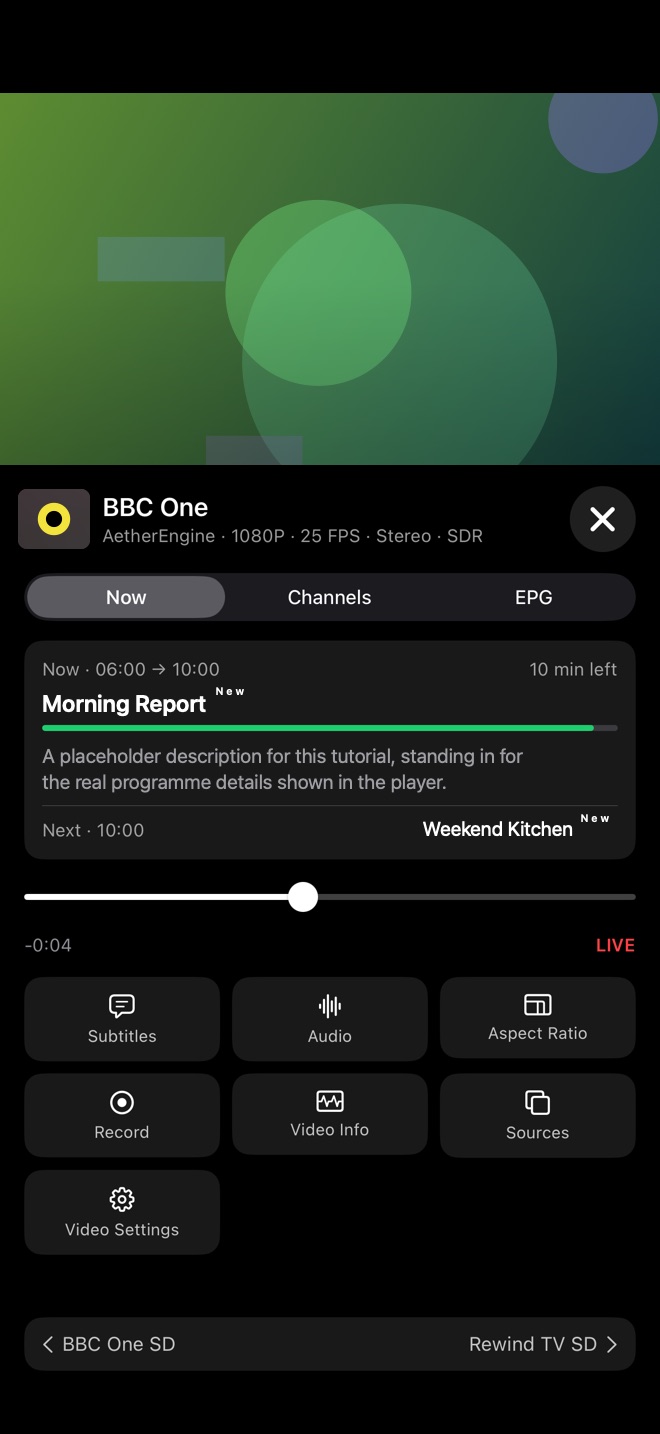
In portrait, the picture sits at the top with a panel underneath. The header shows the channel, the player in use, and the stream's resolution, frame rate, audio, and dynamic range.

  • Now (or Info for movies) shows the current programme, how long is left, its description, and what is on next. EPG lists the channel's upcoming programmes; Channels and Episodes list other channels or episodes.
  • Channels has the live seek bar with a LIVE marker, a category picker, and the channel list. The bar at the bottom jumps to the previous or next channel.
  • The tiles include Subtitles, Audio, Aspect Ratio, Record (live), Video Info, Sources, Catchup, Speed (movies and episodes), Next Episode, and Video Settings.
  • Record saves the live channel to this iPhone; find it later in Recordings.
  • At the top: close, lock screen, mute, rotate to landscape, Picture in Picture, and AirPlay.
  • In landscape, the controls overlay the picture with the same options. Rewind and Fast Forward appear for movies and episodes.
  • Lock Screen ignores touches until you tap the screen and choose Unlock Screen.
  • Skip Intro and Skip Credits buttons appear when TheIntroDB has timestamps and the setting is on.
Portrait player with the Now tab showing the current programme, time left and next programme, a live seek bar, and control tiles.
The portrait player's Now tab and controls.
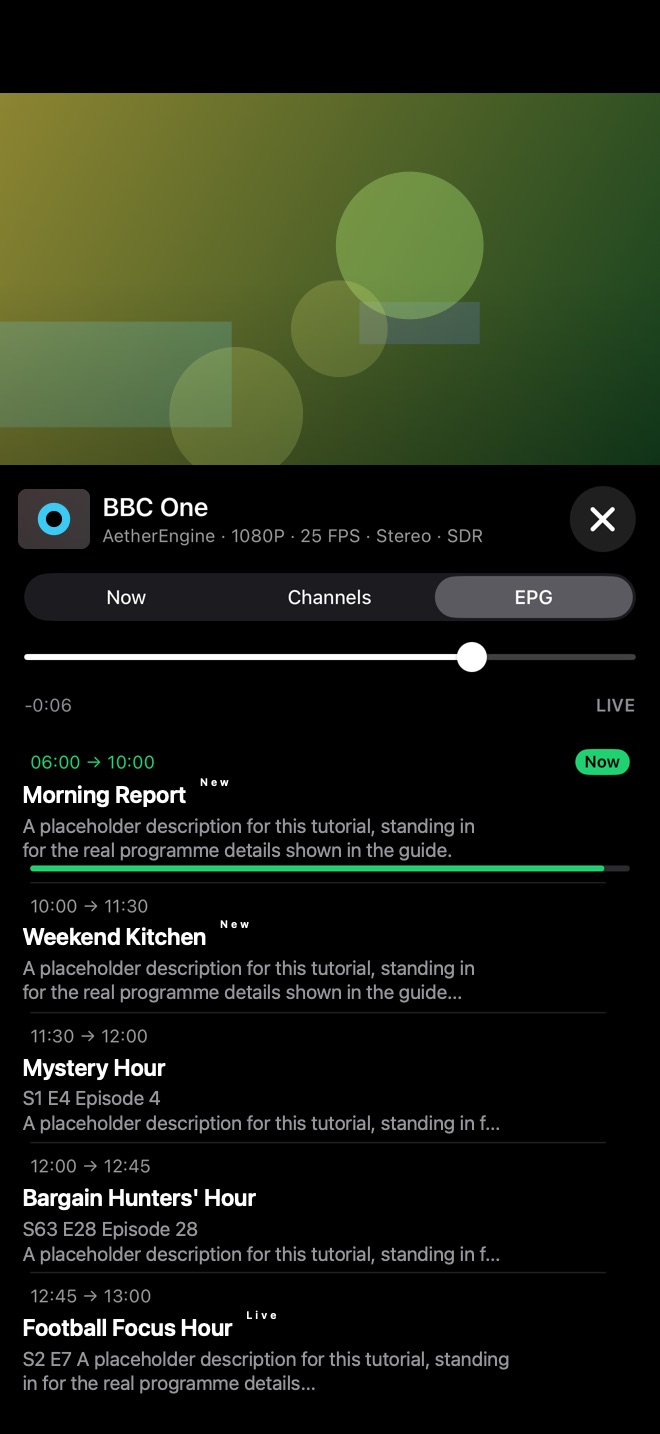
Portrait player EPG tab listing upcoming programmes with times and descriptions.
The EPG tab.
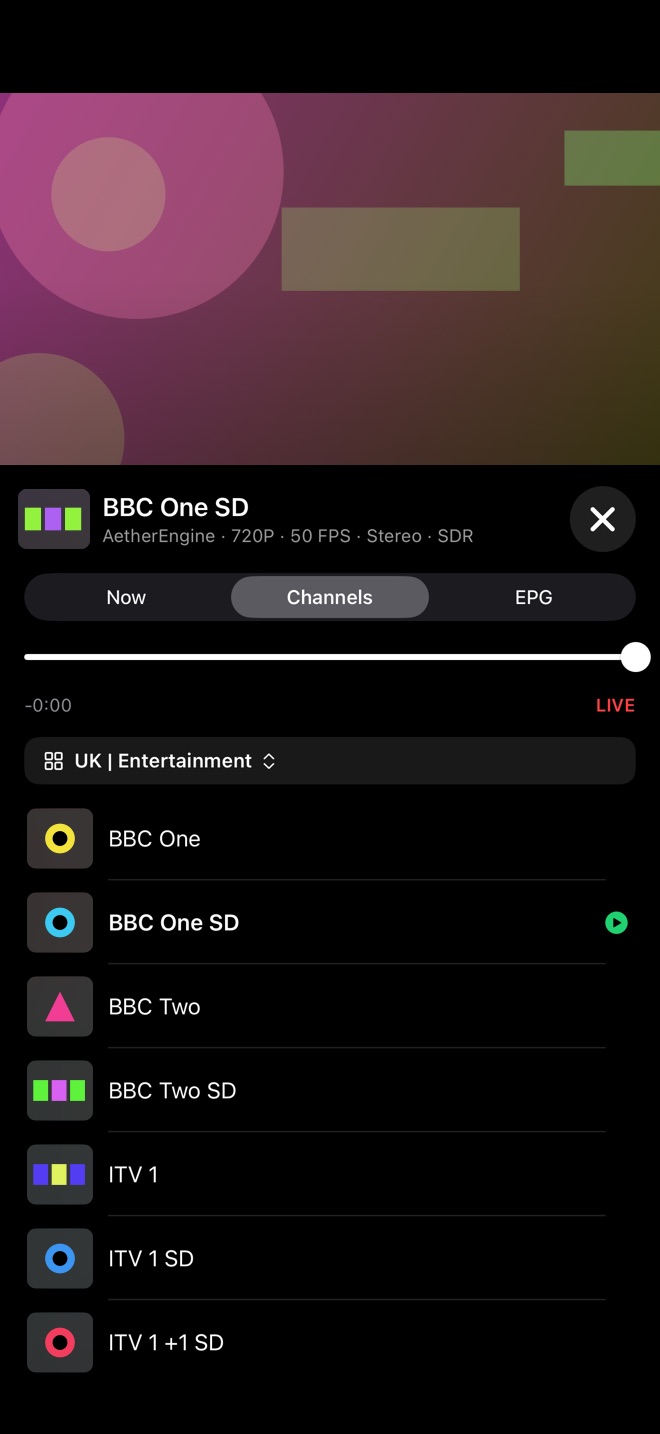
Portrait player Channels tab with a live seek bar, category picker, and channel list.
The Channels tab: seek bar, category, and channel list.

Movies

Browse movies and open details

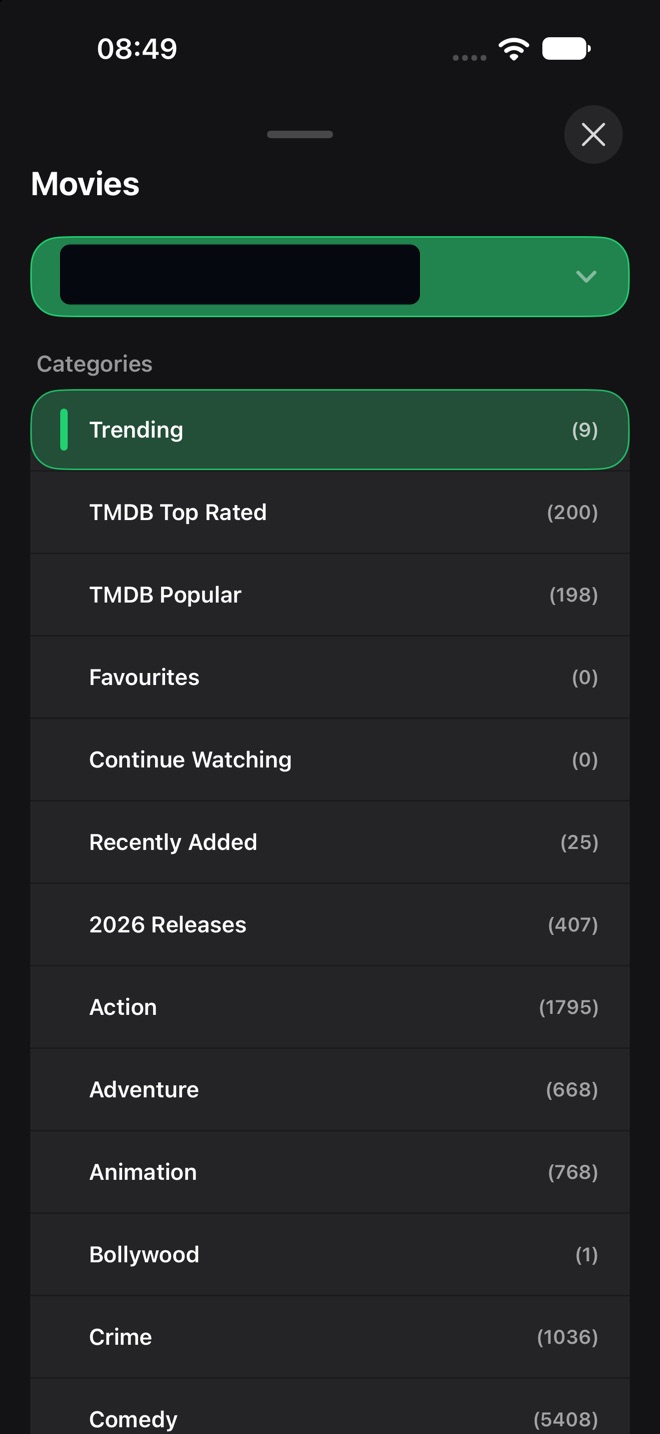
Movies shows a poster grid for the current category, with ratings on the posters. The categories list starts with Trending, TMDB Top Rated, TMDB Popular, Favourites, Continue Watching, and Recently Added, followed by your playlist's categories.

  • Long-press a poster to favourite it, mark it watched, drop it, hide it, lock it, or fix its metadata. If the playlist has several copies, Watch Version lets you pick one.
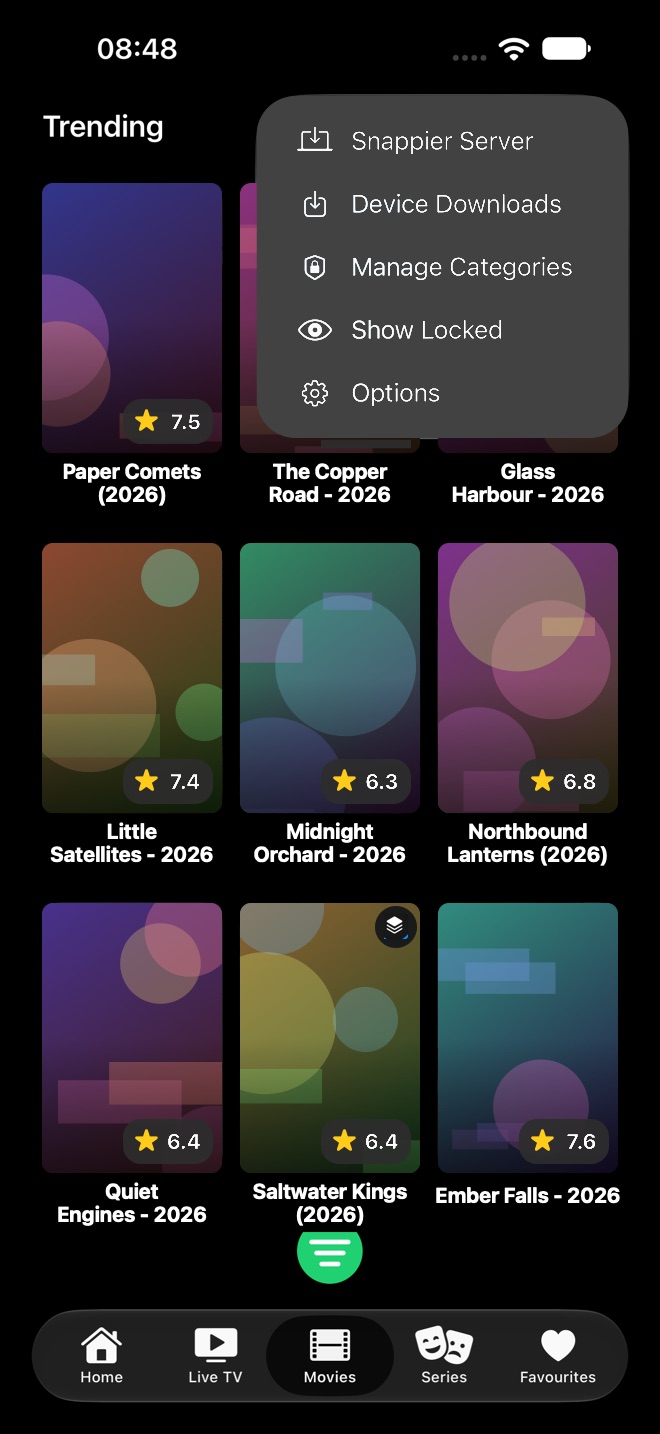
  • The More (…) menu has Snappier Server (premium), Device Downloads (premium), Manage Categories, Show Locked, your media centre libraries, and Options.
  • Options sorts categories and movies and turns Trending and TMDB rows on or off.

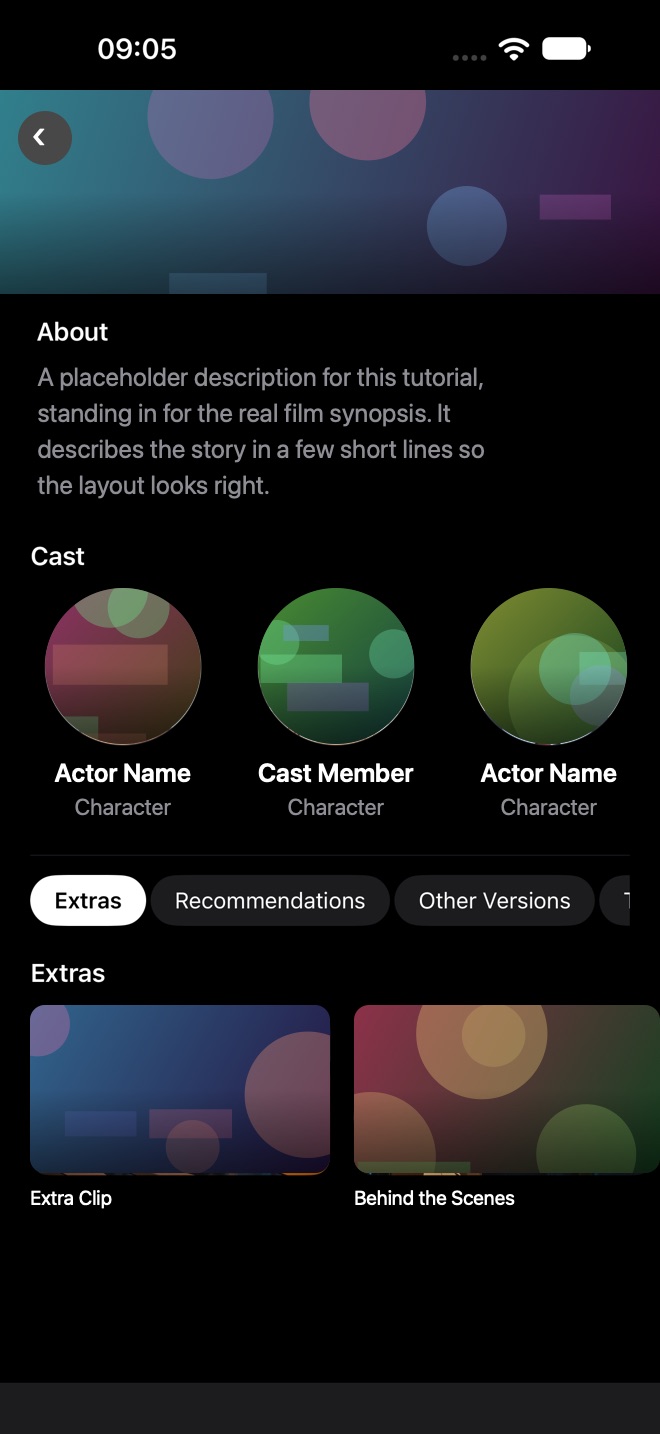
The details screen has Play (or Resume), then Favourite, Fix Metadata, Watched, Version (when there are other copies), and Download. Below are About, Cast, and tabs for Extras (trailers and clips), Recommendations, Other Versions, and Technical Info.

Long-press the Play button for more: Delete Resume Position, Download to Device, Play With VLC App, Play with Infuse, and Open in Infuse Library (premium).

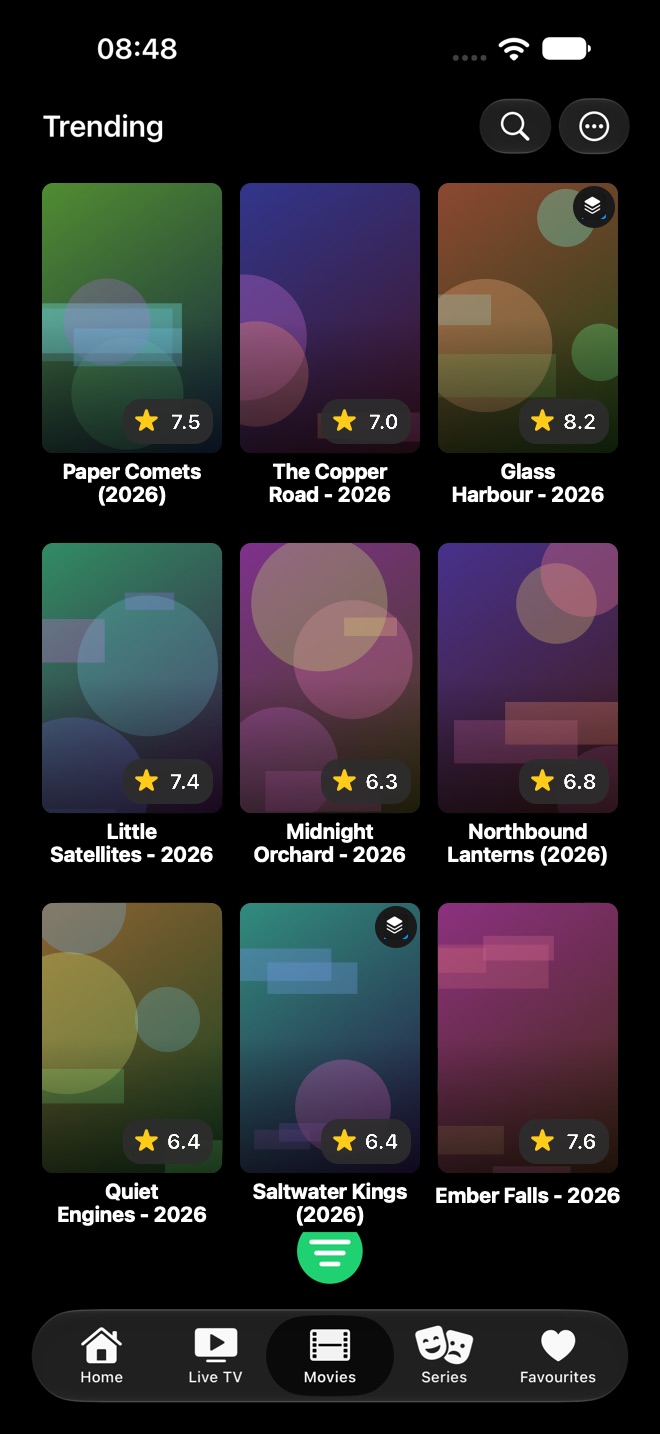
Movies poster grid on iPhone with the Trending category selected.
The poster grid.
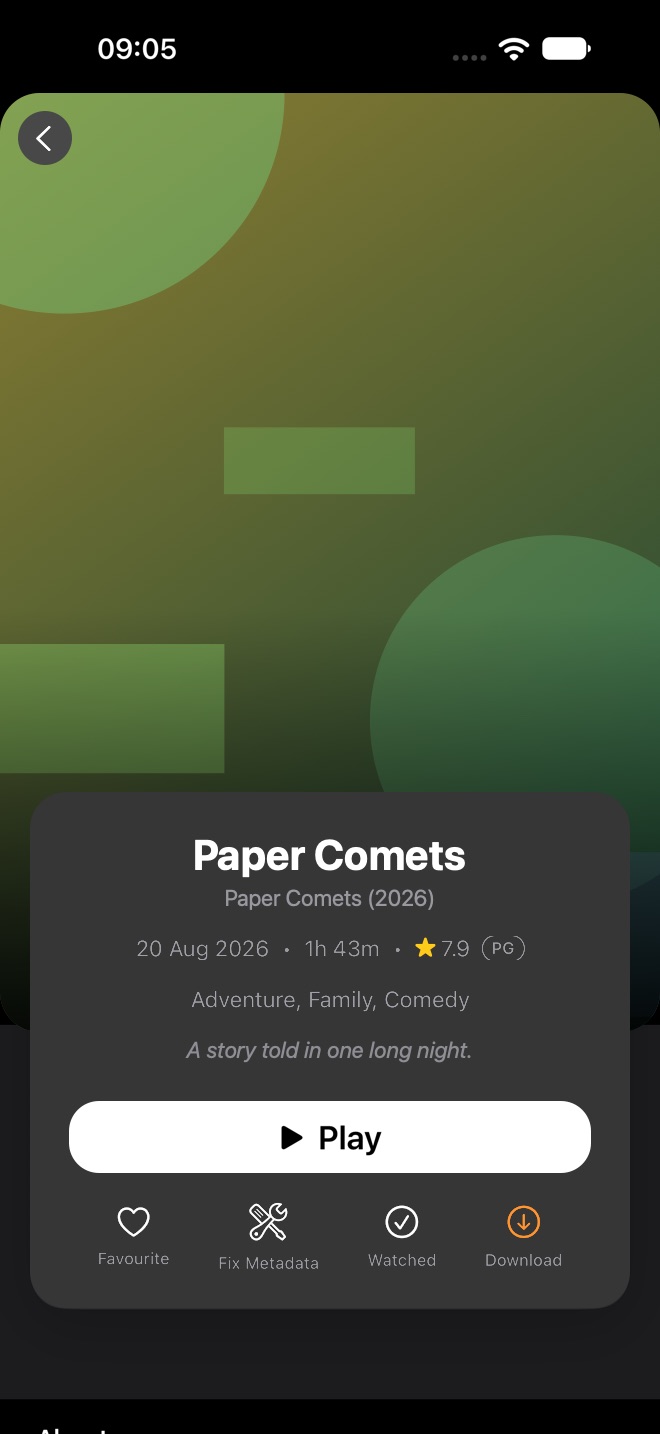
Movie details with title, date, running time, rating, genres, Play button, and Favourite, Fix Metadata, Watched, and Download.
Movie details and action buttons.
Lower part of movie details with About, Cast, and Extras, Recommendations, and Other Versions tabs.
About, Cast, and the Extras tabs.
Movies categories list with a redacted playlist picker at the top and category counts.
The categories list.
Movies More menu with Snappier Server, Device Downloads, Manage Categories, Show Locked, and Options.
The Movies More menu.

Series

Find shows and keep track of episodes

Series works like Movies: a poster grid, the green categories button, the same long-press options, and the More (…) menu.

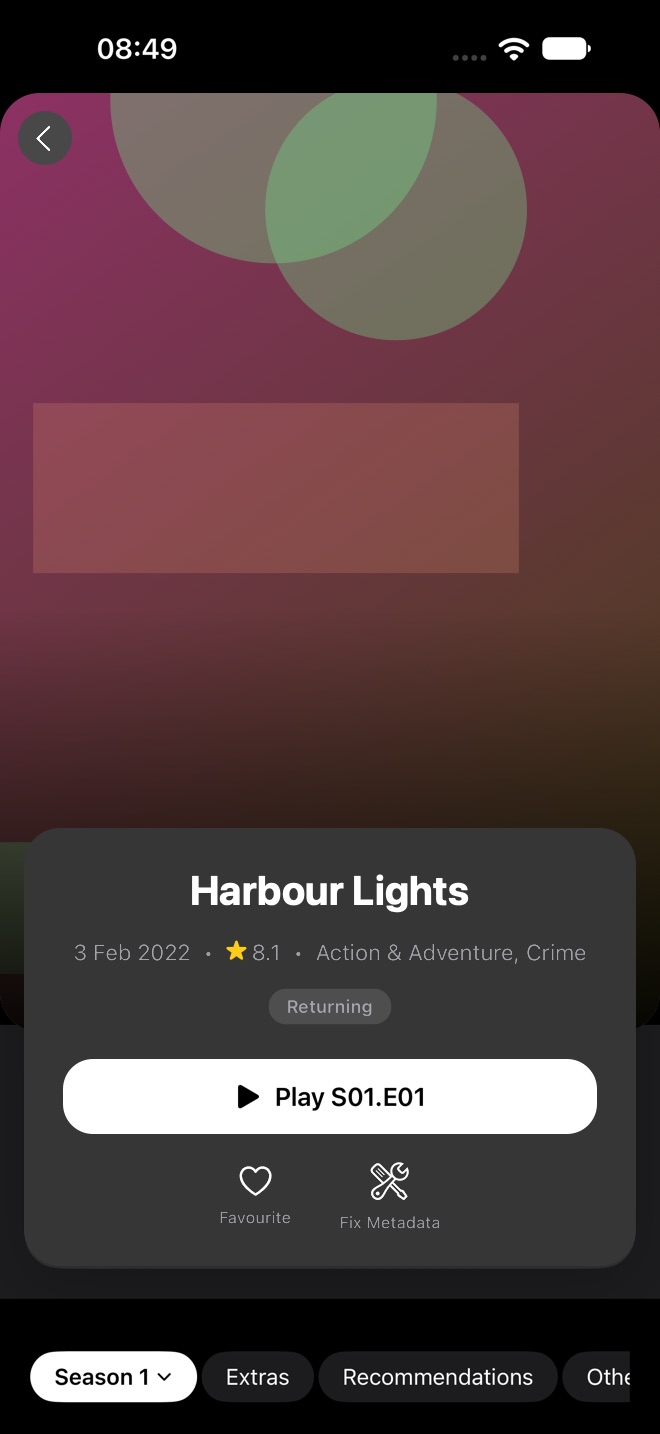
  • The details screen shows the release date, rating, genres, and whether the show is still running.
  • The Play button shows which episode it will play, for example Play S01.E01.
  • Favourite, Fix Metadata, and Version (when there are other copies) sit under Play.
  • Use the Season picker (fully watched seasons are ticked) and the Seasons, Extras, Recommendations, and Other Versions tabs.
  • Long-press an episode to mark it watched, mark everything up to it as watched, mark all episodes watched or unwatched, download it (premium), open it in VLC or Infuse (premium), or see its technical information.
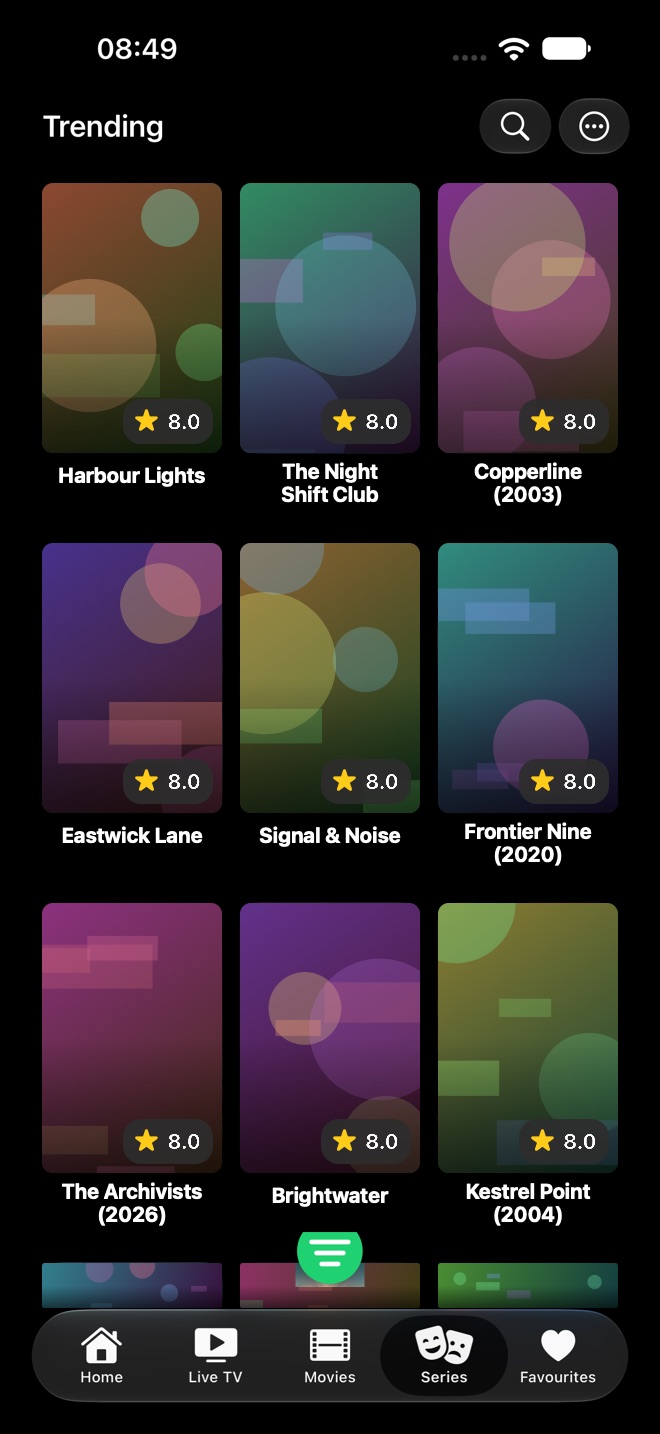
Series poster grid on iPhone.
The Series poster grid.
Series detail screen with title, rating, genres, Play button, Favourite and Fix Metadata, and season tabs.
Series details with Play, Favourite, and Fix Metadata.

Favourites

Jump back to saved channels and media

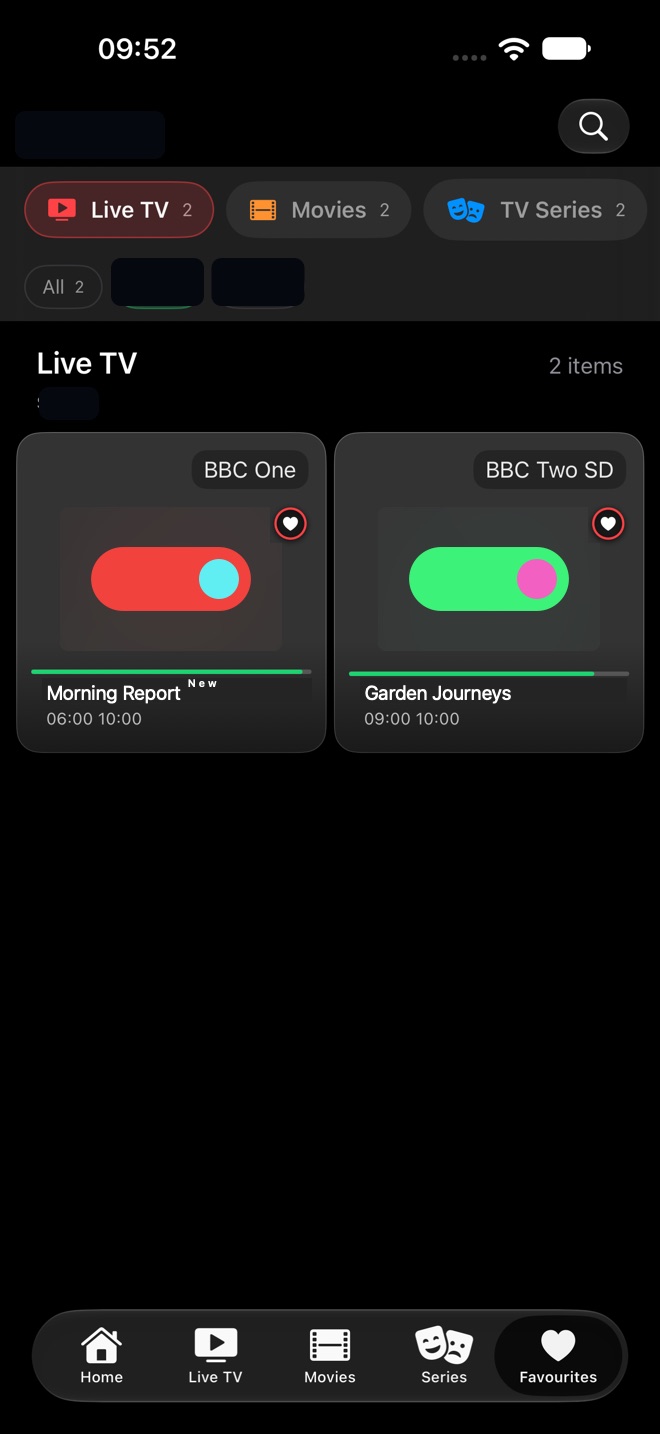
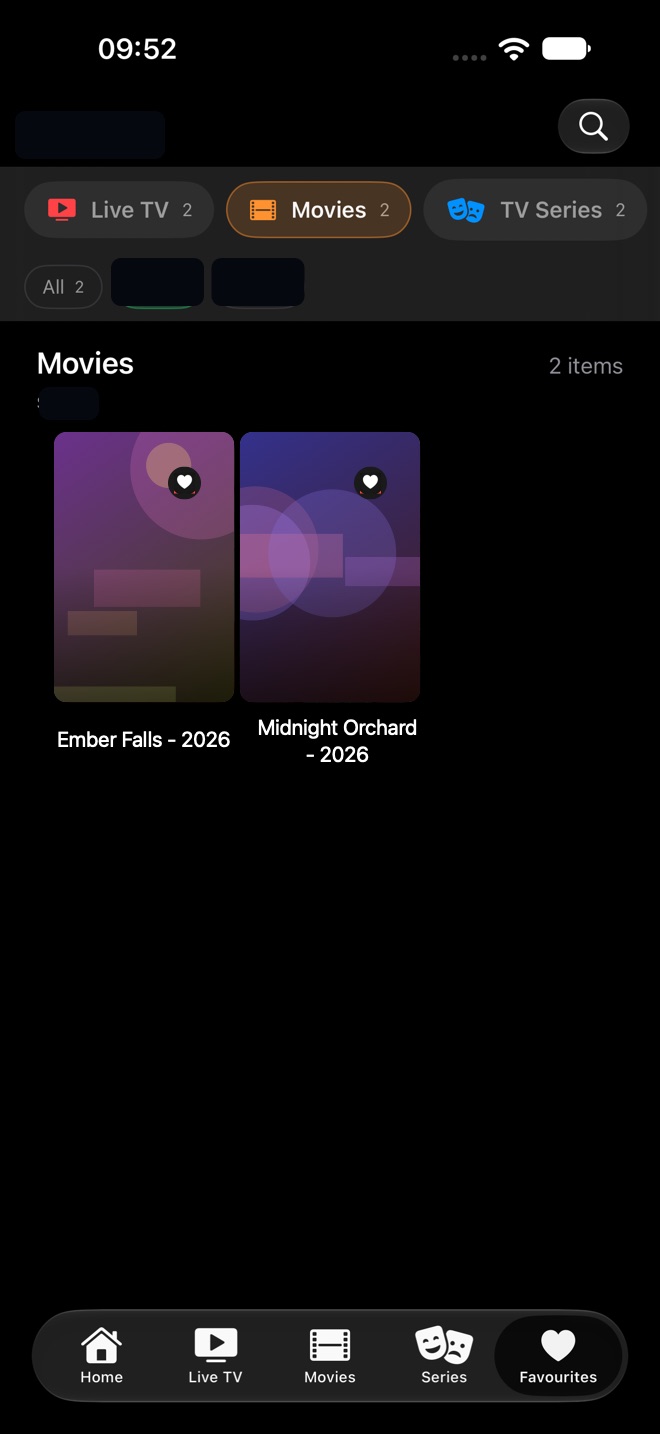
Favourites groups saved items by type, with Live TV, Movies, and TV Series tabs and a count on each. Channel tiles show what is on now with a progress bar; movies and series show their posters.

  • Tap Live TV, Movies, or TV Series to switch type.
  • Use the chips below to show favourites from all playlists or from one playlist.
  • Tap the magnifying glass to search your favourites.
  • Add favourites from any long-press menu or the Favourite button on a details screen.
  • Settings > Favourites sets the sort order and can clear favourites by type.
Favourites with Live TV selected, playlist filter chips, and two favourite channels showing what is on now.
Live TV favourites. Playlist names are redacted.
Favourites with Movies selected and two favourite movie posters.
Movie favourites.

Downloads & recordings

Watch offline

Downloads and Recordings are in the More (…) menu on Home; Device Downloads in the Live TV, Movies, and Series menus opens the same Downloads screen. Both are premium features.

Start a download

Tap Download on a movie's details screen, or long-press its Play button or an episode and choose Download to Device. Downloading uses one of your IPTV connections, and continues in the background if you leave the app.

Manage downloads

Downloads lists In Progress and Completed items, one at a time with the rest queued. Tap a completed item to play it; long-press to share or delete it.

Recordings

Recordings lists live channels you recorded with the Record button in the player. Long-press one to share or delete it.

Copy to a computer

In the … menu of Downloads or Recordings, Download over Wi-Fi lets a browser on the same Wi-Fi fetch your files.

Settings

Find options in the grouped Settings list

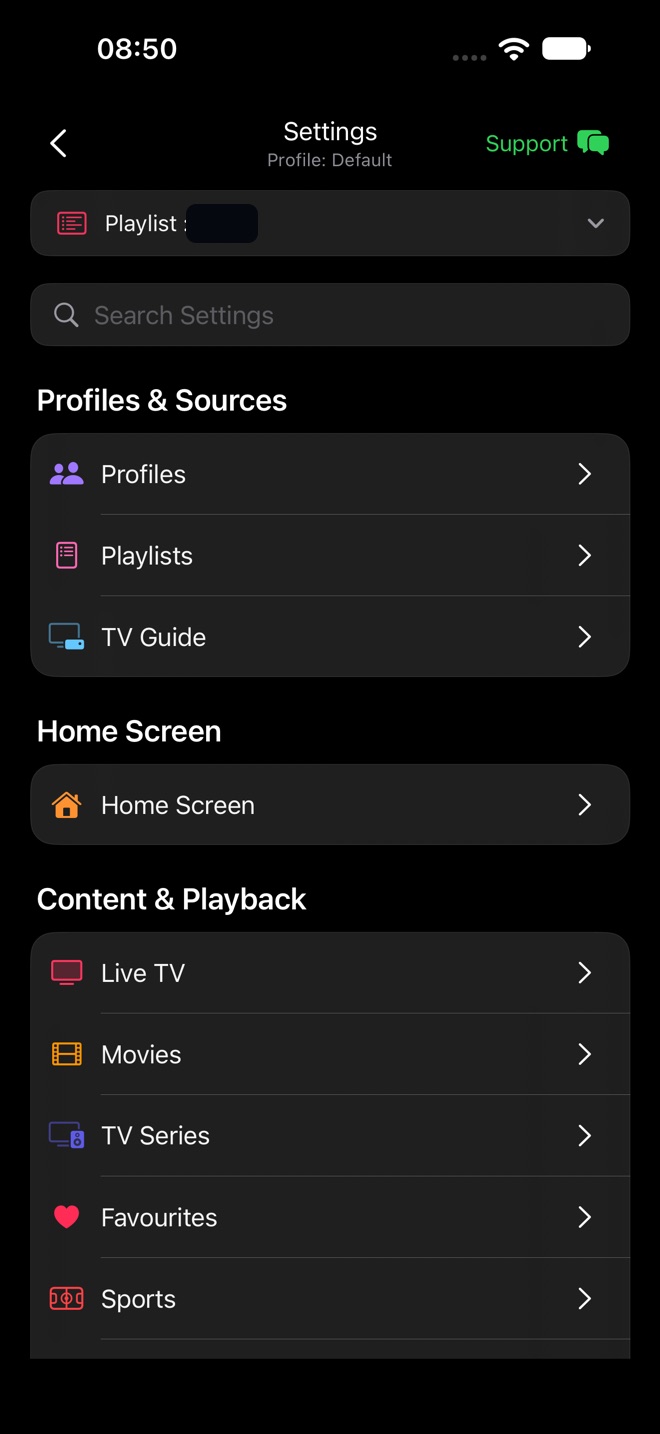
Open Settings from the gear at the top of Home. The playlist switcher and a search field are at the top, and Support (the Snappier Discord) is at the top right.

  • Profiles & Sources: Profiles, Playlists, TV Guide.
  • Home Screen: Home Screen.
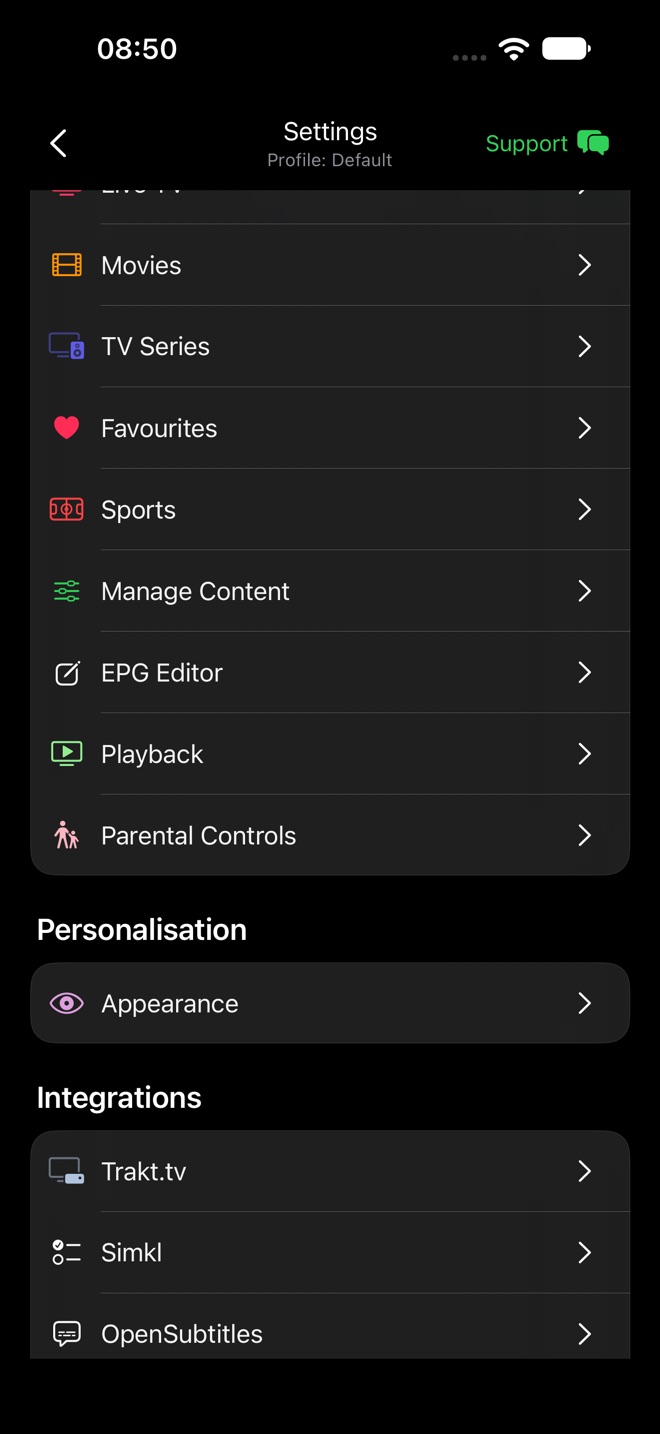
  • Content & Playback: Live TV, Movies, TV Series, Favourites, Sports (premium), Manage Content, EPG Editor, Playback, Parental Controls.
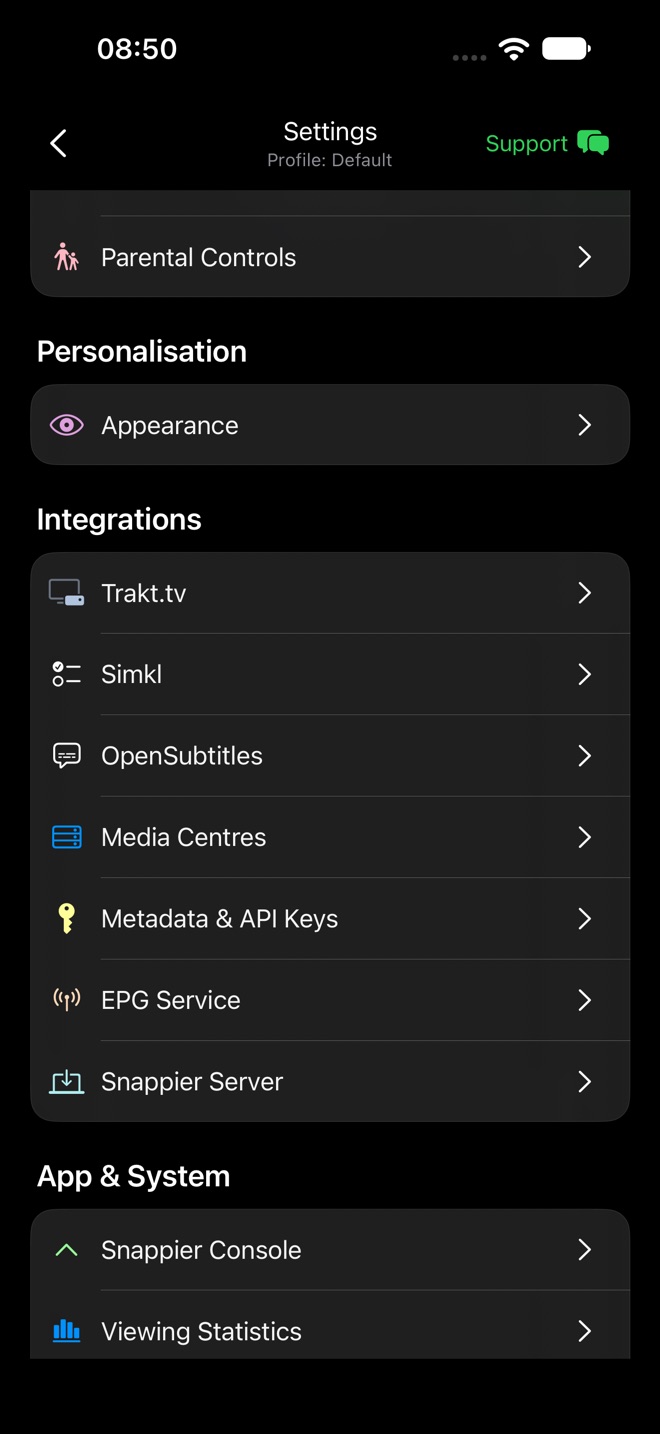
  • Personalisation: Appearance.
  • Integrations: Trakt.tv, Simkl, OpenSubtitles, Media Centres, Metadata & API Keys, EPG Service, Snappier Server (premium).
  • App & System: Snappier Console, Viewing Statistics, System, General.
Settings on iPhone with playlist switcher, search field, and the Profiles and Sources, Home Screen, and Content and Playback groups.
The top of Settings.
Settings Content and Playback group with Live TV, Movies, TV Series, Favourites, Sports, Manage Content, EPG Editor, Playback, and Parental Controls.
Content & Playback.
Settings scrolled to Parental Controls, Personalisation, Integrations, and App and System.
Personalisation, Integrations, and App & System.

Settings options

What the settings pages contain

Most iPhone rows show a short description underneath. These notes cover what each page is for and the options that are easiest to miss.

Profiles

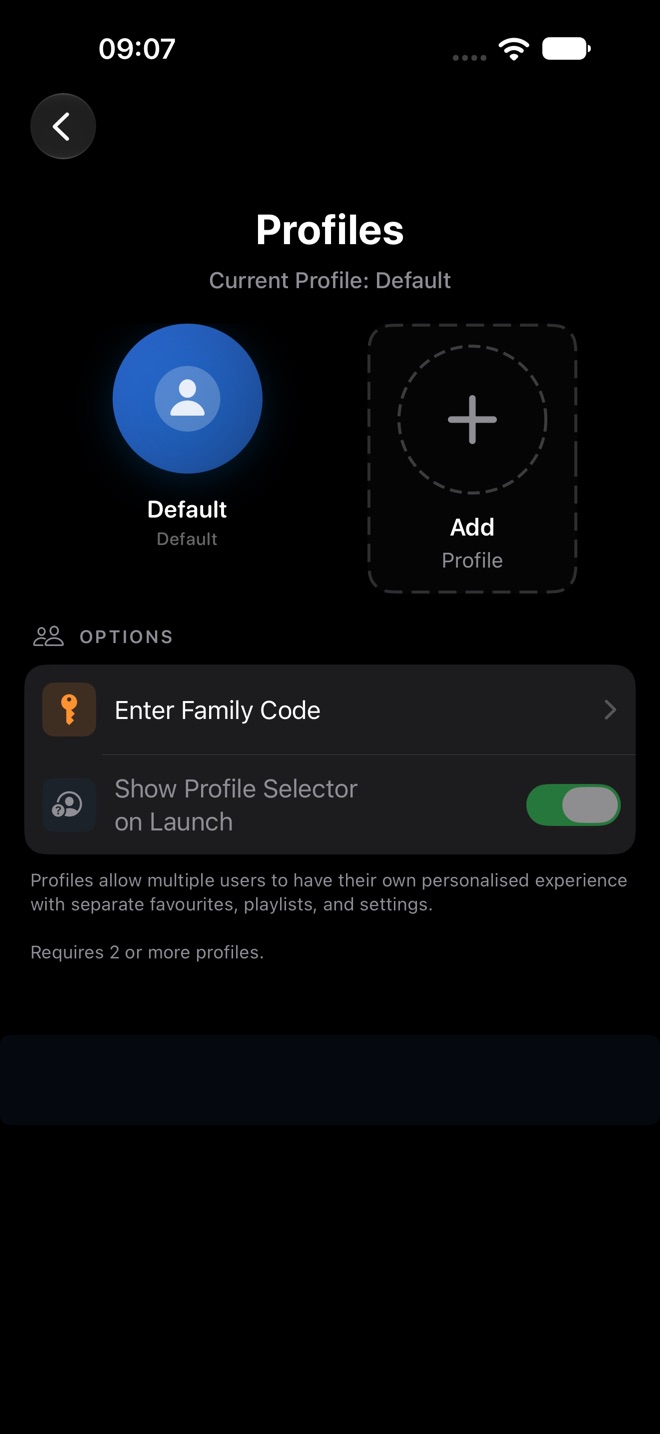
Profiles give each person their own favourites, playlists, and settings. Tap Add Profile to create one (up to 6).

Long-press a profile
Edit Profile, Make Default, Delete Profile, and family link options.
Enter Family Code
Joins a profile a family member has shared. Premium.
Show Profile Selector on Launch
Asks who is watching when the app opens. Needs 2 or more profiles.
Profiles settings with the Default profile, an Add Profile tile, Enter Family Code, and Show Profile Selector on Launch.
Profiles.

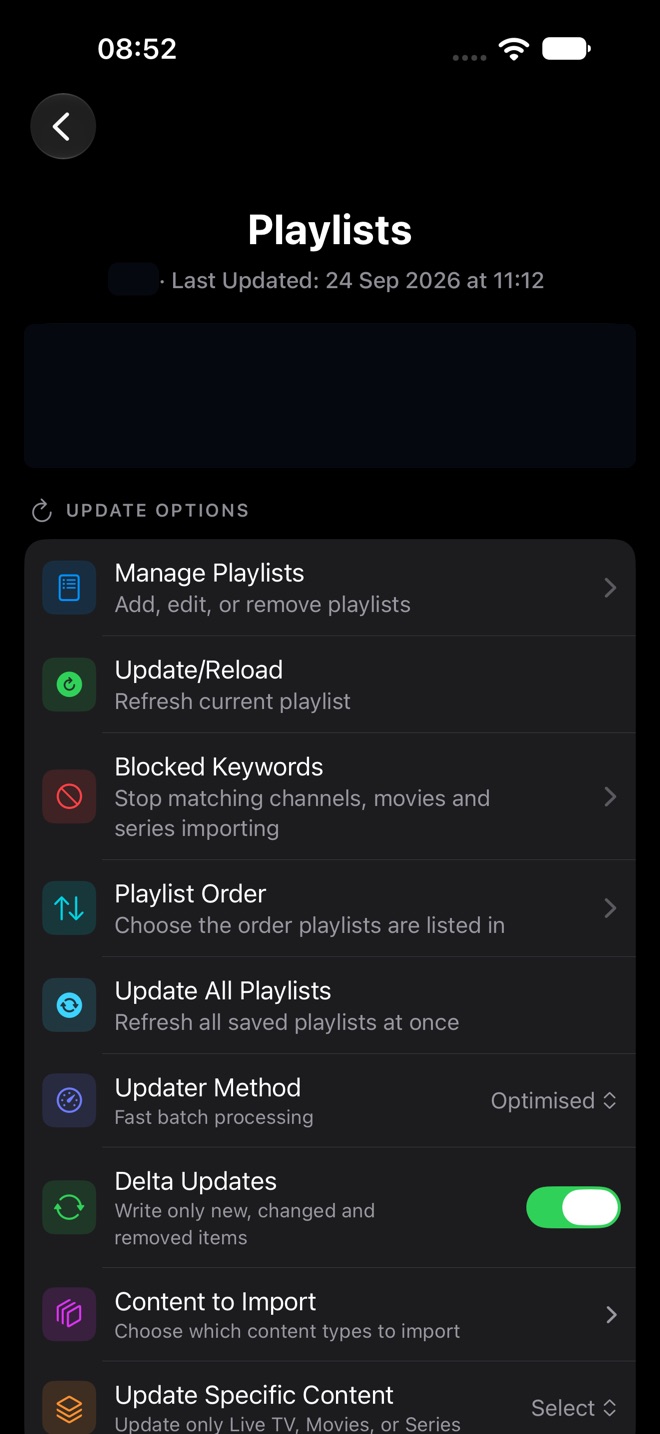
Playlists

Shows when the playlist was last updated and how many Live TV channels, movies, series, and EPG entries it has.

Manage Playlists
Add, edit, or remove playlists.
Update/Reload and Update All Playlists
Refresh the current playlist, or every saved playlist at once.
Blocked Keywords
Stops matching channels, movies, and series from being imported.
Playlist Order
Chooses the order playlists are listed in.
Updater Method and Delta Updates
Delta Updates writes only new, changed, and removed items, so the playlist stays usable while it refreshes.
Content to Import / Update Specific Content
Choose which content types to import, or update only Live TV, Movies, or Series.
Playlists settings with update options, Blocked Keywords, Playlist Order, Delta Updates, and content options.
Playlists. Name and statistics are redacted.

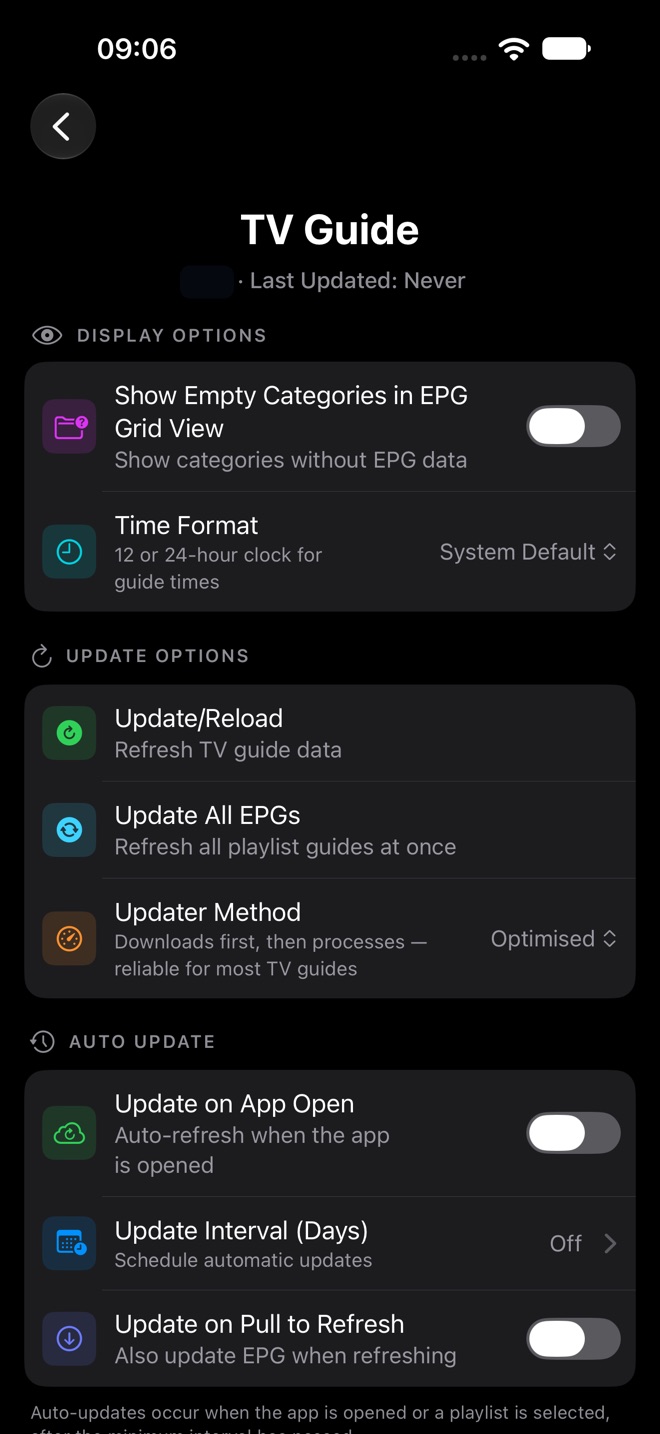
TV Guide

Show Empty Categories in EPG Grid View
Shows categories that have no guide data.
Time Format
12 or 24-hour clock for guide times.
Update/Reload, Update All EPGs, Updater Method
Refresh this guide or every playlist's guide.
Update on App Open / Update Interval (Days) / Update on Pull to Refresh
Automatic guide updates.
Add Second EPG URL / Change EPG URL
Use an extra or custom guide source.
EPG Service and Reminders
Snappier's own guide data (premium), and your programme reminders.
TV Guide settings with display options, update options, and auto update.
TV Guide.

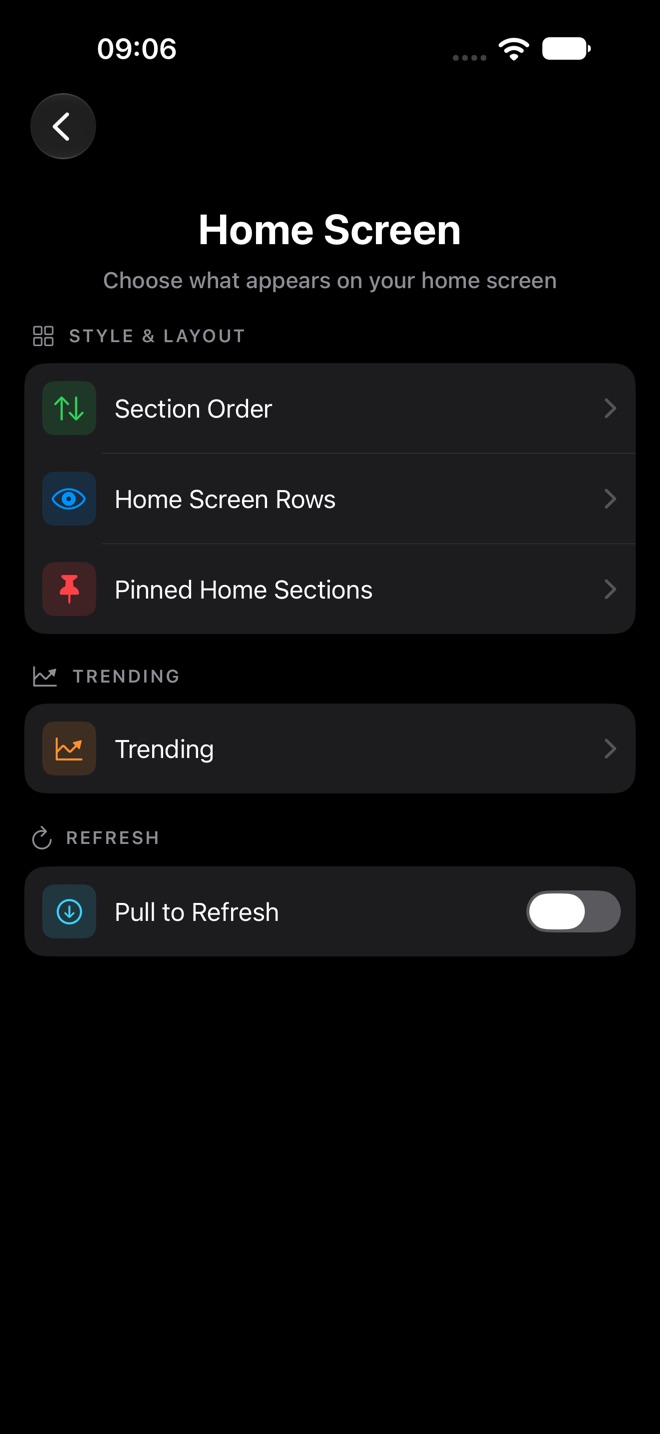
Home Screen

Section Order / Home Screen Rows
Reorder Home and choose which rows appear.
Pinned Home Sections
Pin categories to Home. Premium.
Trending
Trending row options.
Pull to Refresh
Lets you pull down on Home to update the playlist. Off by default.
Home Screen settings with Section Order, Home Screen Rows, Pinned Home Sections, Trending, and Pull to Refresh.
Home Screen.

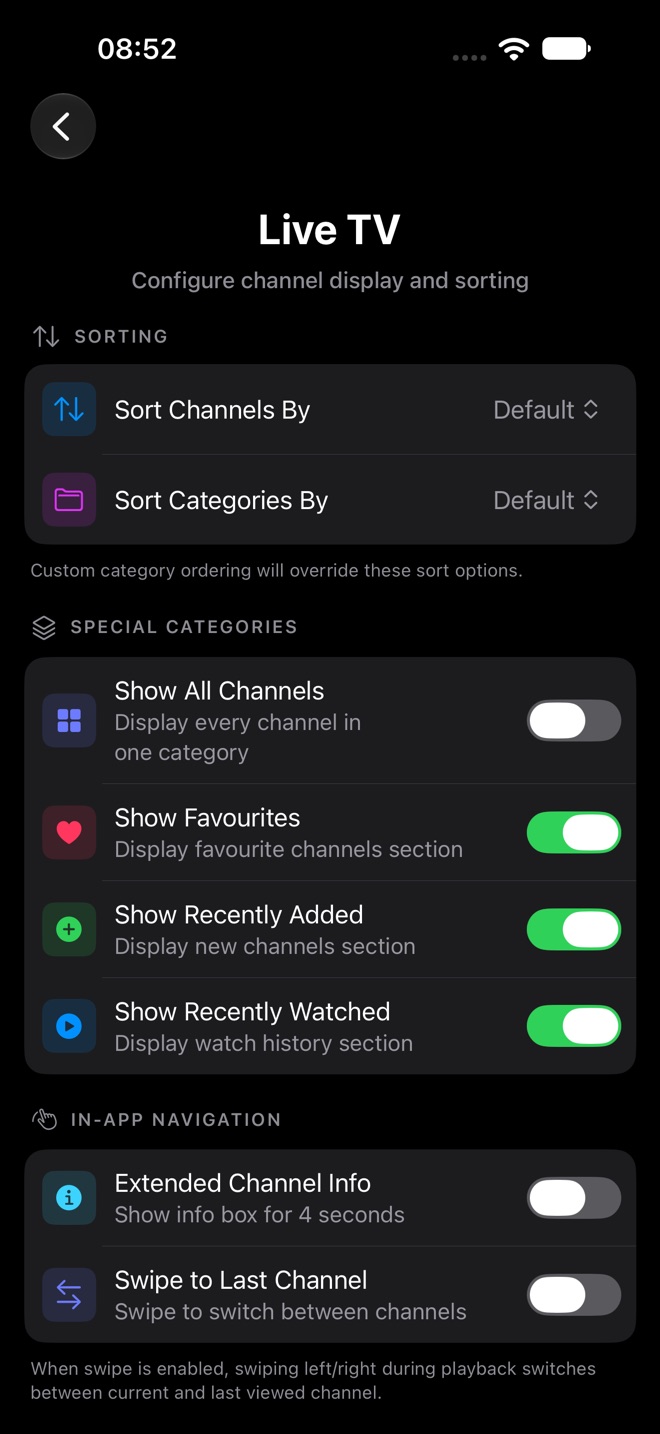
Live TV, Movies, and TV Series

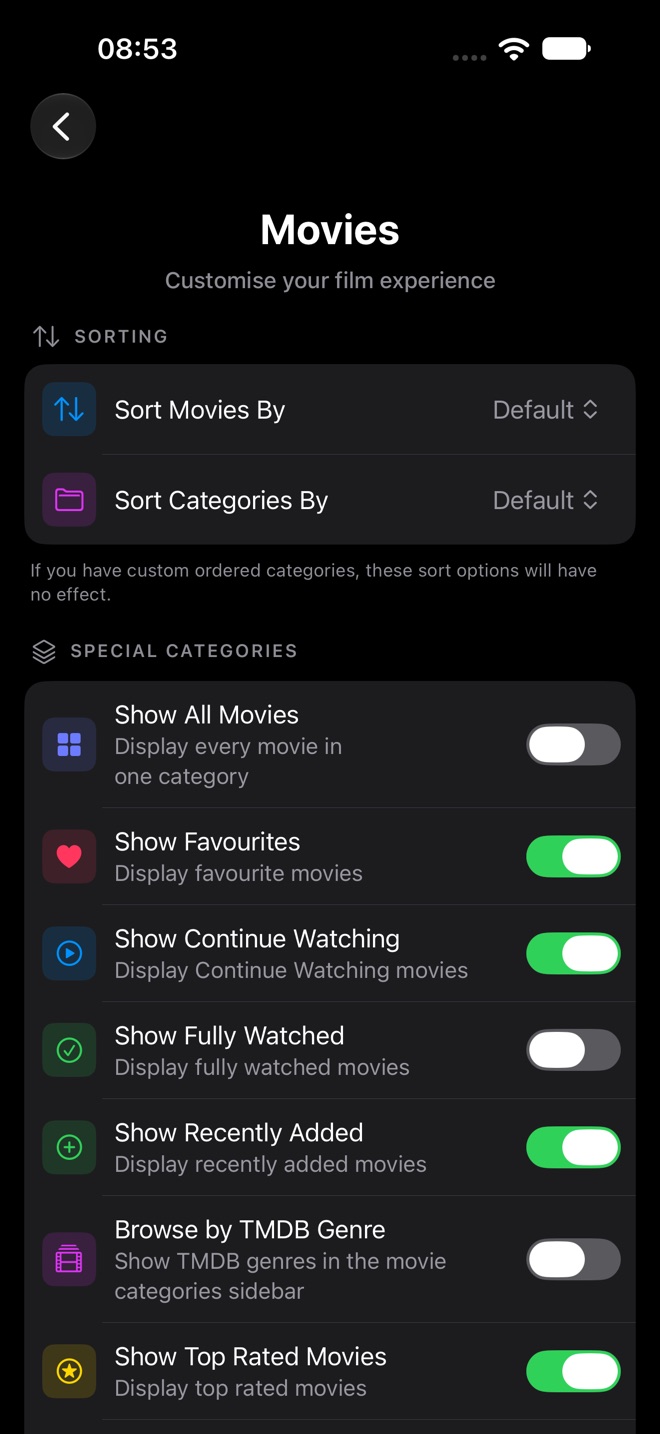
Each page starts with Sorting, then Special Categories, which decide which extra categories appear in the categories list.

Sort ... By / Sort Categories By
Custom category ordering overrides these.
Extended Channel Info
Shows an info box for 4 seconds.
Swipe to Last Channel
Sideways swipes in the player switch between the current and last channel.
Enable Programme Reminders
Adds Set Reminder… to channel menus and notifies you before a programme starts. iPhone only.
List / Grid View: Show Live Preview
Tap once to preview, then tap again for full screen. Premium.
Browse by TMDB Genre, Group Duplicates, Show Ratings on Posters
Movie and series browsing options.
Auto Play Next Episode, Auto Mark as Watched, Next Episode Button
Episode playback timing (TV Series).
Live TV settings with Sorting, Special Categories, and In-App Navigation.
Live TV settings.
Movies settings with Sorting and Special Categories.
Movies settings.

Playback

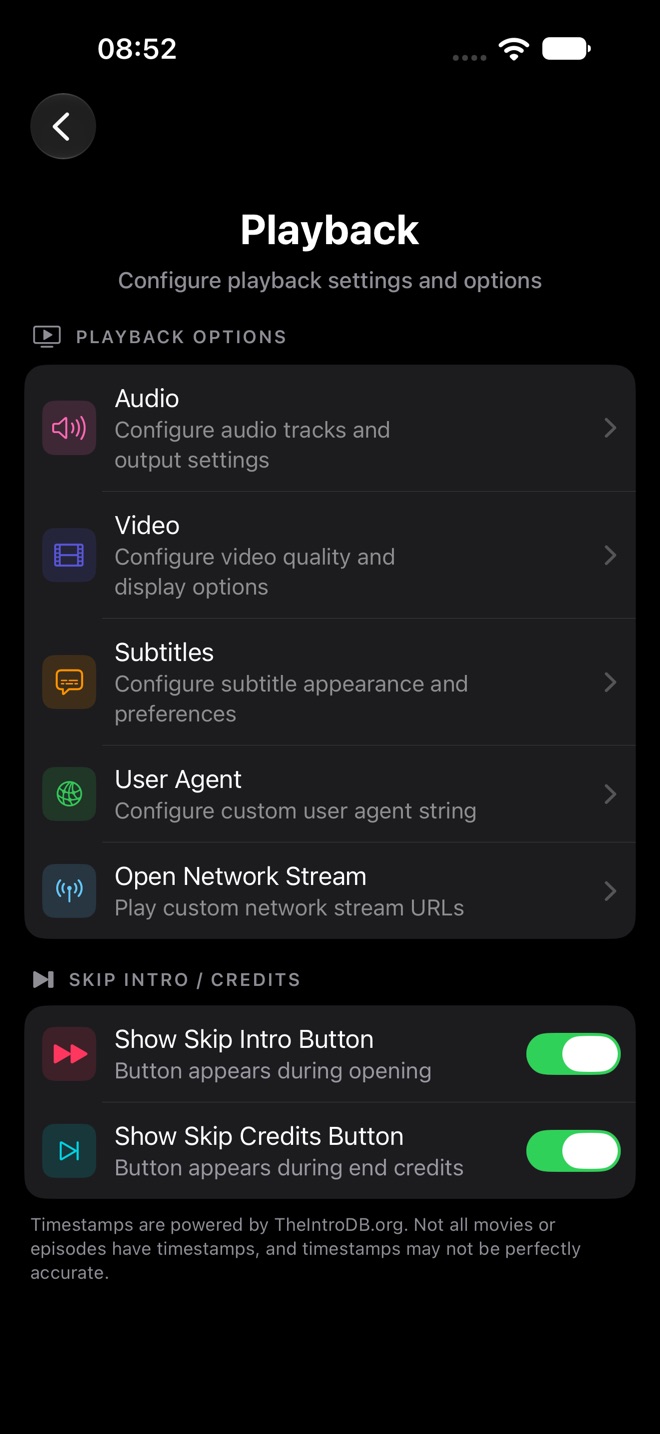
Playback groups Audio, Video, Subtitles, User Agent, and Open Network Stream, plus the skip buttons.

Video
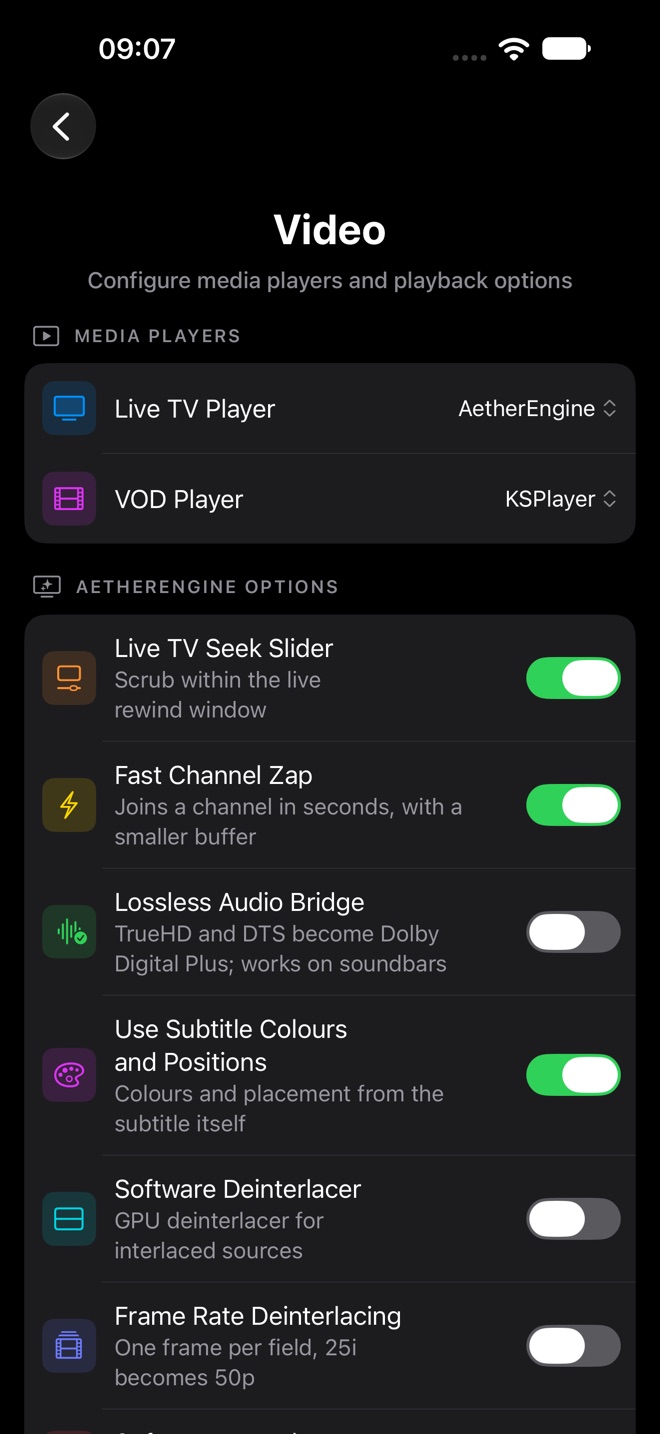
Choose the Live TV Player (KSPlayer, AetherEngine, or the VLC app) and VOD Player (also the Infuse app); VLC and Infuse need premium. AetherEngine Options include the Live TV Seek Slider and Fast Channel Zap. KSPlayer options include swipe gestures and the controls timeout.
Audio
Audio engine (KSPlayer), audio delay, and default language.
Subtitles
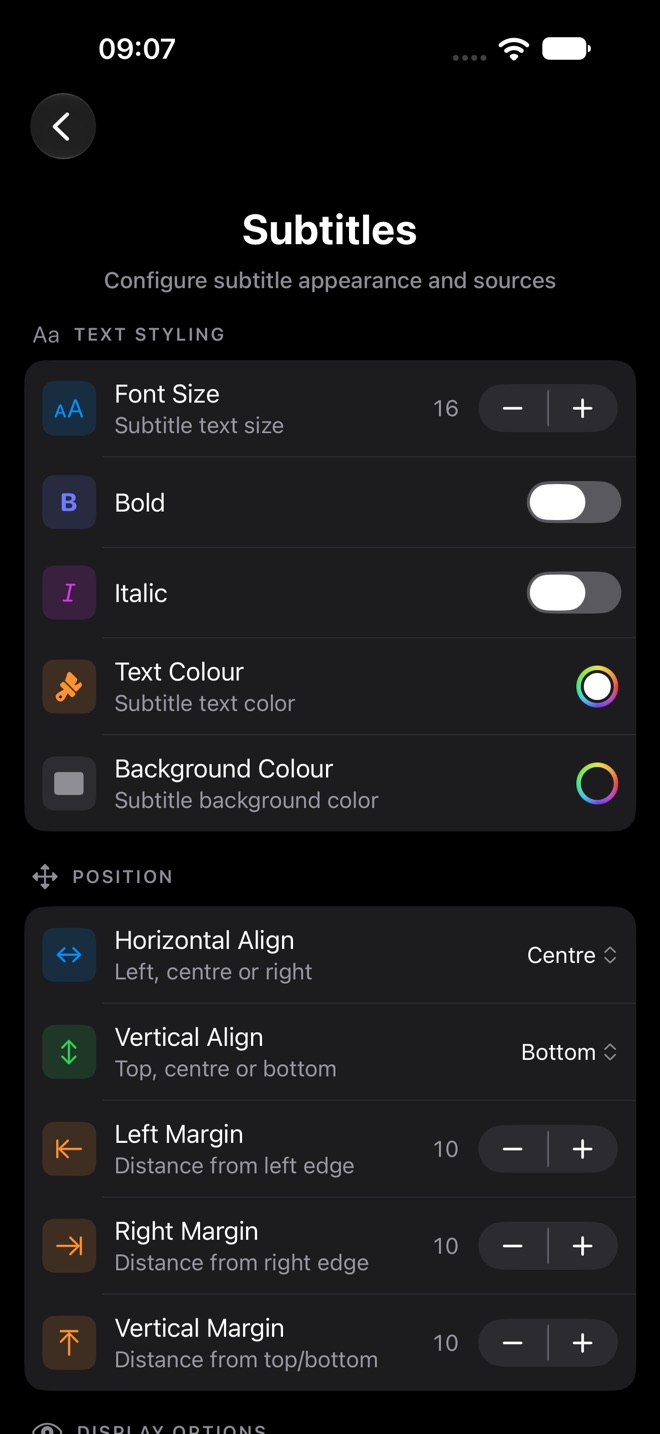
Font size, bold, italic, colours, alignment and margins, auto display, default language, and Live Subtitles languages.
Open Network Stream
Play any video URL in KSPlayer or AetherEngine. Previous streams are saved.
Show Skip Intro / Skip Credits Button
Timestamps come from TheIntroDB.org and are not available for every title.
Playback settings with Audio, Video, Subtitles, User Agent, Open Network Stream, and skip button toggles.
Playback.
Video settings with Live TV Player and VOD Player, and AetherEngine options.
Video: players and AetherEngine options.
Subtitles settings with text styling and position options.
Subtitles: styling and position.

Manage Content

Start by choosing Live TV, Movies, TV Series, Favourites, or Custom, then a category.

Category icons
Eye hides or shows, padlock adds the parental lock, tray excludes from import, pencil renames. Tap the info button for the Icon Guide.
Bulk actions
Hide All, Show All, Don't Import All, Import All.
Move
Reorders categories, and channels in Live TV, Custom, and Favourites.
Custom
New Custom Category, then add channels to it from Live TV.
Manage Content showing Live TV categories with counts and a search field.
Live TV categories in Manage Content.

Parental Controls

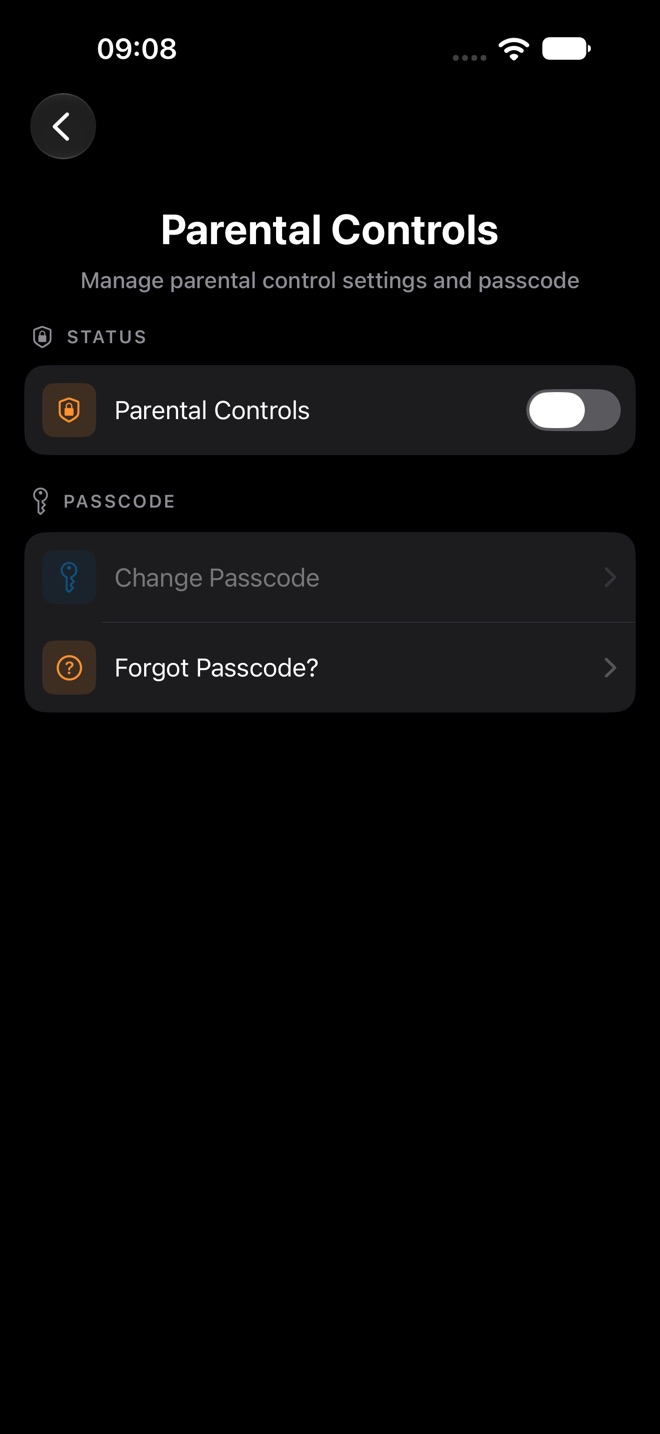
Parental Controls
Turn on to use locks on channels and categories.
Protect Settings / Use Face ID
Protect Settings with your passcode, and optionally unlock with Face ID.
Change Passcode / Forgot Passcode?
Manage the passcode.
Parental Controls settings with a status toggle, Change Passcode, and Forgot Passcode.
Parental Controls.

Appearance, Media Centres, and more

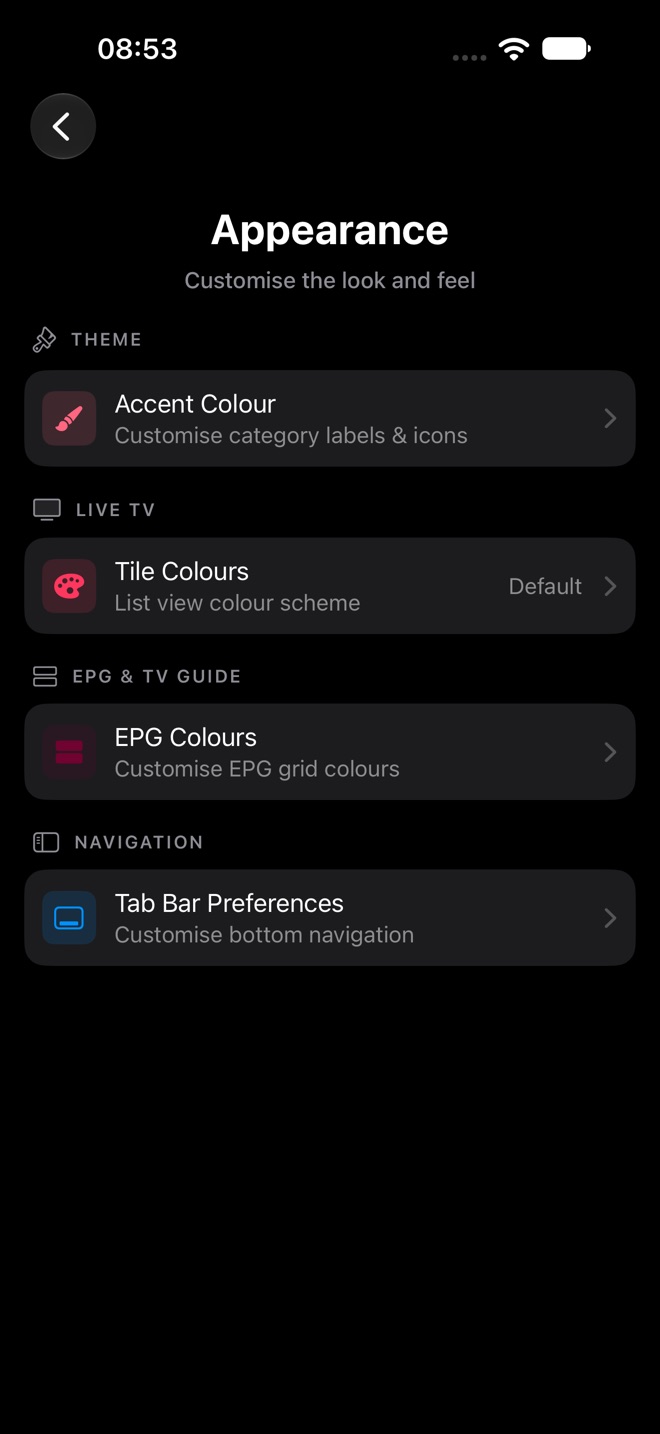
Appearance
Accent Colour, Tile Colours, EPG Colours, and Tab Bar Preferences.
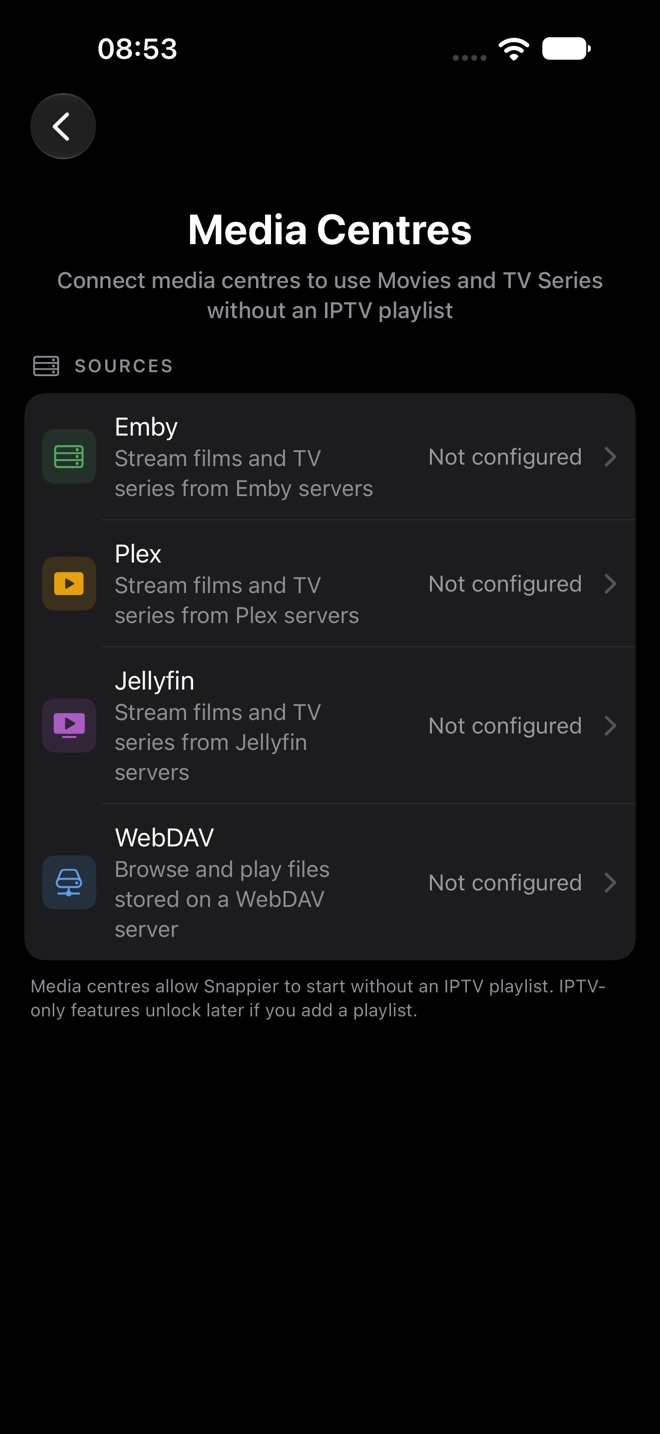
Media Centres
Connect Emby, Plex, Jellyfin, or WebDAV so Snappier can work without an IPTV playlist.
Trakt.tv / Simkl
Sync watched history. Turning on one turns off the other for that profile.
Metadata & API Keys
Metadata language, your own TMDB key, and RPDB poster ratings (premium).
EPG Editor
Rename channels and set their TV Guide IDs and artwork.
System
Cloud sync, backup and restore, diagnostics, and database tools.
General
App language, the screen to open on launch, FAQ, and support.
Appearance settings with Accent Colour, Tile Colours, EPG Colours, and Tab Bar Preferences.
Appearance.
Media Centres settings with Emby, Plex, Jellyfin, and WebDAV, each not configured.
Media Centres.

iPhone extras

Features you only get on iPhone

Picture in Picture

Tap the Picture in Picture button in the player. With KSPlayer, playback can also move to Picture in Picture automatically when you leave the app.

AirPlay

Use the AirPlay button in the player to send video to an Apple TV or AirPlay speaker.

Widgets

Add Favourites, Recently Watched, or Continue Watching widgets to your Home Screen in small, medium, or large sizes. Tapping one opens that item in Snappier.

Programme reminders

Turn on Enable Programme Reminders in Settings > Live TV, then use Set Reminder… on a channel to get a notification before a programme starts.

Troubleshooting

When the screen does not match the guide

A tab is missing

Open Settings > Appearance > Tab Bar Preferences to customise the bottom navigation.

Content looks out of date

Open Settings > Playlists and tap Update/Reload, or turn on Pull to Refresh in Settings > Home Screen.

The TV Guide is empty

Open Settings > TV Guide and tap Update/Reload. If your playlist has no guide, add one with Add Second EPG URL or use EPG Service.

A menu item is missing

Some items need premium (downloads, recordings, VLC and Infuse, Sports) or Snappier Server (recording to server). Locked items appear after Show Locked and your PIN.

Wrong playlist or profile

Use the playlist switcher at the top of Settings, or Options in the Home More menu to switch profile.

A media centre is not showing

Open Settings > Media Centres and check its status. Not configured means it has not been set up yet.