Apple TV guide

Getting around Snappier IPTV on Apple TV

Captured from the tvOS app

Use the top navigation first, then drill into each screen.

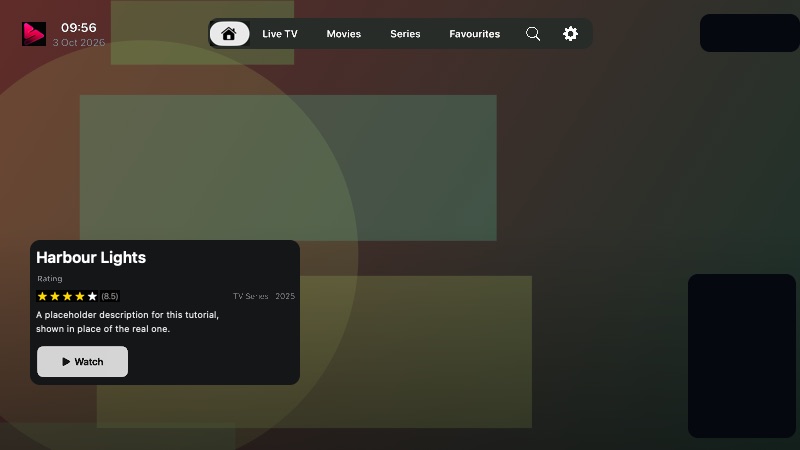
Snappier IPTV on Apple TV uses a top tab bar for the main areas: Home, Live TV, Movies, Series, Favourites, Search, and Settings. Home, Search, and Settings show as icons. Live TV, Movies, Series, and Favourites can be hidden in Settings, and a tab is hidden automatically when your playlist has no content of that type, so the exact layout may vary by playlist, profile, and subscription.

Screenshots in this guide are redacted where they showed profile, subscription, playlist, server, or viewing-history details, and posters, artwork, video, and channel logos are replaced with generated placeholder artwork. Screenshots were captured from the Apple TV app in October 2026.
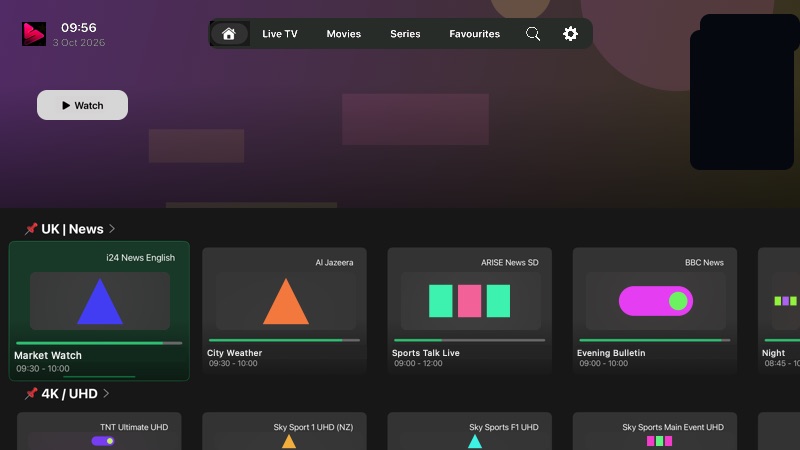
Snappier IPTV Home screen with the top tab bar and a featured title with a Watch button.
Home is the first place to orient yourself: tab bar at the top, a featured title, then rows of channels and media below.
Top tabs Featured

Quick start

The basic Apple TV flow

  1. Choose a tab. Move across the top navigation to jump between Home, Live TV, Movies, Series, Favourites, Search, and Settings.
  2. Move into the screen. Press down from the tab bar to focus the screen content, then move through rows, cards, or toolbar buttons.
  3. Select an item. Press Select to open a channel, movie, series, settings row, or action button.
  4. Use Play/Pause shortcuts. On Home, Play/Pause opens options. In Live TV, Movies, Series, and Favourites, move into the content area and press Play/Pause to show or hide the sidebar. In Search, Play/Pause opens Search Options.
  5. Go back safely. Use Back/Menu to return to the previous screen. Settings pages return to the Settings list.
  6. Use Settings when stuck. Playlist, TV Guide, playback, appearance, Media Centres, and Snappier Console options all live under Settings. Settings > How to use your remote explains every remote shortcut in the app.

Remote shortcuts

Use Play/Pause for screen-specific controls

The Play/Pause button changes meaning depending on where focus is. These captures show the visible result after pressing Play/Pause on Home, Live TV, Movies, and Series. For the full list, including shortcuts while watching, open Settings > How to use your remote.

Home options overlay shown after pressing Play/Pause, with favourites, recently watched, and continue watching controls.
Home: press Play/Pause while Home is visible to show options, including Switch Profile, playlist and TV Guide updates, and Home rows.
Favourites Recently watched Continue watching
Live TV categories sidebar shown after pressing Play/Pause from the channel grid.
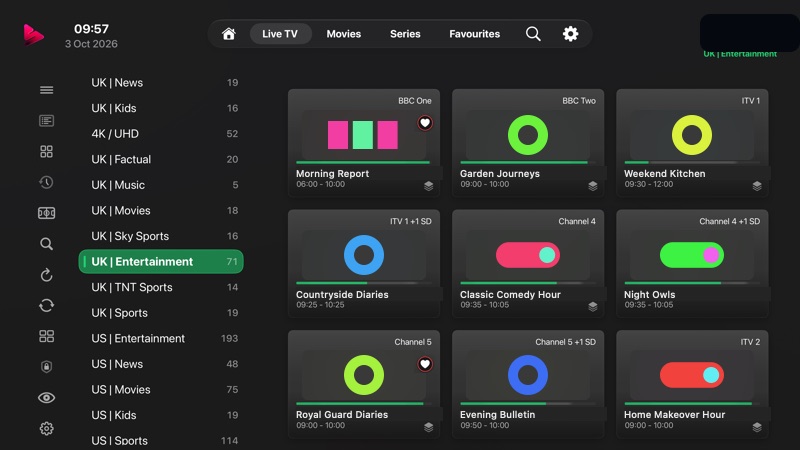
Live TV: move focus into the channel grid, then press Play/Pause to show or hide the categories sidebar. If Categories Sidebar: Always Show is on, the sidebar stays visible.
Categories sidebar Channels
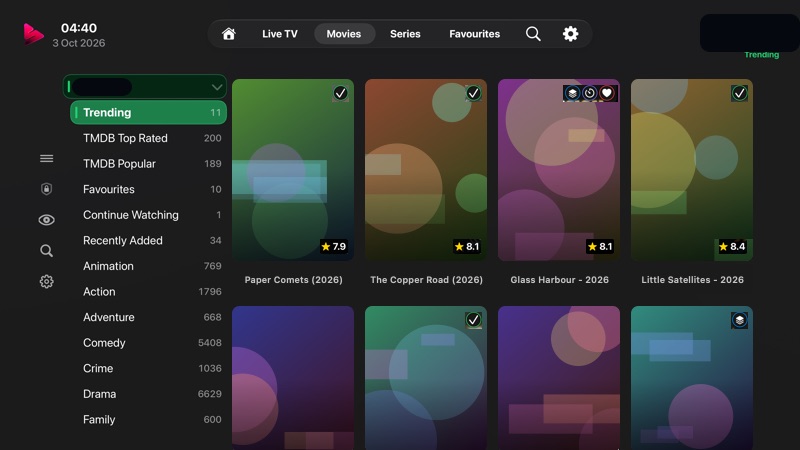
Movies categories sidebar shown after pressing Play/Pause from the poster grid.
Movies: move focus into the poster grid, then press Play/Pause to show or hide the movie categories sidebar.
Movie categories Posters
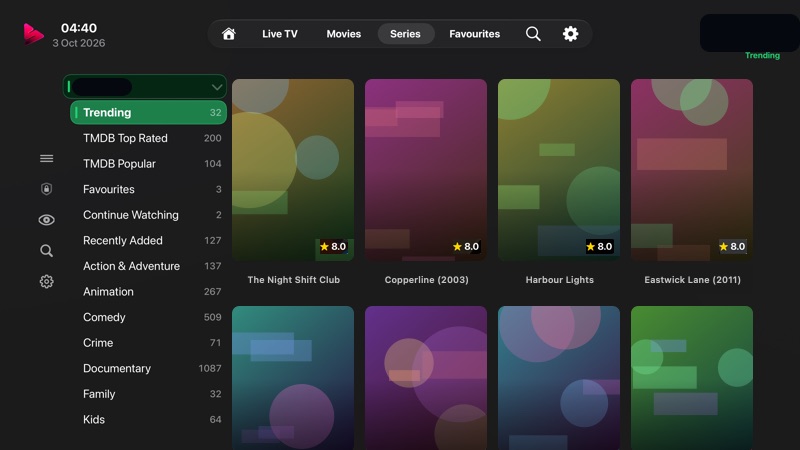
Series categories sidebar shown after pressing Play/Pause from the poster grid.
Series: move focus into the poster grid, then press Play/Pause to show or hide the series categories sidebar.
Series categories Shows

Home

Start from recommendations and recent activity

Home highlights content for the active profile and playlist. A featured title sits at the top, and the rows below can include pinned categories, favourites, recently watched items, and recently added items, with the top tab bar always available for moving to another section. Which rows appear, their order, and the Home style are set in Settings > Home Screen.

  • Use left and right on the tab bar to change main sections.
  • Move down to browse the Home rows.
  • Select a focused card to open or play it.
  • Press Play/Pause while Home is visible to open Home options; use Back/Menu to close the overlay.
Home screen scrolled below the featured title, showing pinned Live TV category rows with the programme on now on each channel.
Below the featured title, Home shows rows of channels and media. Channel tiles show what is on now; pinned categories are marked with a pin.
Navigation Pinned row

Live TV

Browse channels, categories, and live programme data

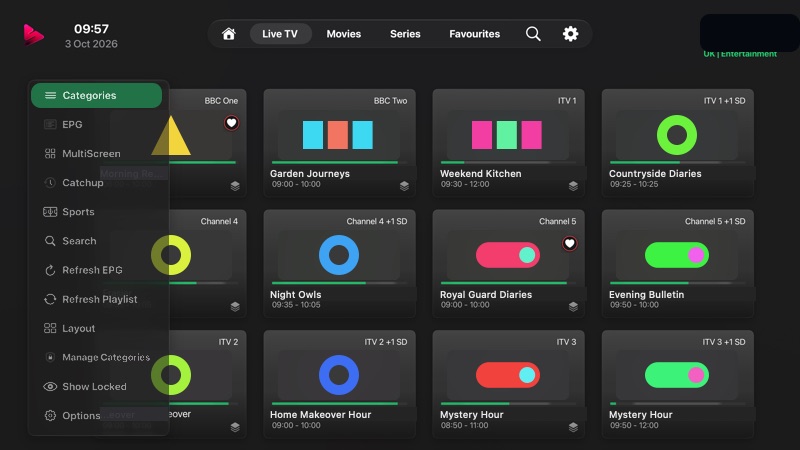
Live TV opens a channel grid with a tools panel for common actions: Categories, EPG, MultiScreen, Catchup, Sports, Search, Refresh EPG, Refresh Playlist, Layout, Manage Categories, Show Locked / Hide Locked, and Options. Some tools, such as Sports and Server, depend on your subscription and setup.

  • Each tile shows the programme on now, a progress bar, and its start and end times. A heart marks a favourite.
  • Use Categories to narrow the list.
  • Move focus into the channel grid, then press Play/Pause to show or hide the categories sidebar.
  • Use Layout to choose Grid View, List View, EPG View, or Hub View.
  • Use EPG to move into the TV Guide view when you want a programme-grid layout.
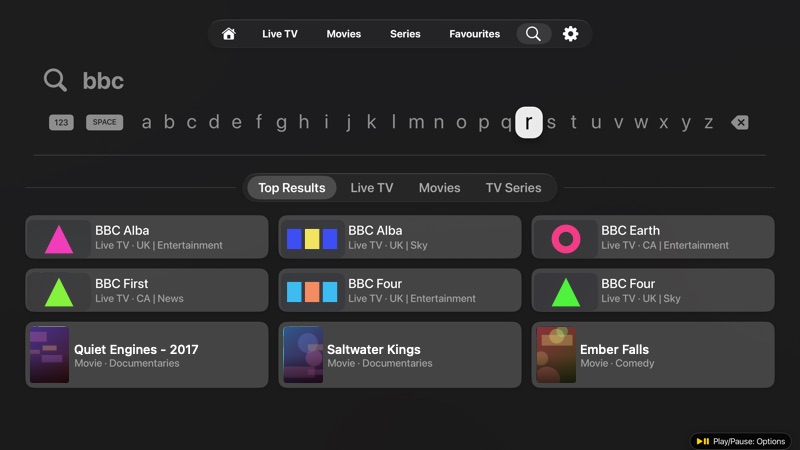
  • In Search inside Live TV, enter at least 3 characters, or search for 4K or DV.
Live TV with the tools panel open: Categories, EPG, MultiScreen, Catchup, Sports, Search, Refresh EPG, Refresh Playlist, Layout, Manage Categories, Show Locked, and Options.
The tools panel gives quick access to categories, EPG, MultiScreen, catchup, sports, search, refresh, layout, and options.
Tools panel Channel grid

TV Guide / EPG

Keep programme data fresh

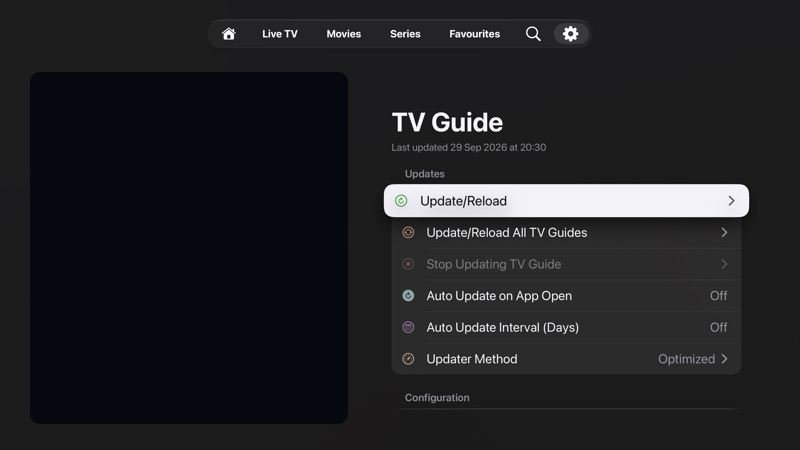
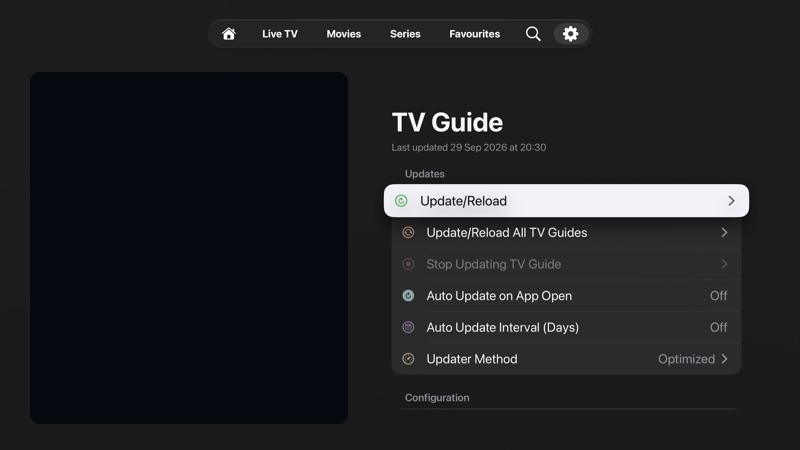
The TV Guide settings page controls guide updates and configuration. From Settings, open TV Guide to update or reload guide data, update all TV guides, stop an active update, configure automatic updates, and add a second TV Guide URL.

  • Use Update/Reload when guide data is missing or stale.
  • Use Auto Update on App Open and Auto Update Interval (Days) to control refresh behaviour.
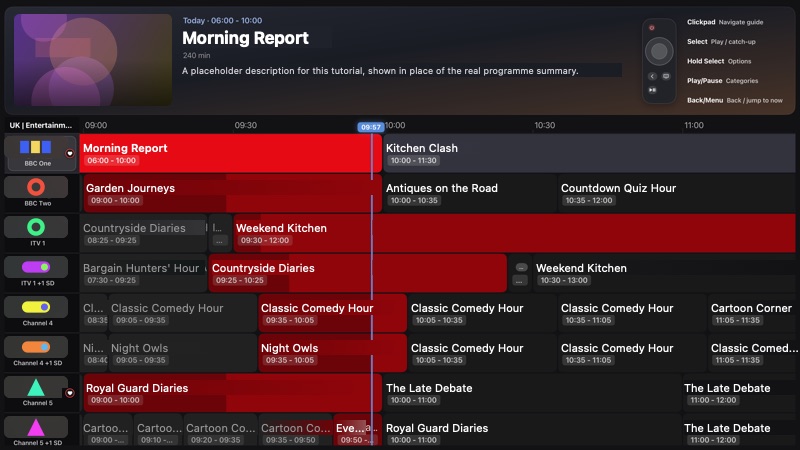
  • Use the EPG button in Live TV to open the TV Guide. The selected programme is shown at the top with its time, length, and description, and a red line marks the current time.
  • In the guide: Select plays the channel or catch-up, hold Select for options, Play/Pause shows categories, and Back/Menu jumps back to now. A reminder of these is shown at the top right.
TV Guide with the selected programme at the top, a remote shortcut legend, and a programme grid with a current-time line.
The TV Guide, opened with the EPG button in Live TV.
TV Guide settings with update and configuration options.
TV Guide settings are focused on update controls and source configuration.
Updates Configuration

Movies

Browse movie rows and provider categories

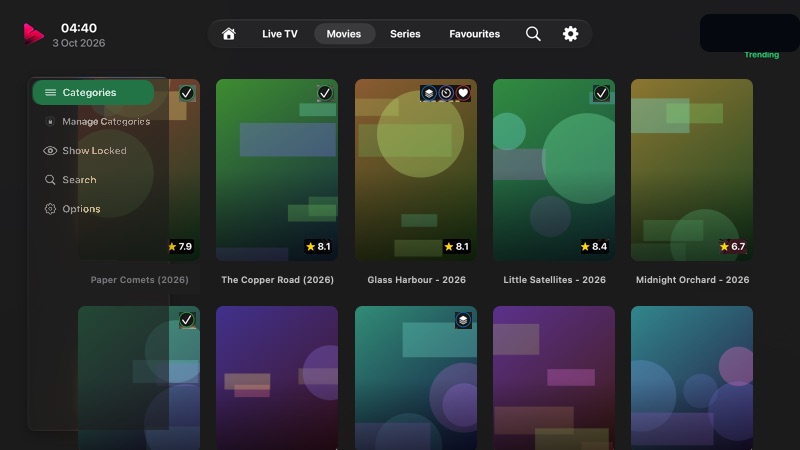
The Movies tab shows a poster grid with movie-specific tools: Categories, Manage Categories, Show Locked / Hide Locked, Search, and Options. If you have connected Emby, Jellyfin, Plex, WebDAV, or Snappier Server, a button for each enabled service can also appear here.

  • Use Categories to change the movie group.
  • Move focus into the poster grid, then press Play/Pause to show or hide the categories sidebar.
  • Use Search inside the tab when you want to narrow movies only.
  • Open Options when you need tab-specific movie settings.
Movies tab with poster grid and the left tools panel open.
Movies uses the same top tab bar with a poster grid and movie-specific tools.
Movie tools Poster grid

Series

Find shows and continue into episodes

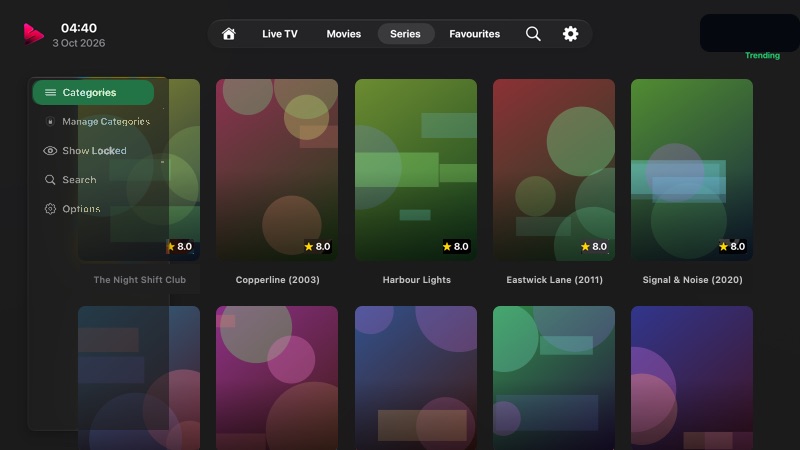
The Series tab mirrors the Movies browsing pattern, but for TV series. The tools panel includes Categories, Manage Categories, Show Locked / Hide Locked, Search, and Options, plus buttons for any connected media centres.

  • Select a series poster to open the series detail flow.
  • Use Search or Categories to reduce large libraries.
  • Move focus into the poster grid, then press Play/Pause to show or hide the categories sidebar.
  • Use Options for series-specific display and behaviour settings.
Series tab with poster grid and series toolbar options.
Series uses category and search tools similar to Movies, with series-specific browsing.
Series tools Shows

Favourites

Jump back to saved channels and media

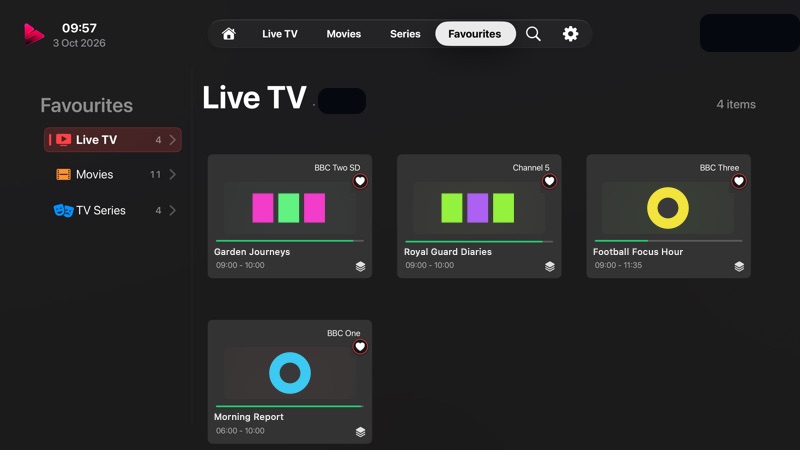
Favourites groups saved items by type. The left side shows Live TV, Movies, and TV Series with counts, which can be expanded per playlist, while the main area lists saved items for the selected group. Channel tiles show what is on now with a progress bar.

  • Choose Live TV, Movies, or TV Series from the left list.
  • Select an item to open or play it.
  • Press Play/Pause to show or hide the sidebar; Snappier remembers your choice.
  • Channel logos are replaced with placeholder artwork in this tutorial.
Favourites with Live TV selected, showing four favourite channels with the programme on now.
Favourites keeps saved content in one place; the playlist name is redacted.
Types Saved items

Playback

Open content and use Back/Menu to return

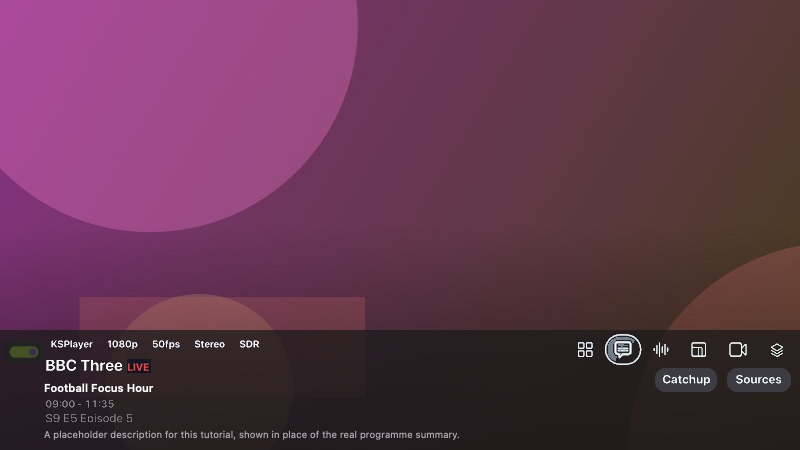
Selecting a Live TV item opens the player. Press Select to show the info bar: the channel, the player in use, the stream's resolution, frame rate, audio, and dynamic range, and the programme on now with its episode and description. Buttons on the right open the channel list, subtitles, audio, aspect ratio, video options, and sources, with Catchup and Sources below.

  • Select a focused channel or media item to start playback.
  • Use Back/Menu to return to the previous grid.
  • Use Settings > Playback for player behaviour and related options.
  • Settings > How to use your remote lists the shortcuts available while watching.
Player info bar showing channel, stream details, the current programme with episode and description, and player buttons.
The player info bar.
Programme info Player buttons

Settings

Find options in the grouped Settings list

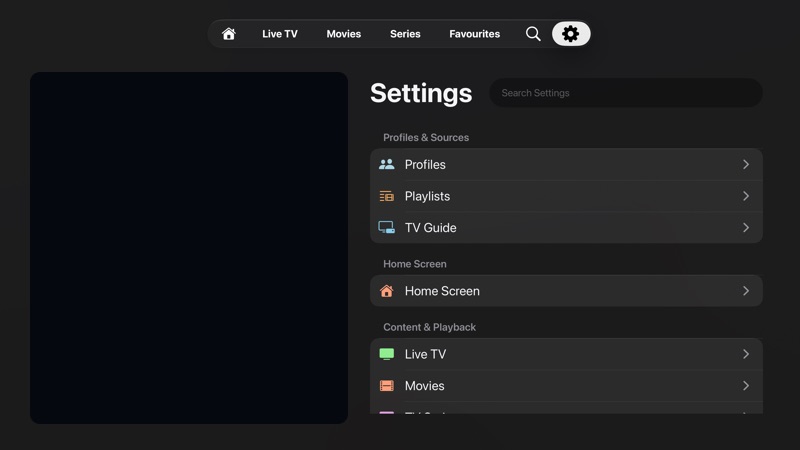
Settings is a list of rows grouped under headings, with a search field at the top. The left information column is redacted.

  • Profiles & Sources: Profiles, Playlists, TV Guide.
  • Home Screen: Home Screen.
  • Content & Playback: Live TV, Movies, TV Series, Favourites, Sports, Manage Content, EPG Editor, Playback, Parental Controls.
  • Personalisation: Appearance.
  • Integrations: Trakt.tv, Simkl, OpenSubtitles, Media Centres, Metadata & API Keys, EPG Service, Snappier Server.
  • App & System: How to use your remote, Snappier Console, System, General.
  • Some rows only appear when related features are enabled or included in your subscription.
  • Use Back/Menu to return from a settings page to the list.
Settings list with a search field and grouped rows for Profiles, Playlists, TV Guide, Home Screen, Live TV, and Movies, with account information redacted.
Settings rows are grouped under headings, with a search field at the top.
Grouped rows Search

Settings options

What the deeper settings change

These pages mix obvious controls with specialist ones. The notes below explain the options that are easiest to misread; plain labels such as Text Size, Hide All, Sort Channels By, or Show All are left to the on-screen wording. Many rows also show a short note underneath on screen.

Profiles

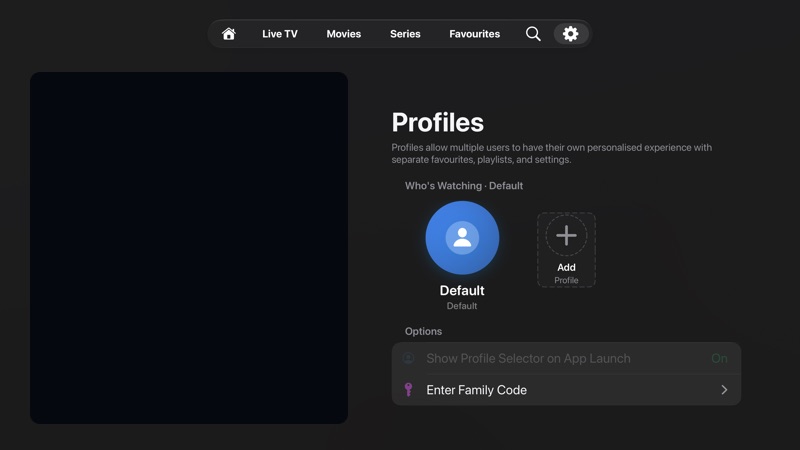
Profiles separate favourites, playlists, and settings for different people using the app.

Show Profile Selector on App Launch
Controls whether Snappier asks which profile to use when the app opens. It is only available once you have at least two profiles.
Enter Family Code
Use this when a family member has shared a profile code with this Apple TV. Shown with a premium subscription.
Profiles settings showing profile explanation, current profile, Add Profile, profile selector, and family code options.
Profiles keep personalised favourites, playlists, and settings separate.

Playlists

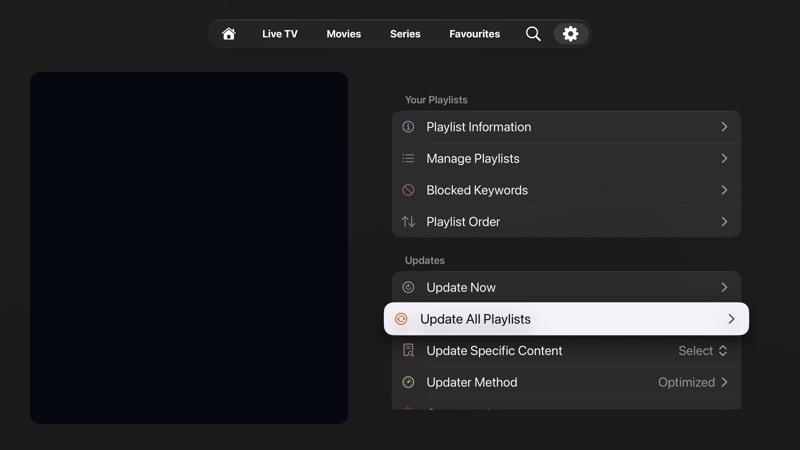
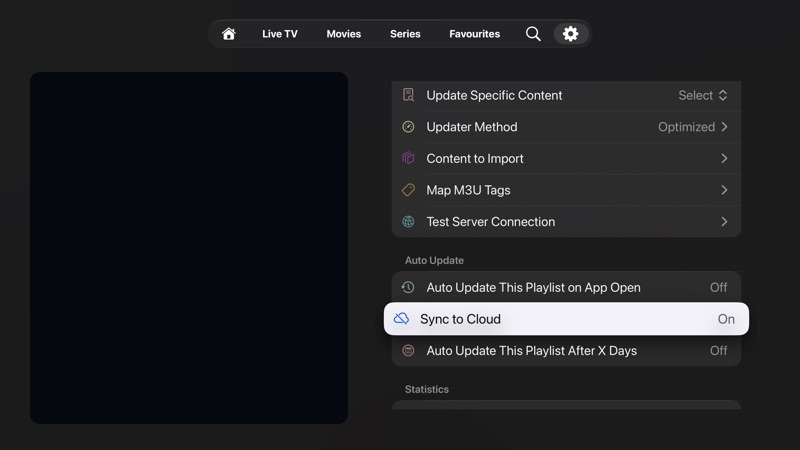
Playlist settings are grouped into Your Playlists, Updates, Auto Update, and Statistics.

Blocked Keywords
Anything whose name or category name contains a blocked keyword is skipped when the playlist is imported. Matching ignores upper and lower case.
Playlist Order
Changes the order your playlists are listed in.
Update Now
Refreshes the current playlist. While it runs, the row shows Update/Reload with a progress indicator.
Update Specific Content
Lets you refresh only Live TV, Movies, or TV Series instead of reloading everything. Available for Xtream Codes playlists.
Updater Method
Chooses the update strategy: Optimized Parser or Legacy Parser.
Delta Updates
Each update writes only the items that are new, changed, or gone, so the playlist stays usable while it refreshes. Turn it off to rebuild the playlist from scratch on the next update. Optimized Parser only.
Content to Import
Chooses whether Live TV, Movies, and TV Series are imported from the playlist.
Map M3U Tags
Maps playlist tags into Snappier content types.
Test Server Connection
Checks whether Snappier can reach the configured playlist server.
Auto Update This Playlist on App Open
Refreshes this playlist automatically when the app starts.
Sync to Cloud
Keeps the playlist synced through the app's cloud sync. Snappier asks you to confirm before turning it on or off.
Auto Update This Playlist After X Days
Sets a day-based refresh interval for this playlist.
All Playlists Stats
Opens statistics across all configured playlists.
Playlist settings showing playlist information, playlist management, update controls, update specific content, updater method, and content to import.
Playlist update controls can refresh one playlist, every playlist, or selected content only.
Playlist settings showing content to import, Map M3U Tags, test server connection, auto update, cloud sync, scheduled update, and all playlist stats.
The lower playlist settings cover tag mapping, server testing, automatic updates, cloud sync, and stats.

TV Guide

TV Guide settings are grouped into Updates, Configuration, Grid Behaviour, Test & Beta Features, and Services.

Stop Updating TV Guide
Only becomes useful during an active TV Guide update.
Auto Update on App Open / Auto Update Interval (Days)
Refreshes guide data automatically on launch or after a set number of days.
Updater Method
Chooses the TV Guide update strategy: Optimized, Streaming, OptStream, or Legacy.
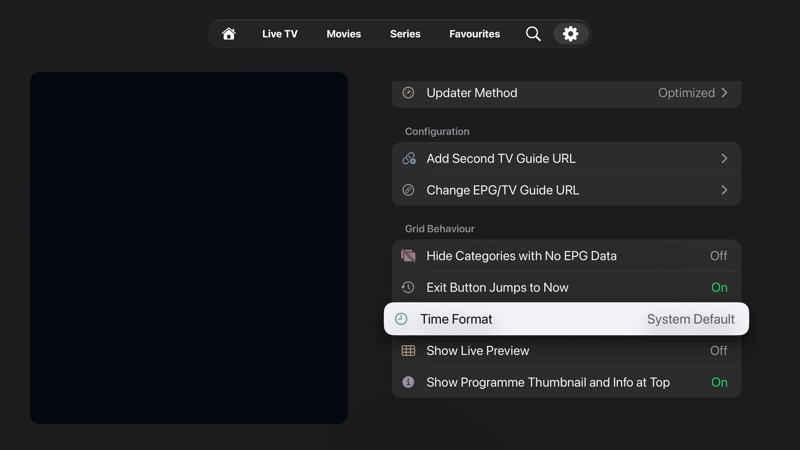
Add Second TV Guide URL
Adds another guide source alongside the current one.
Change EPG/TV Guide URL
Edits the current guide source URL.
Hide Categories with No EPG Data
Removes guide categories that do not have programme data.
Exit Button Jumps to Now
Makes the Exit button return the guide timeline to the current time.
Time Format
Shows guide times using the system setting, 12-hour, or 24-hour clock.
Show Live Preview
Shows a live preview while browsing the guide.
Auto-change Live Preview on Focus
Updates the live preview as focus moves through guide items. Only shown while Show Live Preview is on.
Show Programme Thumbnail and Info at Top
Displays the focused programme's thumbnail and information above the guide.
Beta TV Guide (Experimental)
Switches to the experimental guide implementation.
Show Past Programmes
Includes earlier programmes in the guide. Only shown while Beta TV Guide is on.
EPG Service and Reminders
The Services group at the bottom links to EPG Service and programme Reminders.
TV Guide settings showing update reload, update all guides, stop updating, auto update options, updater method, and add second TV Guide URL.
The upper TV Guide settings focus on refresh controls and guide source setup.
TV Guide settings showing guide URL, grid behaviour, live preview, beta TV Guide, and past programmes.
Grid behaviour controls how much guide data and preview information appears while browsing.

Live TV

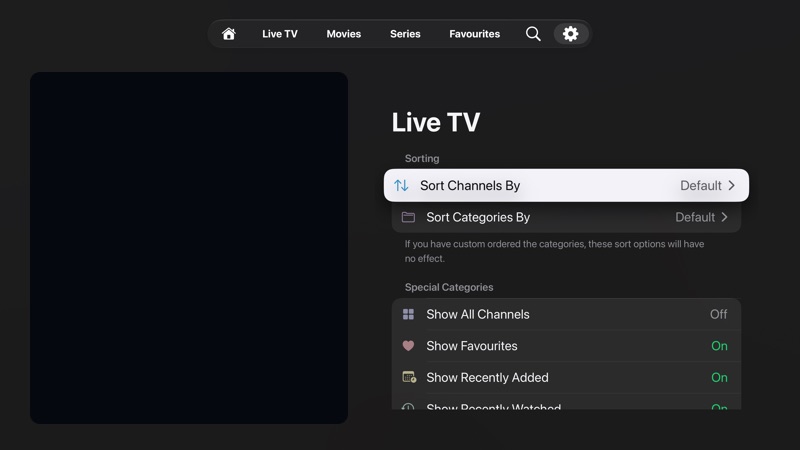
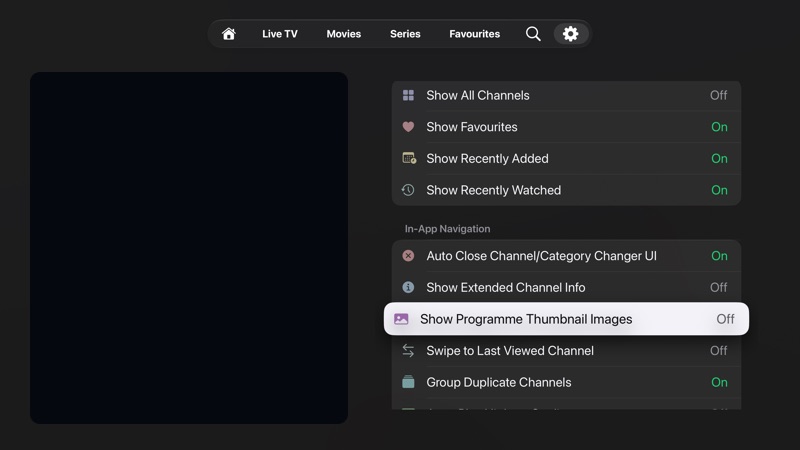
Live TV settings are grouped into Sorting, Special Categories, In-App Navigation, Live Preview, Content, Catchup TV, and Reset.

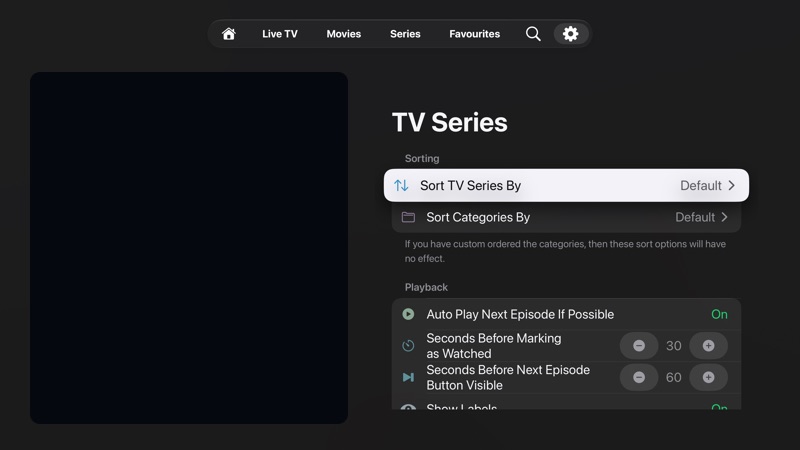
Sort Channels By / Sort Categories By
If you have custom ordered the categories, these sort options have no effect.
Special Categories
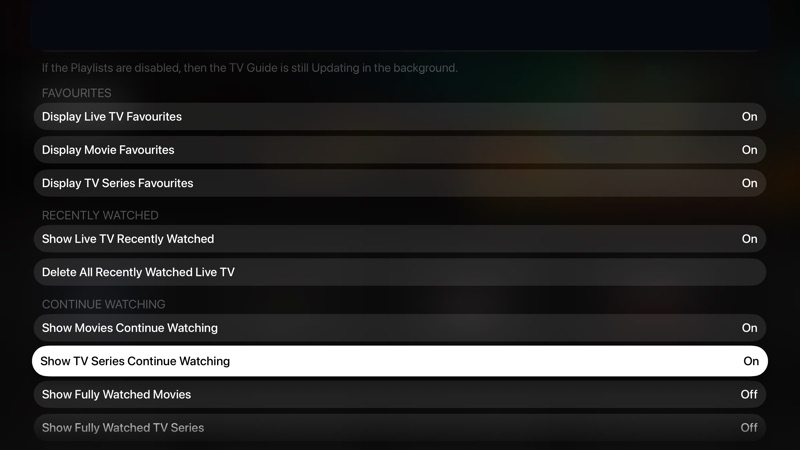
Show All Channels, Show Favourites, Show Recently Added, and Show Recently Watched control the extra categories inside Live TV. Home rows are set separately in Settings > Home Screen.
Auto Close Channel/Category Changer UI
The changer is what appears when you swipe down while watching Live TV. This closes it automatically after you use it.
Show Extended Channel Info
Adds more channel details where the Live TV UI supports it.
Show Programme Thumbnail Images
Displays programme artwork in supported Live TV views.
Swipe to Last Viewed Channel
Enables a swipe shortcut back to the last viewed channel.
Group Duplicate Channels
Channels with quality tags like HD, FHD, UHD, or 4K appear once. Selecting one shows a quality picker.
Auto-Play Highest Quality
Only available when grouping is on; it plays the best available version instead of showing the picker.
List View / Grid View: Show Live Preview
Turns the live preview on or off separately for the list and grid layouts.
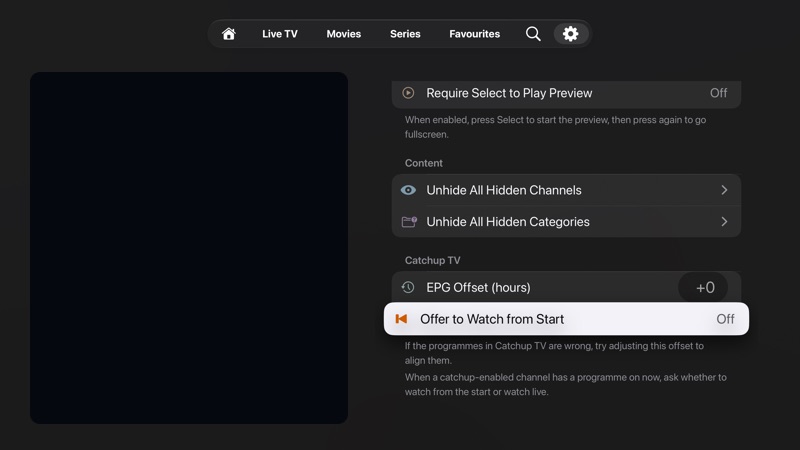
Require Select to Play Preview
When enabled, press Select to start the preview, then press again to go fullscreen.
Content and Reset actions
Content restores hidden channels or categories. Reset deletes the recently watched list or your custom category order.
EPG Offset (hours)
If the programmes in Catchup TV are wrong, adjust this offset to align them.
Offer to Watch from Start
When a catchup-enabled channel has a programme on now, asks whether to watch from the start or watch live.
Live TV settings showing sorting and special category settings.
Live TV sorting can be overridden by a custom category order.
Live TV settings showing channel changer, extended info, thumbnails, last viewed channel, and grouping options.
In-App Navigation settings affect the channel changer, programme artwork, and duplicate channel grouping.
Live TV settings showing content actions and catchup TV options including EPG offset and watch from start.
Content actions restore hidden items, while Catchup TV options adjust catchup timing and start-over prompts.

Movies

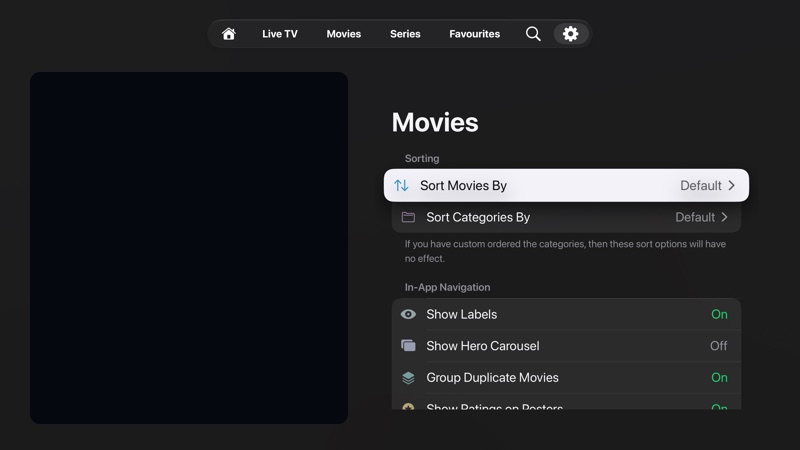
Movie settings are grouped into Sorting, In-App Navigation, Previews, Special Categories, Content, and Reset.

Show Labels
Shows movie labels in supported movie views.
Show Hero Carousel
Shows the large hero carousel at the top of Movies.
Group Duplicate Movies
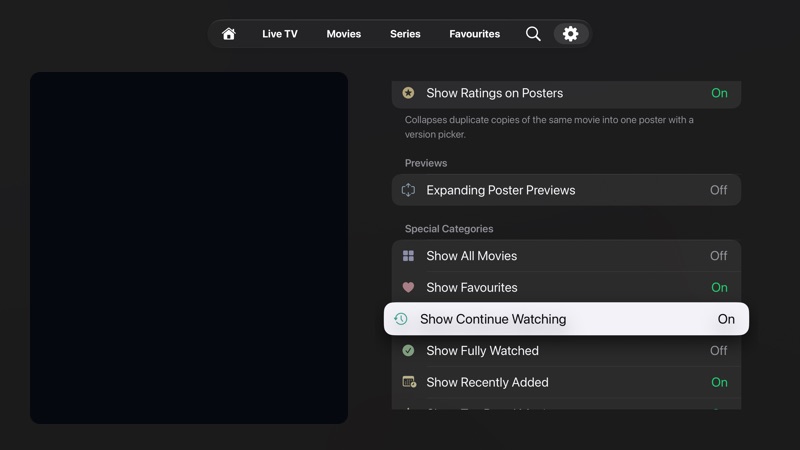
Collapses duplicate copies of the same movie into one poster with a version picker.
Show Ratings on Posters
Adds a rating badge to movie posters.
Previews
Expanding Poster Previews, Play Trailer Previews, and Play Trailers with Sound. Each option appears once the one above it is on. Only on Apple TV models that support trailer previews.
Special Categories
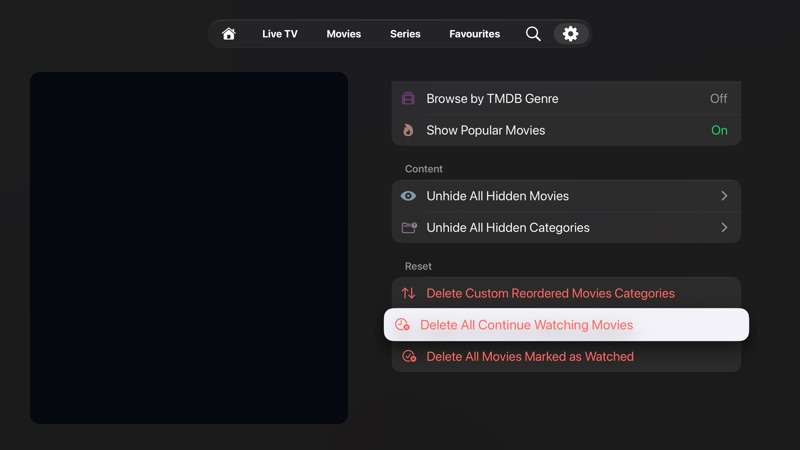
Show All Movies, Show Favourites, Show Continue Watching, Show Fully Watched, Show Recently Added, Show Top Rated Movies, Browse by TMDB Genre, and Show Popular Movies. Continue Watching and Fully Watched are hidden while Trakt is connected.
Unhide All Hidden Movies / Categories
Restores hidden movie items or hidden movie categories.
Reset
Delete Custom Reordered Movies Categories, Delete All Continue Watching Movies, and Delete All Movies Marked as Watched. Each asks you to confirm.
Movie settings showing sorting and label options.
Movie sorting mirrors the channel sorting pattern, with label visibility under In-App Navigation.
Movie settings showing hero carousel, continue watching, fully watched, recently added, top rated, popular, and content options.
Special Categories decide which extra categories appear inside Movies.
Movie settings showing actions for reordered categories, continue watching, watched movies, hidden movies, and hidden categories.
Content and Reset actions restore hidden movies or clear local movie state.

TV Series

Series settings are grouped into Sorting, Playback, In-App Navigation, Previews, Display, Special Categories, Content, and Reset.

Auto Play Next Episode If Possible
Starts the next episode automatically when Snappier can determine the next item.
Seconds Before Marking as Watched
Sets how close to the end an episode must be before it is marked watched. Use − and + to adjust in 5-second steps.
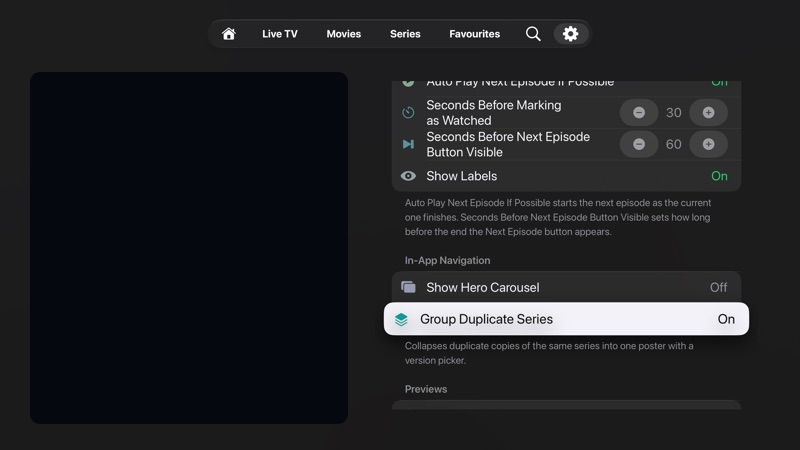
Seconds Before Next Episode Button Visible
Controls when the next-episode button appears during playback.
Show Labels
Shows labels in supported series views.
Show Hero Carousel / Group Duplicate Series
Shows the hero carousel at the top of Series, and collapses duplicate copies of the same series into one poster.
Episode Layout
Select the row to switch between Shelf and List. The current choice is shown in the row name.
Special Categories
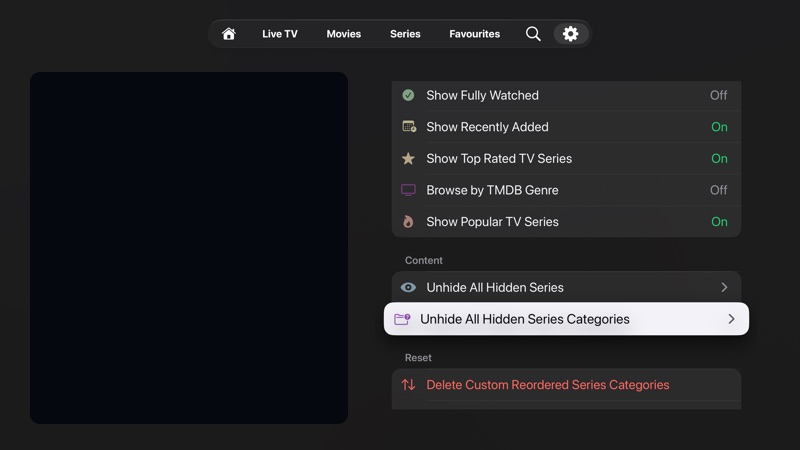
Show All TV Series, Show Favourites, Show Continue Watching, Show Fully Watched, Show Recently Added, Show Top Rated TV Series, Browse by TMDB Genre, and Show Popular TV Series.
Unhide All Hidden Series / Series Categories
Restores hidden series items or hidden series categories.
Reset
Delete Custom Reordered Series Categories, Delete All Continue Watching Series, Delete All Dropped Series, and Delete All Series Marked as Watched.
TV Series settings showing sorting and auto play next episode.
Series sorting mirrors Movies, with episode playback controls below.
TV Series settings showing episode playback timing, labels, episode layout, and category controls.
Series playback timing controls watched status and next-episode prompts.
TV Series settings showing category toggles, dropped series, watched series, and hidden series actions.
Content and Reset actions restore hidden series or clear local series state.

Home Screen

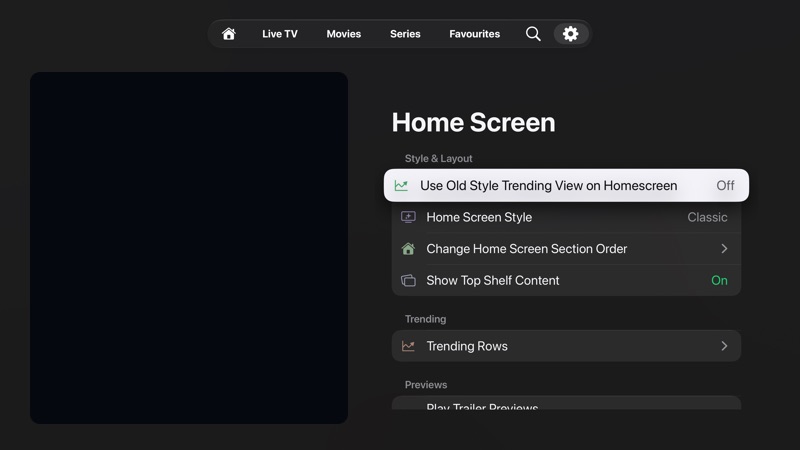
Settings > Home Screen controls the Home tab: its style, which rows appear, and in what order.

Home Screen Style
Chooses between Classic and Cinematic, where available.
Change Home Screen Section Order
Changes the order of sections shown on Home.
Show Top Shelf Content
Controls whether Snappier provides content for the Apple TV Top Shelf area.
Live TV, Movies, and TV Series Rows
Per-row toggles for what appears on Home. These are separate from the Special Categories inside each tab.
Previews and Trakt Rows
Trailer and live previews on Home, and Trakt rows such as Continue Watching and Upcoming Schedule when you are signed in to Trakt.
Pinned Home Sections
Show Pinned Categories and Manage Pinned Categories. Premium.
Home Screen settings showing Style and Layout options, Home Screen Style, section order, Top Shelf, and Trending Rows.
Home Screen settings start with style and layout, then trending, previews, and per-row toggles.

Playback

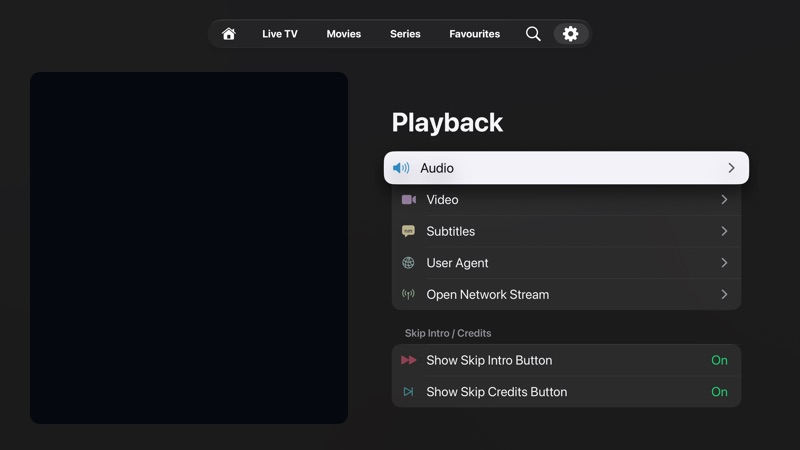
Settings > Playback is the starting point for audio, video, subtitle, stream, and skip-button behaviour.

User Agent
Sets the network user agent Snappier sends when opening streams. It is saved per playlist.
Open Network Stream
Enter any valid video URL to open the stream directly. Previous streams are listed for reuse.
Show Skip Intro Button / Show Skip Credits Button
Shows skip controls when timestamp data is available. Timestamps are powered by TheIntroDB.org; not every title has them, and they may not be perfectly accurate.
Playback settings overview with Audio, Video, Subtitles, User Agent, Open Network Stream, and skip intro controls.
Playback groups the audio, video, subtitle, user-agent, stream, and skip-button pages.

Video, audio, and subtitles

These subpages tune the player used for Live TV and VOD, plus sync, language, and subtitle preferences.

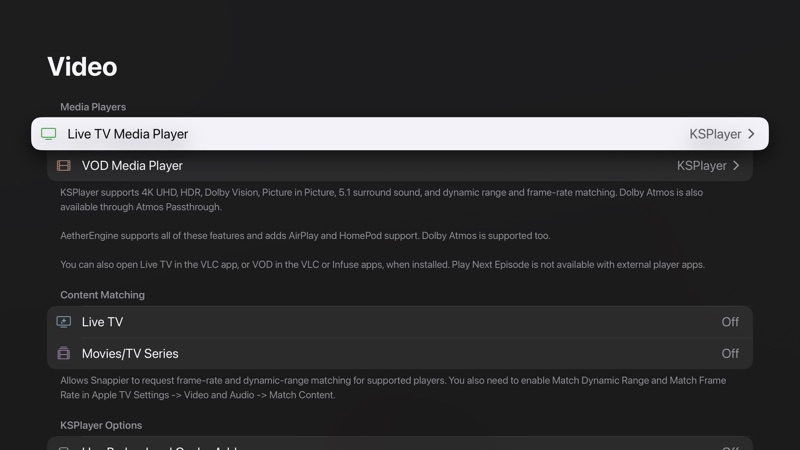
Live TV Media Player / VOD Media Player
Chooses the player for live streams and on-demand content. KSPlayer is available to everyone; AetherEngine is available on Apple TV 4K (2nd generation) or newer. With premium you can also hand playback to the VLC app, or the Infuse app for VOD. Each picker includes a Compare features view.
Content Matching
Lets Snappier request frame-rate and dynamic-range matching for Live TV and Movies/TV Series. You also need to enable Match Dynamic Range and Match Frame Rate in Apple TV Settings > Video and Audio > Match Content.
KSPlayer Options / AetherEngine Options
Extra settings appear for whichever player you choose. KSPlayer Options includes Advanced Options for power users; AetherEngine Options includes the Live TV Seek Slider and decoding choices.
Skip Backwards / Skip Forwards
Sets how far each skip jumps.
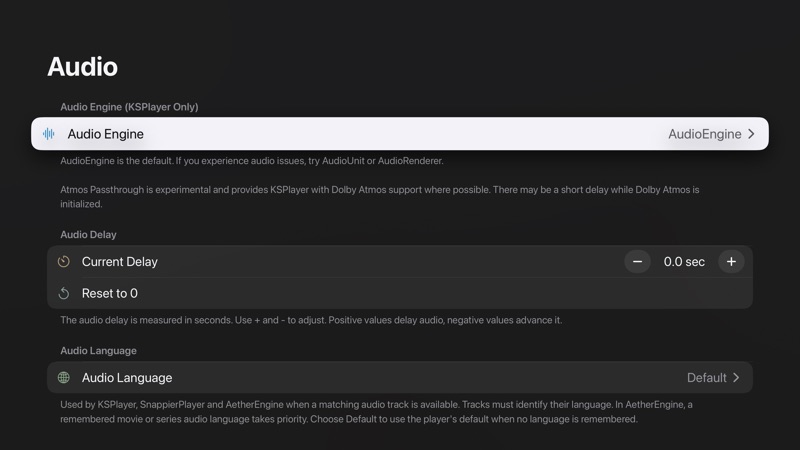
Audio Engine (KSPlayer Only)
Chooses the audio output path used by KSPlayer.
Audio Delay
Adjusts audio sync in seconds with − and +. Positive values delay audio; negative values advance it. Saved per playlist.
Audio and subtitle languages
Language preferences only work when the stream labels its tracks with language names. Choose Default to let the player pick normally.
Subtitles
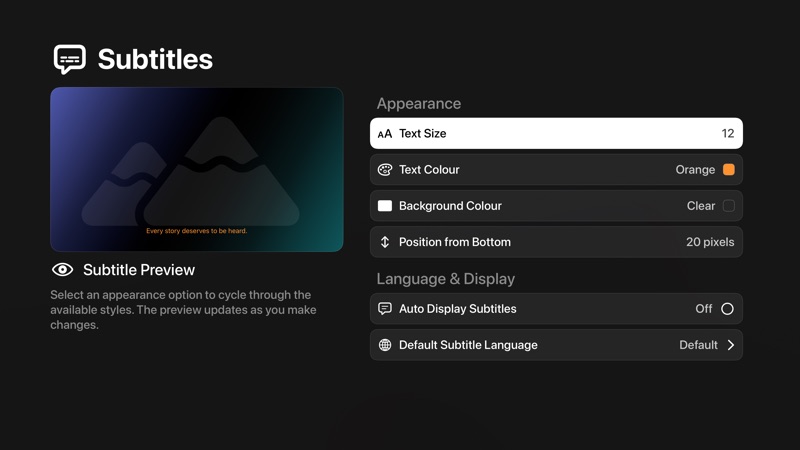
A live Subtitle Preview sits beside the options. Appearance covers Text Size, Text Colour, Background Colour, and Position from Bottom; Language & Display covers Auto Display Subtitles and Default Subtitle Language.
OpenSubtitles
Now in Settings > Integrations > OpenSubtitles. It needs an account registered at OpenSubtitles.com (not .org); credentials are saved for the current profile.
Video playback settings with Live TV and VOD media player selectors, player notes, and Content Matching.
Video settings choose players, content matching, and player-specific options.
Audio playback settings with audio engine, audio delay, and preferred audio language.
Audio settings cover engine choice, audio delay, reset, and preferred track language.
Subtitle settings with a subtitle preview, appearance options, auto display, and default subtitle language.
Subtitle settings cover appearance, automatic display, and preferred language.

Appearance

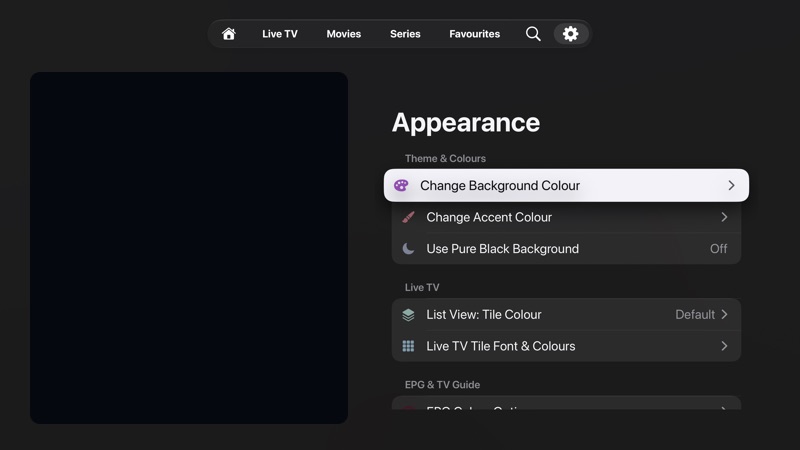
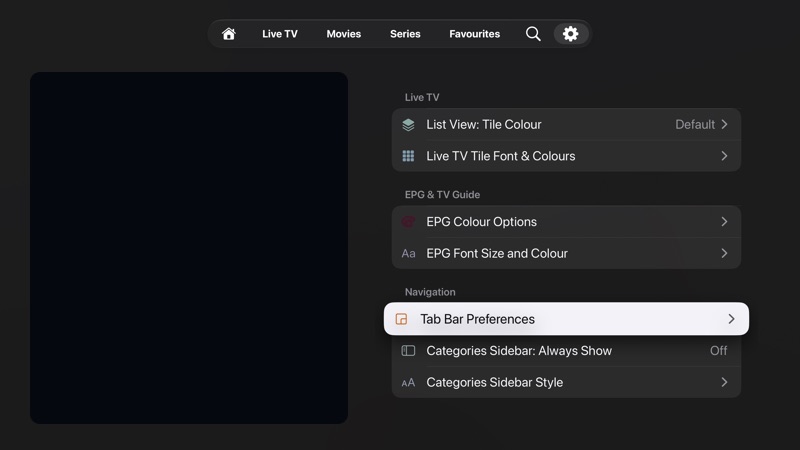
Appearance is grouped into Theme & Colours, Live TV, EPG & TV Guide, and Navigation.

Use Pure Black Background
Uses a pure black background across supported screens.
Live TV and EPG colour options
List View: Tile Colour, Live TV Tile Font & Colours, EPG Colour Options, and EPG Font Size and Colour customise the Live TV and TV Guide screens.
Tab Bar Preferences
Shows or hides the Live TV, Movies, TV Series, and Favourites tabs.
Categories Sidebar: Always Show / Categories Sidebar Style
Keeps the categories sidebar on screen instead of toggling it with Play/Pause, and sets its font and colours.

Options that used to live here have moved: Home Screen Section Order and Top Shelf to Settings > Home Screen; Default Screen to Open On and Change App Language to Settings > General; Sort & Hide Sports Tab Bar and Pinned Teams to Settings > Sports.

Appearance settings with background, accent, Live TV, EPG, and navigation controls.
Appearance includes app colours, Live TV and EPG styling, and navigation options.
Appearance settings showing Live TV, EPG and TV Guide, and Navigation groups including Tab Bar Preferences and Categories Sidebar options.
Navigation covers Tab Bar Preferences and the categories sidebar.

Metadata & API Keys

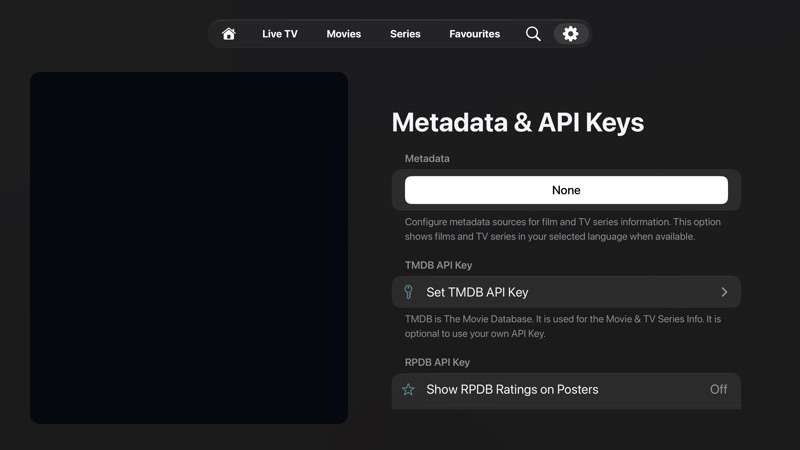
Found under Integrations. These settings affect movie and TV show information, language, and poster ratings.

Metadata
Shows movies and TV series in your selected language when available.
Set TMDB API Key
TMDB is The Movie Database, used for movie and TV series information. Using your own key is optional.
RPDB API Key
Shows ratings on posters, with separate IMDB, TMDB, and Rotten Tomatoes toggles. Premium.
Metadata settings with metadata language and TMDB API key controls.
Metadata settings are where language and API key configuration live. Actual keys are not shown in this tutorial.
Content Management

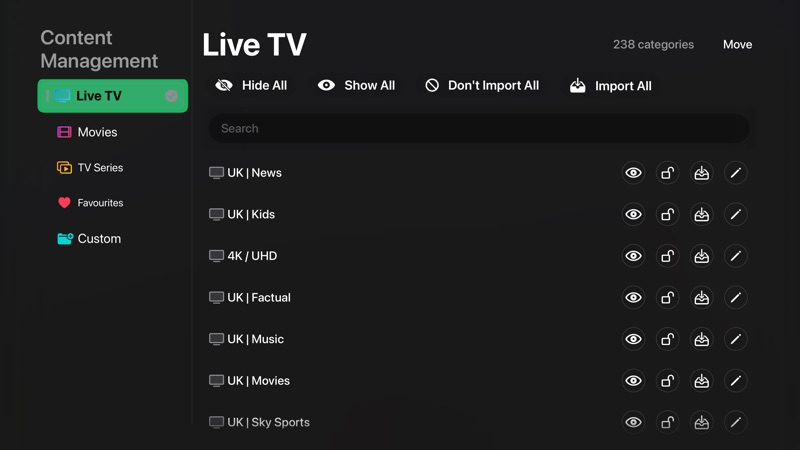
Open Manage Content to edit category visibility, locking, import status, names, and order for Live TV, Movies, TV Series, Favourites, and Custom categories.

Move
Enters reorder mode for the selected content type. Select Done when finished. Not available while searching.
Eye, lock, import, and pencil icons
Per-row actions hide or show a category, add or remove the parental lock, exclude it from or include it in imports, and rename it. In Custom, a Delete action replaces the import icon.
Don't Import All / Import All
Bulk changes whether categories for the selected content type are imported.
Custom categories and favourites
Create a New Custom Category, add channels to it, and add or remove favourites directly from channel rows.
Content Management screen showing Live TV categories, bulk hide and import actions, search, per-category icons, and Move.
Content Management gives bulk actions at the top and repeated per-category controls on each row.

Playlists and profiles

Update, manage, and choose playlist content

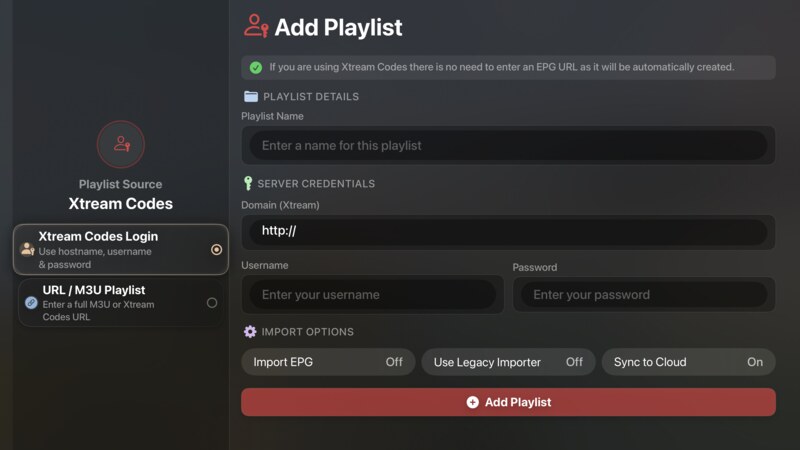
Settings > Playlists provides playlist information, management, blocked keywords, playlist order, update controls, and content import controls. The Add Playlist flow supports Xtream Codes Login and URL / M3U Playlist.

  • Use Playlist Information to inspect the current source (Xtream Codes playlists).
  • Use Manage Playlists, then Add Playlist, to add a new source.
  • Choose Xtream Codes Login to use a hostname, username, and password, or URL / M3U Playlist to enter a full M3U or Xtream Codes URL.
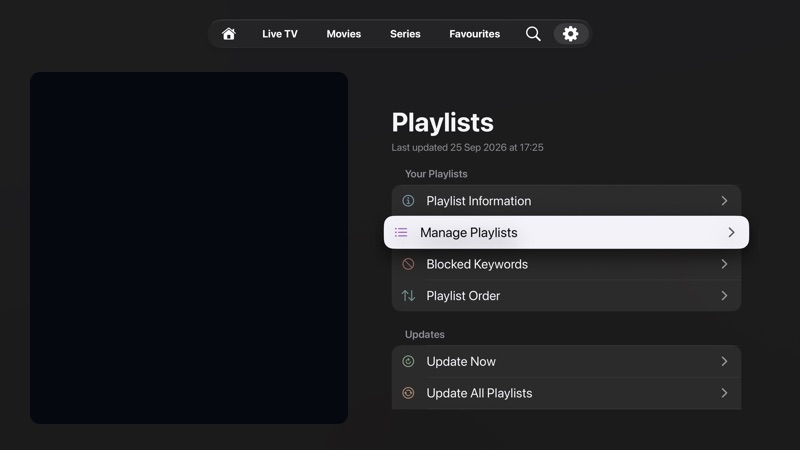
  • Use Update Now when playlist content needs refreshing.
Playlists settings with playlist management and update controls.
Playlist settings centralise source management and update controls.
Your playlists Updates
Add Playlist screen with Xtream Codes Login selected and fields for playlist details, server credentials, import options, and Add Playlist.
Add Playlist shows source choices on the left, credential fields on the right, import toggles, and the Add Playlist action.
Source type Credentials Import options

Snappier Console

Use browser-based controls from your local network

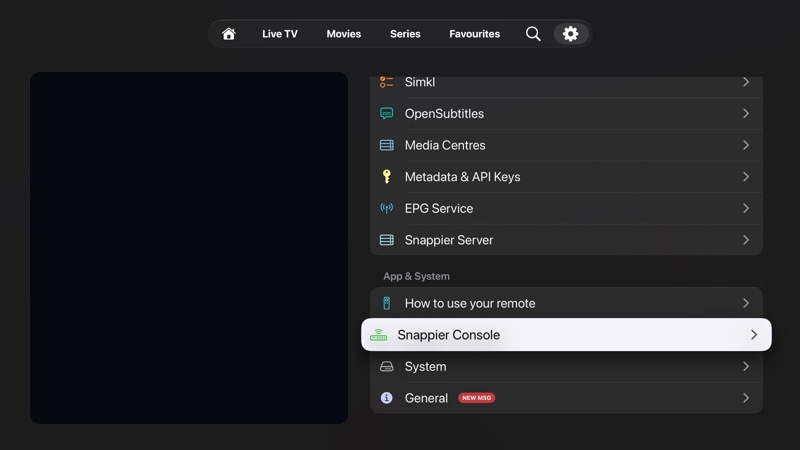
Snappier Console is in the App & System group at the bottom of Settings, alongside How to use your remote, System, and General. Most functions from Settings are available through Snappier Console, from any web browser on your local network.

  • Open Settings and move down to the App & System group.
  • Select Snappier Console, then turn on Enable Console. You can also set a password.
  • Snappier itself must remain open while you use Console from another device on the same network.
Settings scrolled to Snappier Console and related system options.
Snappier Console is in the App & System group at the bottom of Settings.
Console

Integrations

Connect extra sources and services when needed

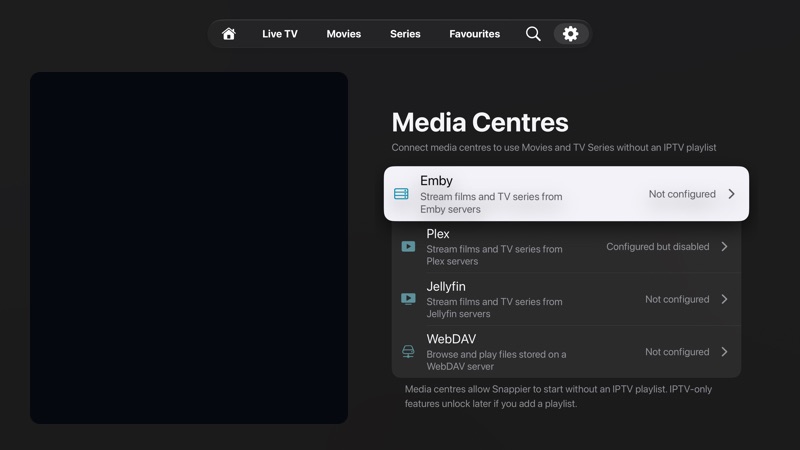
The Integrations group in Settings includes Trakt.tv, Simkl, OpenSubtitles, Media Centres, Metadata & API Keys, EPG Service, and Snappier Server. Availability depends on setup and subscription.

  • Media Centres connects Emby, Plex, Jellyfin, and WebDAV so you can use Movies and TV Series without an IPTV playlist.
  • Each media centre shows Ready, Configured but disabled, or Not configured. WebDAV shows how many shares are set up.
  • Snappier Server appears with a premium subscription.
  • Viewing Statistics is in Settings > General.
Media Centres settings with Emby, Plex, Jellyfin, and WebDAV and their setup status, with account information redacted.
Media Centres shows optional content-source integrations and their current setup state.
Media centres

Troubleshooting

When the screen does not match the guide

A tab is missing

Live TV, Movies, Series, and Favourites can be hidden in Settings > Appearance > Tab Bar Preferences. A tab is also hidden automatically when your playlist has no content of that type.

Guide data is empty

Open Settings > TV Guide and use the update controls. If a second guide URL is needed, use the Configuration section on that screen.

A source is disabled

Open Settings > Integrations > Media Centres. Each source shows Ready, Configured but disabled, or Not configured.

Settings are protected

Parental Controls can protect settings. If Settings asks for a PIN, enter the configured parental-control PIN before changing protected options.