iPad guide

Getting around Snappier IPTV on iPad

Captured from the iPad app

Tabs at the top, more room for every screen.

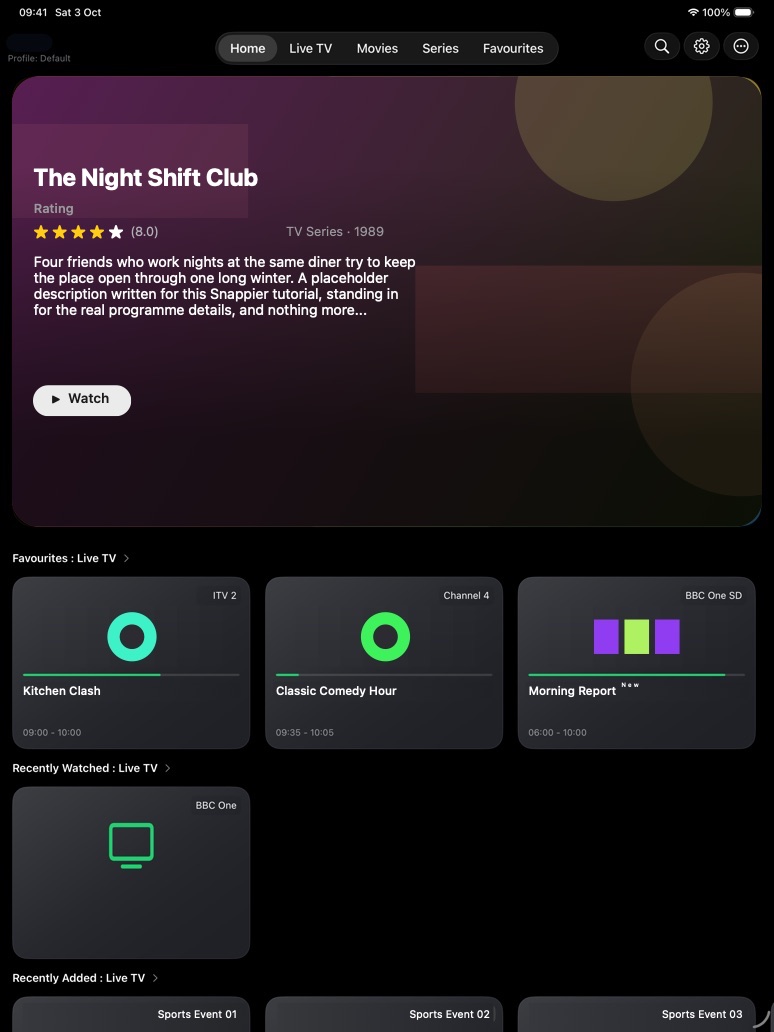
The iPad app works like the iPhone app, but uses the extra space. The tabs (Home, Live TV, Movies, Series, and Favourites) sit in a bar at the top of the screen, with Search, Settings, and the More (…) menu at the top right of Home. Live TV adds a layout picker with List, EPG, and Hub views, and Favourites gets a sidebar.

Screenshots were captured on a 13-inch iPad Pro in October 2026. Playlist names and viewing history are redacted, and posters, artwork, video, and channel logos are replaced with generated placeholder artwork. Gestures, long-press menus, downloads, and most settings are the same as on iPhone; see the iPhone guide for those details.
Snappier IPTV Home screen on iPad with the tab bar at the top, Search, Settings and More buttons, a featured title, and content rows.
Home on iPad: tabs at the top, tools at the top right.

Quick start

The basic iPad flow

  1. Choose a tab. Tap Home, Live TV, Movies, Series, or Favourites in the bar at the top.
  2. Pick a category. In Live TV, Movies, and Series, tap the round green button at the bottom of the screen.
  3. Choose a Live TV layout. More (…) > Change Layout switches between Grid, List, EPG, and Hub View.
  4. Long-press for options. Press and hold a channel or poster for favourites, catch-up, editing, and more.
  5. Search and settings. Use the magnifying glass and gear at the top right of Home.

Home

Start from recommendations and recent activity

Home shows the active playlist and profile at the top left, a large featured title with a Watch button, then rows such as Favourites: Live TV, Recently Watched: Live TV, and Recently Added. Live TV tiles show the programme on now, how far through it is, and its start and end times.

  • Scroll sideways along a row to see more.
  • The More (…) menu has Downloads, Recordings, and Options. Downloads and Recordings need premium.
  • Options chooses which Home rows appear and lets you switch profile and playlist.
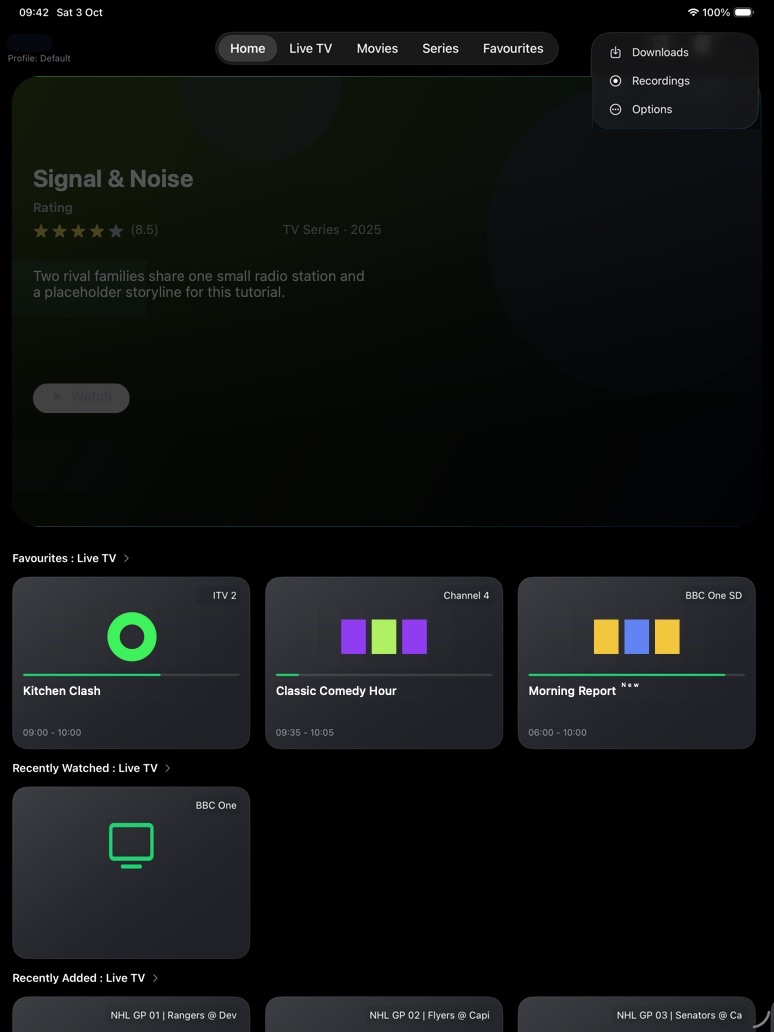
iPad Home with the More menu open showing Downloads, Recordings, and Options.
The More menu on Home.

Live TV

Browse channels in a larger grid

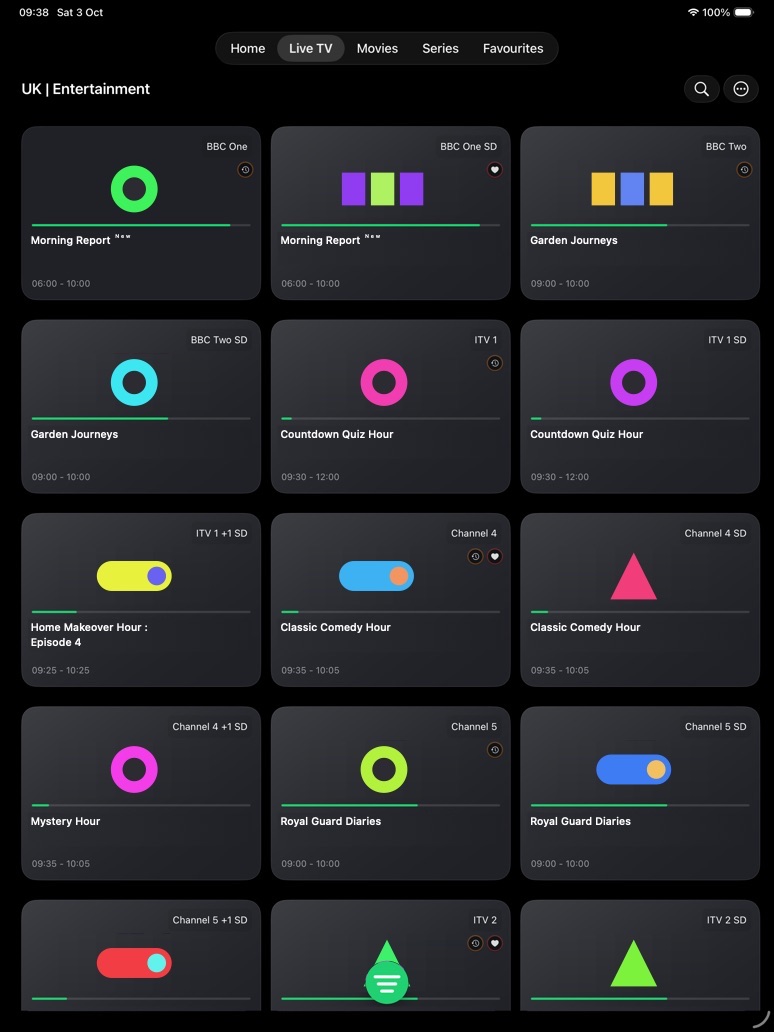
Live TV opens a three-column channel grid with the category name at the top. Each tile shows the programme on now with a progress bar and its start and end times. A clock icon means the channel has catch-up, and a heart means it is a favourite.

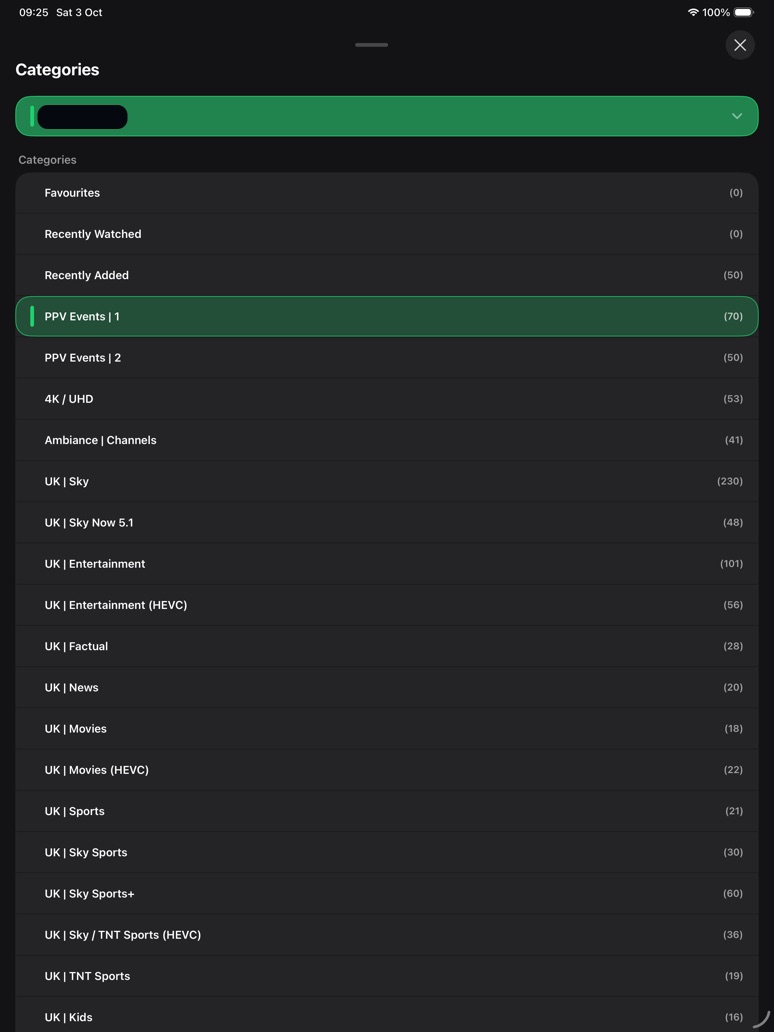
  • Tap the round green button to open Categories. The playlist picker is at the top, then Favourites, Recently Watched, Recently Added, and your playlist's categories with channel counts.
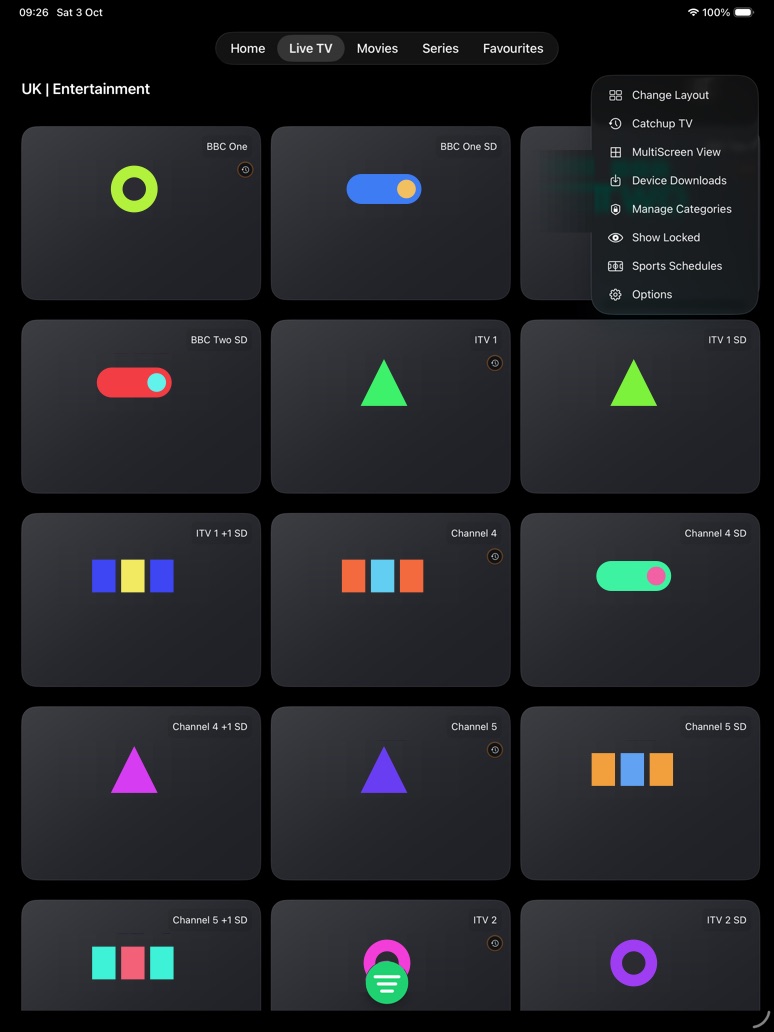
  • The More (…) menu has Change Layout, Catchup TV, MultiScreen View, Device Downloads (premium), Manage Categories, Show Locked, Sports Schedules (premium), and Options.
  • MultiScreen on iPad can show up to 9 channels at once.
  • The magnifying glass searches this tab: enter at least 3 characters, or search for 4K or DV.
iPad Live TV grid with three columns of channel tiles and the green categories button.
The channel grid.
iPad Categories sheet with a playlist picker and categories with channel counts.
The categories sheet. The playlist name is redacted.
iPad Live TV More menu with Change Layout, Catchup TV, MultiScreen View, Device Downloads, Manage Categories, Show Locked, Sports Schedules, and Options.
The Live TV More menu.

Live TV layouts

Grid, List, EPG, and Hub View

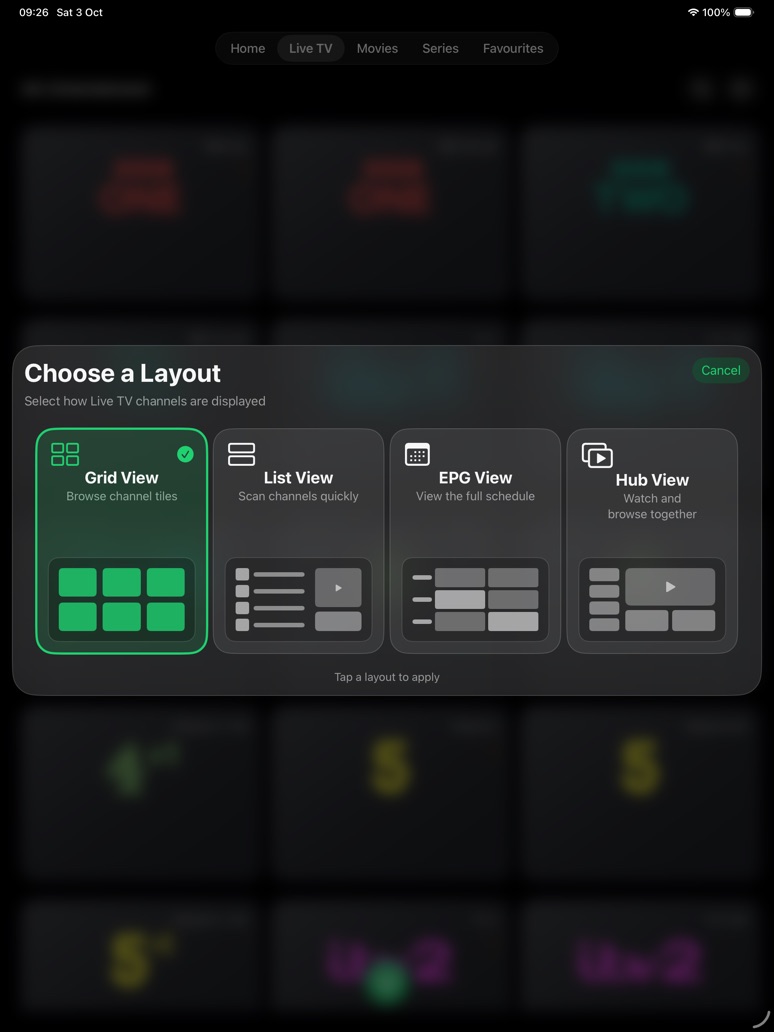
Choose More (…) > Change Layout to open Choose a Layout, then tap a layout to apply it. The current layout has a tick.

  • Grid View: browse channel tiles.
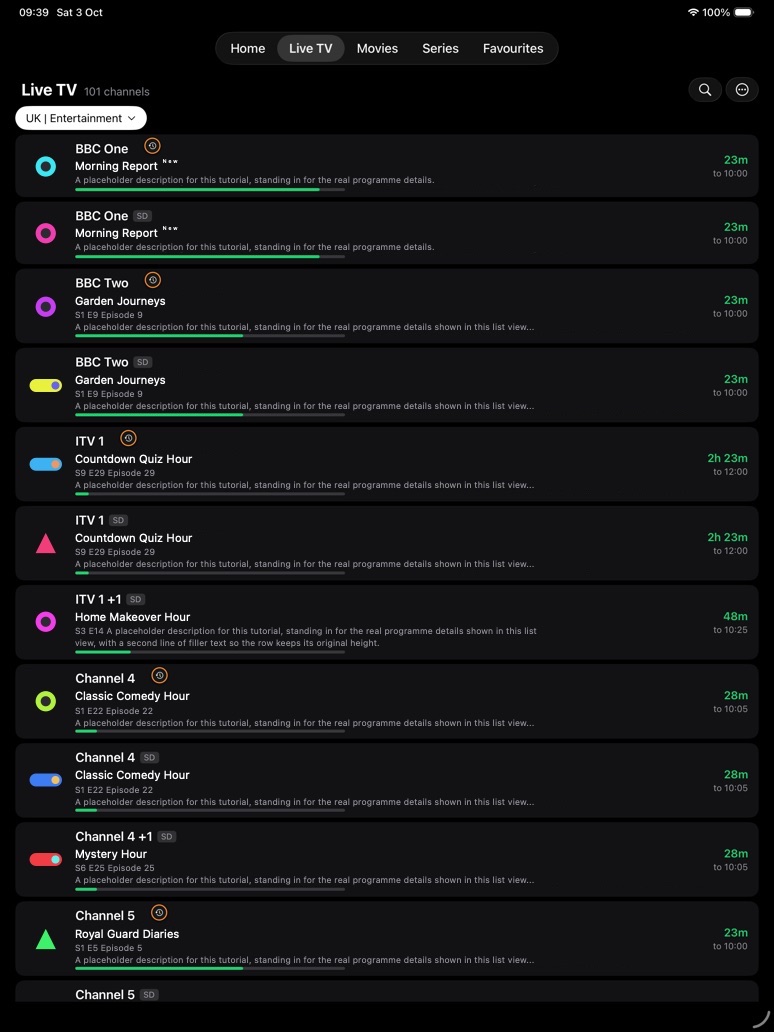
  • List View: scan channels quickly. The header shows the channel count and a category button. Each row shows the programme on now, its episode and description, a progress bar, and how long is left.
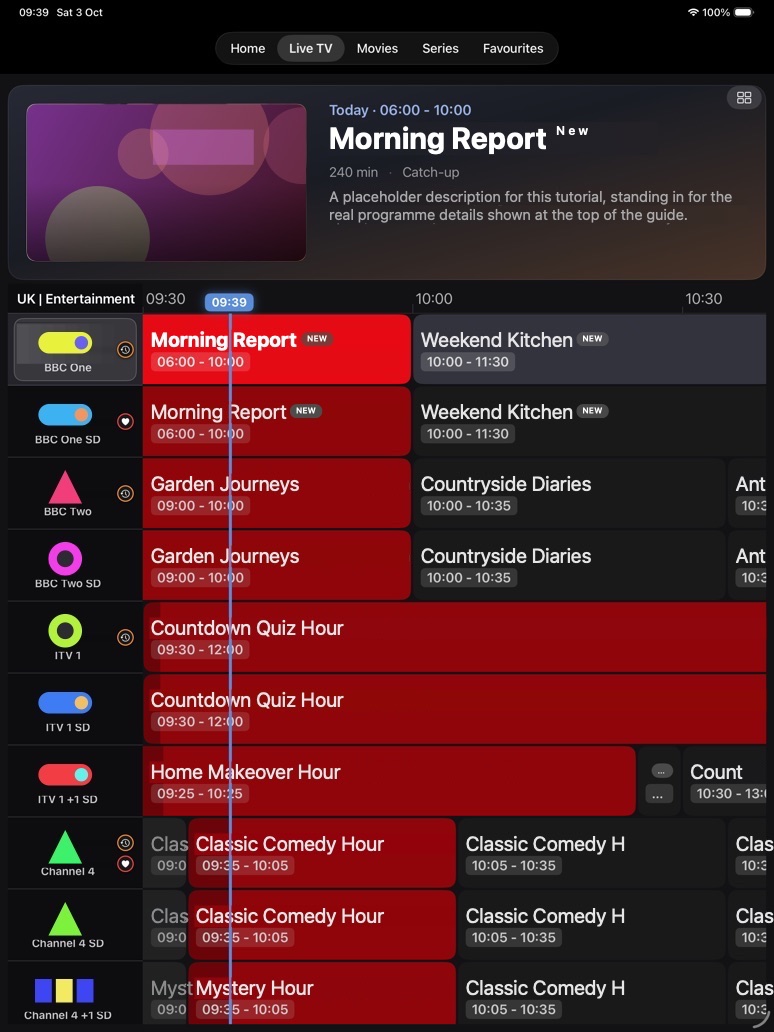
  • EPG View: the full schedule. The selected programme is shown at the top with its time, length, and description; below is the programme grid with a line marking the current time. Long-press for options, and use the button at the top right to change layout again.
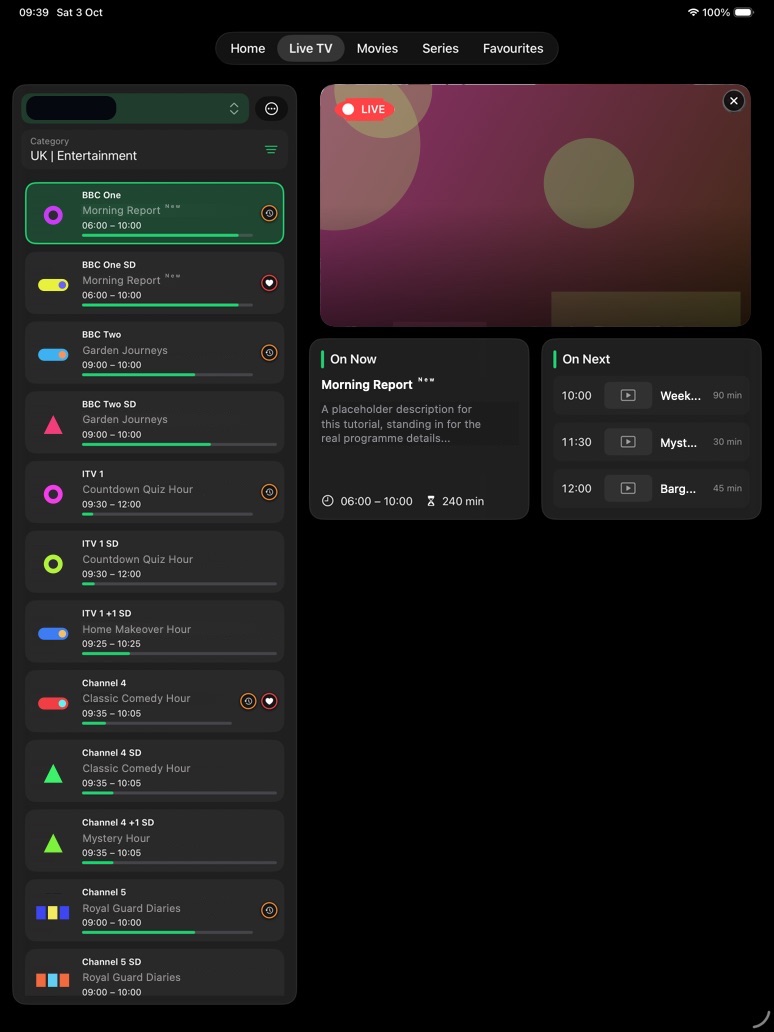
  • Hub View: watch and browse together. The channel list (with what is on now) is on the left. On the right are a live preview, an On Now card with the programme's description and length, and On Next with the following programmes.
Choose a Layout panel with Grid View, List View, EPG View, and Hub View.
Choose a Layout.
iPad Live TV List View with a channel count, category button, and channel rows with play buttons.
List View.
iPad EPG View with the selected programme at the top and a programme grid with a current-time line.
EPG View.
iPad Hub View with a channel list on the left, a live preview, and On Now and On Next cards.
Hub View.

Channel options

Long-press a channel

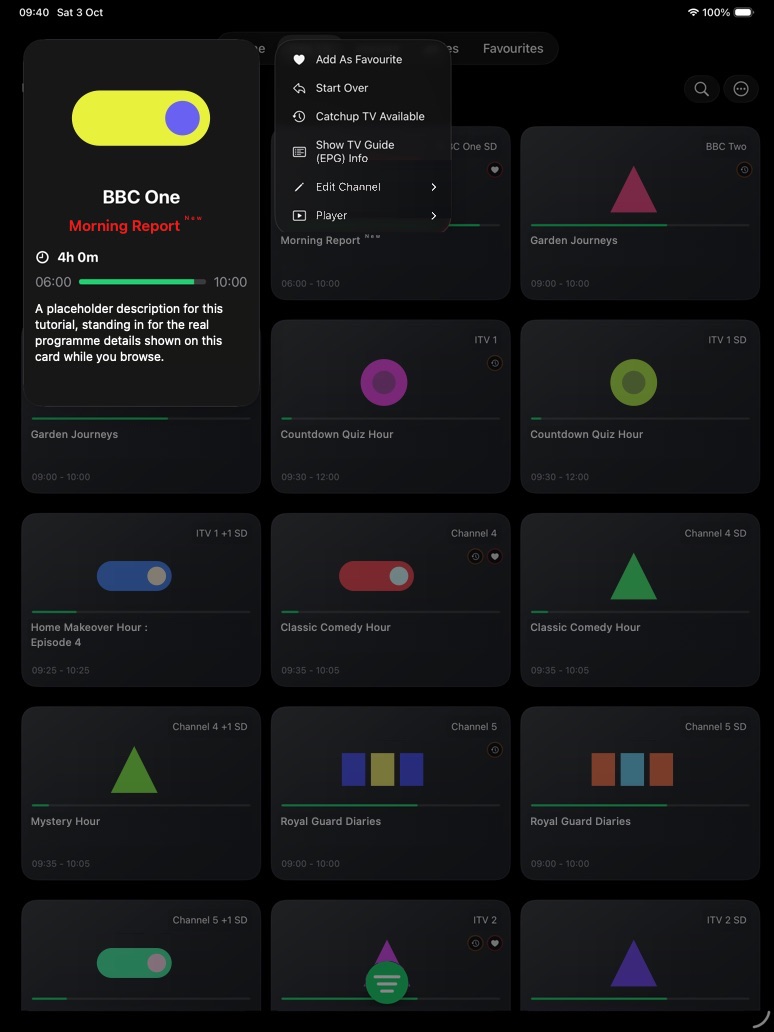
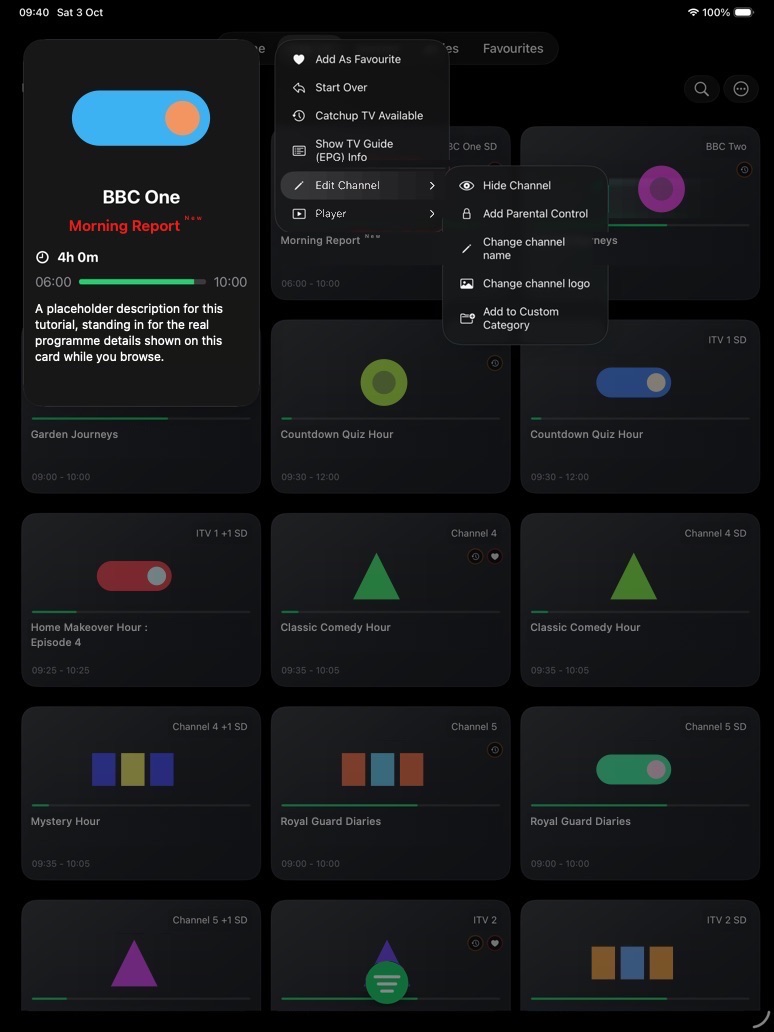
In Grid View, long-press a tile to see a preview card with the programme on now, how long it runs, a progress bar, and its description, alongside a menu:

  • Add As Favourite, Start Over, Catchup TV Available, and Show TV Guide (EPG) Info.
  • Edit Channel: Hide Channel, Add Parental Control, Change channel name, Change channel logo, and Add to Custom Category.
  • Player: play the channel in the VLC app (premium).
  • Recording and reminder options appear when Snappier Server or programme reminders are set up.
Long-press menu on an iPad channel tile with Add As Favourite, Start Over, Catchup TV Available, Show TV Guide (EPG) Info, Edit Channel, and Player.
A channel's long-press menu.
Edit Channel submenu with Hide Channel, Add Parental Control, Change channel name, Change channel logo, and Add to Custom Category.
The Edit Channel submenu.

Player

Watching on iPad

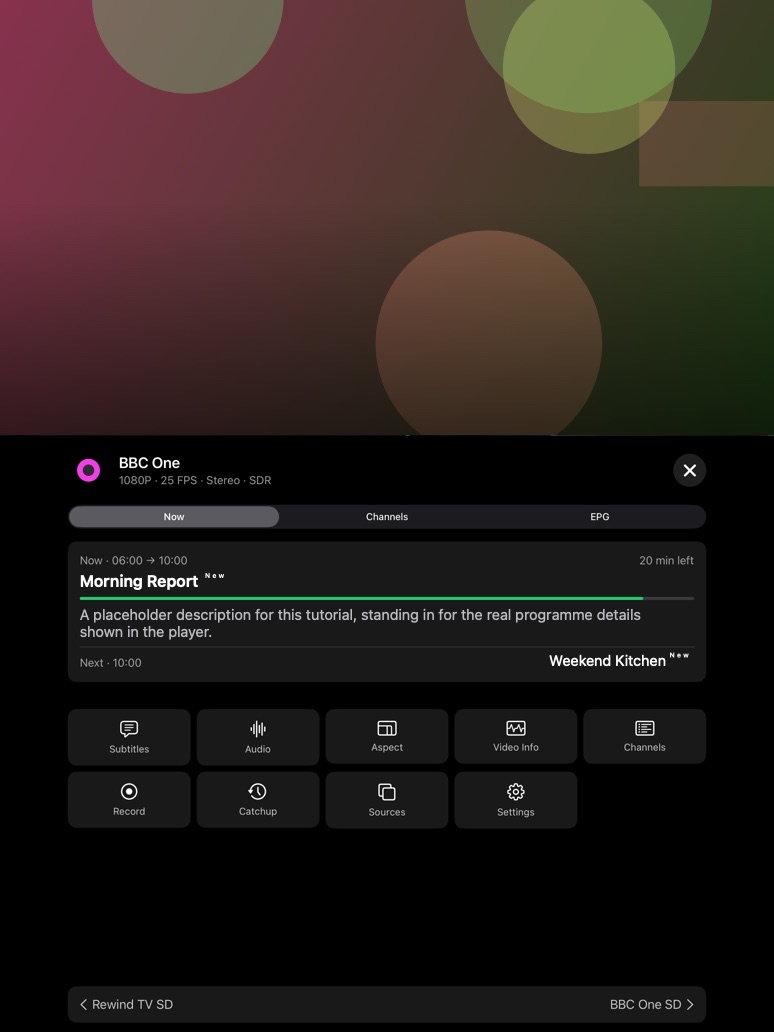
Held upright, the player shows the picture at the top and a panel below, like on iPhone. The header shows the channel and the stream's resolution, frame rate, audio, and dynamic range.

  • Now shows the current programme, how long is left, its description, and what is on next.
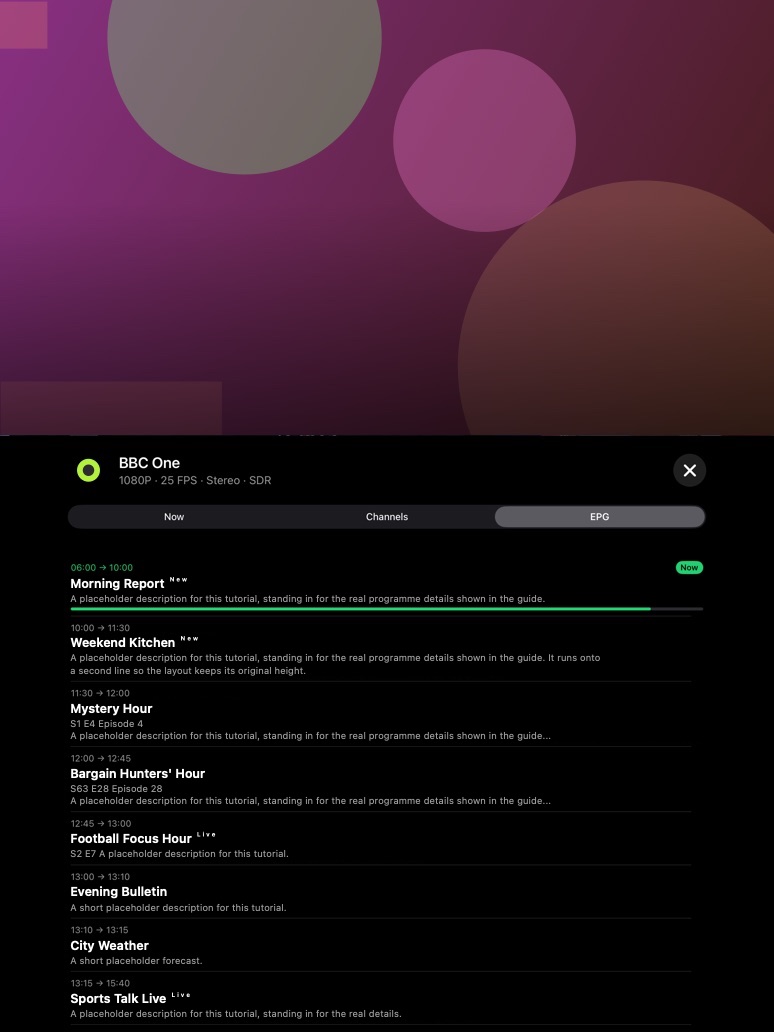
  • EPG lists the channel's upcoming programmes with times and descriptions; Channels lists the other channels.
  • The tiles are Subtitles, Audio, Aspect, Video Info, Channels, Record, Catchup, Sources, and Settings. Speed and Next Episode appear for movies and episodes.
  • The bar at the bottom jumps to the previous or next channel.
  • Tap the close button to return to browsing.
  • Player gestures (tap for controls, swipe to change channel or skip, double-tap to skip) are the same as on iPhone.
iPad player with video at the top, the Now tab showing the current programme, time left and next programme, and control tiles.
The Now tab and controls.
iPad player EPG tab listing the channel's programmes with times and descriptions.
The EPG tab.

Movies

Browse movies and open details

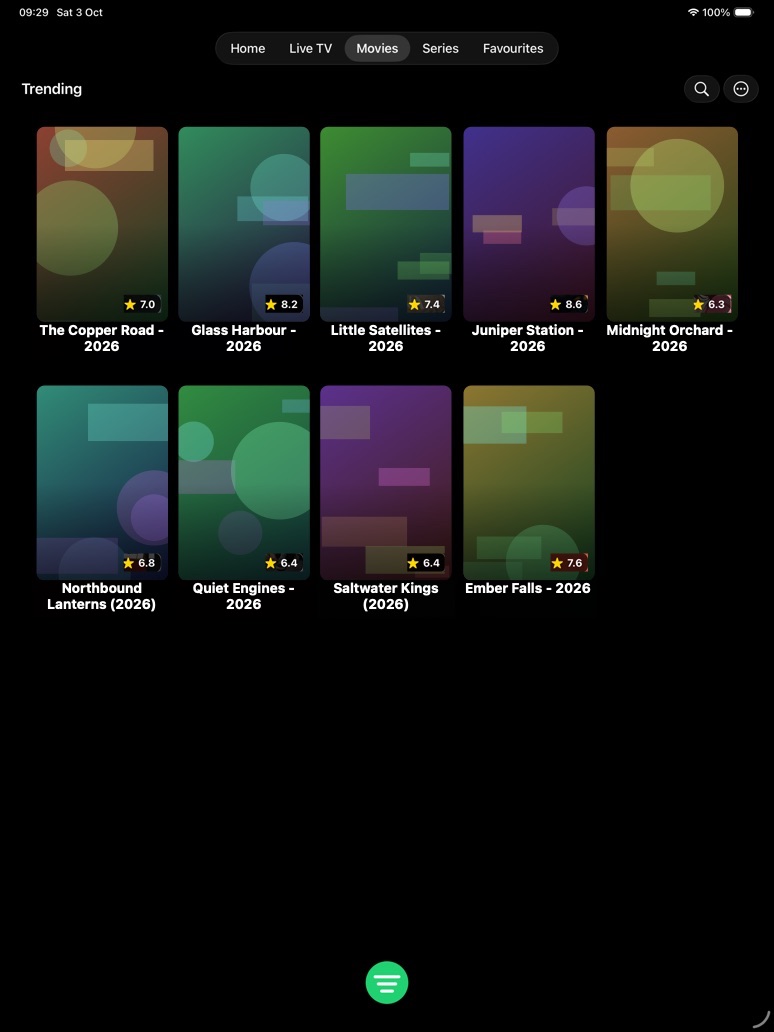
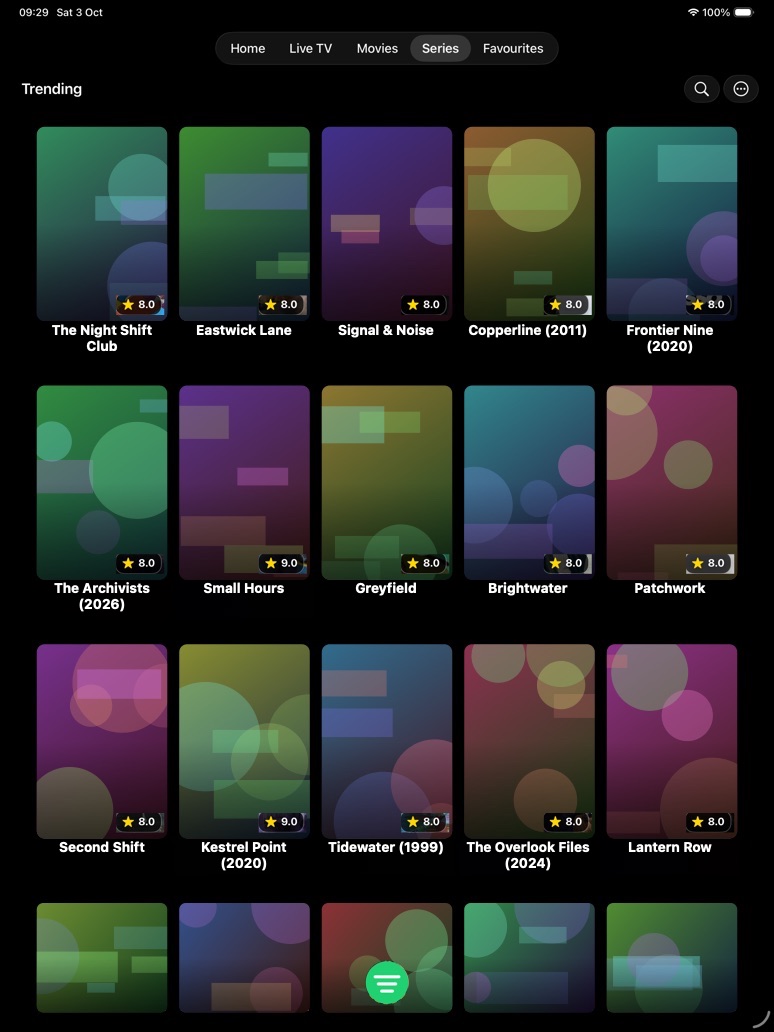
Movies shows five posters across, with ratings on each poster.

  • Tap the green button to change category, and long-press a poster for its options.
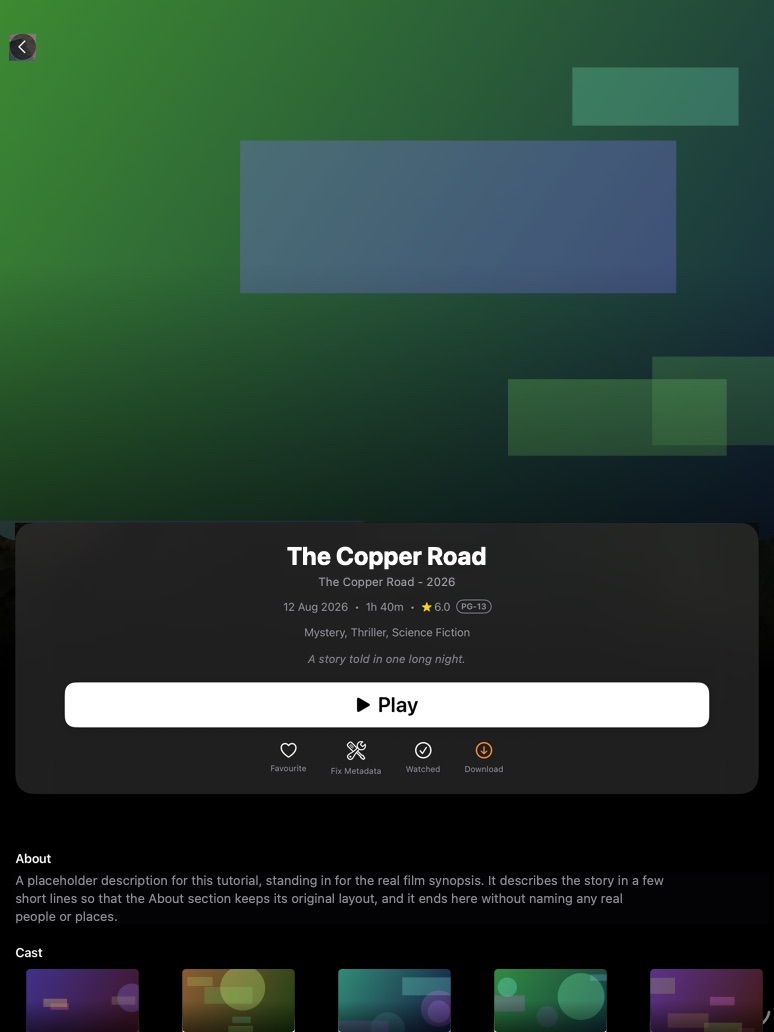
  • The details screen has Play, then Favourite, Fix Metadata, Watched, and Download, followed by About and Cast.
  • Long-press the Play button for more playback and download choices.
iPad Movies grid with five posters per row and rating badges.
The Movies grid.
iPad movie details with title, date, running time, rating, genres, Play, and Favourite, Fix Metadata, Watched, and Download.
Movie details.

Series

Find shows and pick episodes

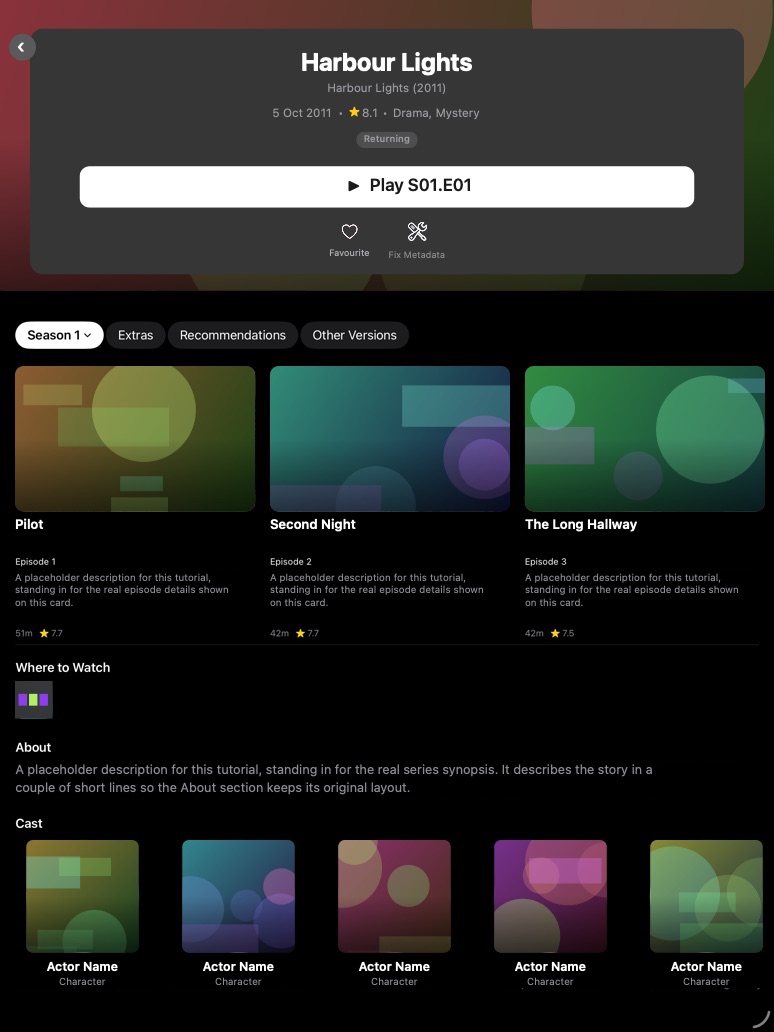
Series uses the same five-across poster grid. On a show's details screen, episodes are shown as large cards with a description, running time, and rating.

  • Play shows which episode it will play, for example Play S01.E01.
  • Use the Season picker and the Extras, Recommendations, and Other Versions tabs.
  • Below the episodes are Where to Watch, About, and Cast.
  • Long-press an episode for watched, download, and player options.
iPad Series poster grid with rating badges.
The Series grid.
iPad series details with Play S01.E01, Favourite, Fix Metadata, a season picker, episode cards, Where to Watch, About, and Cast.
Series details with episode cards.

Favourites

Saved items in a sidebar

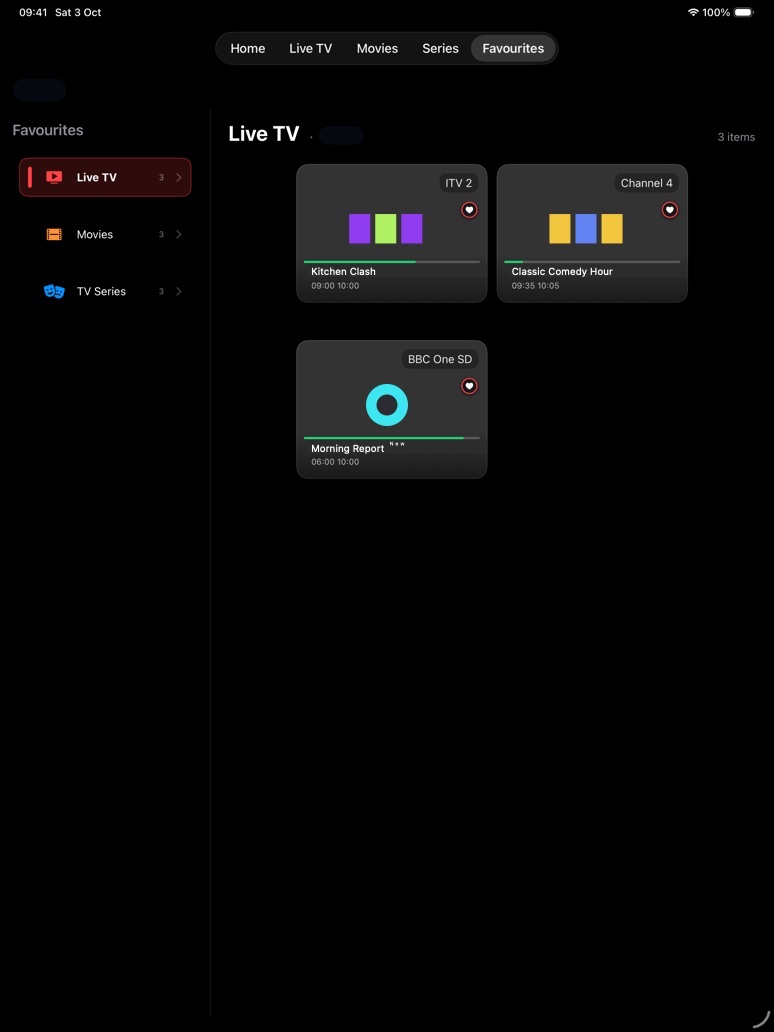
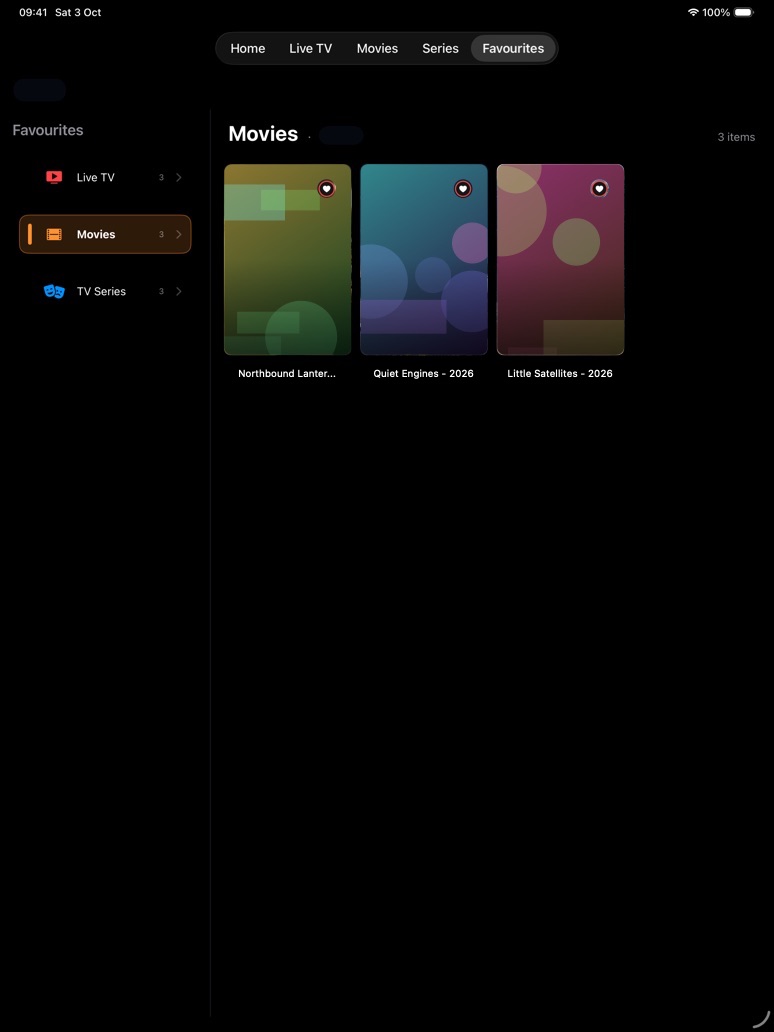
On iPad, Favourites has a sidebar on the left with Live TV, Movies, and TV Series and a count for each. The main area shows the saved items for the selected type and playlist. Channel tiles show what is on now with a progress bar; movies and series show their posters.

  • Tap a type in the sidebar to switch.
  • Add favourites from any long-press menu or the Favourite button on a details screen.
iPad Favourites with the Live TV sidebar item selected and three favourite channels showing what is on now.
Live TV favourites. The playlist name is redacted.
iPad Favourites with Movies selected and three favourite movie posters.
Movie favourites.

Settings

The same Settings, with a few iPad extras

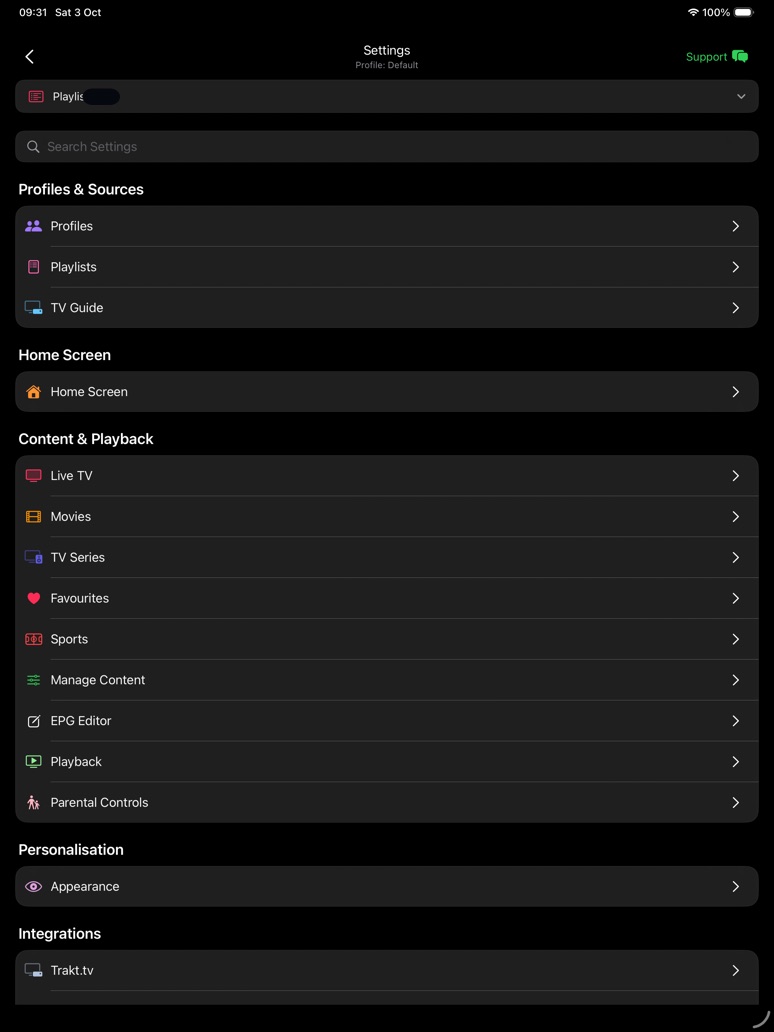
Settings has the same groups as on iPhone: Profiles & Sources, Home Screen, Content & Playback, Personalisation, Integrations, and App & System, with the playlist switcher and search at the top.

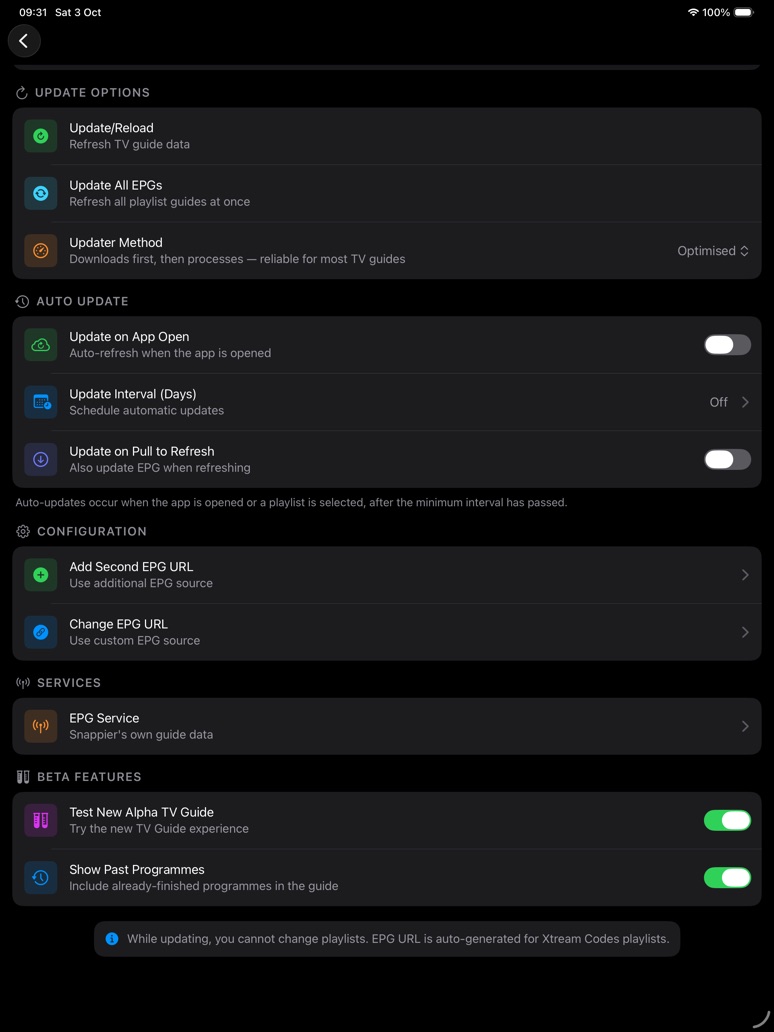
  • TV Guide has a Beta Features group on iPad: Test New Alpha TV Guide and Show Past Programmes.
  • The TV Guide note explains that you cannot change playlists while the guide is updating, and that the EPG URL is generated automatically for Xtream Codes playlists.
  • For what each settings page contains, see Settings options in the iPhone guide.
iPad Settings with playlist switcher, search, and grouped rows.
Settings on iPad.
iPad TV Guide settings with update options, auto update, configuration, services, and beta features.
TV Guide settings, including Beta Features.

Same as iPhone

Covered in the iPhone guide

These work the same way on iPad, so they are explained once in the iPhone guide.

Touch gestures

Long-press, tap to preview, player swipes and double-taps, and pull to refresh.

Search

Grouped results, Search Options, and recent searches.

Downloads & recordings

Downloading movies and episodes, recordings, and copying over Wi-Fi.

Picture in Picture, AirPlay, widgets

Also available on iPad.

Troubleshooting

When the screen does not match the guide

A tab is missing

Open Settings > Appearance > Tab Bar Preferences.

Live TV looks different

You may be in another layout. Use More (…) > Change Layout to switch back to Grid View.

The TV Guide is empty

Open Settings > TV Guide and tap Update/Reload, or add a guide with Add Second EPG URL or EPG Service.

A menu item is missing

Some items need premium or Snappier Server. Locked items appear after Show Locked and your PIN.